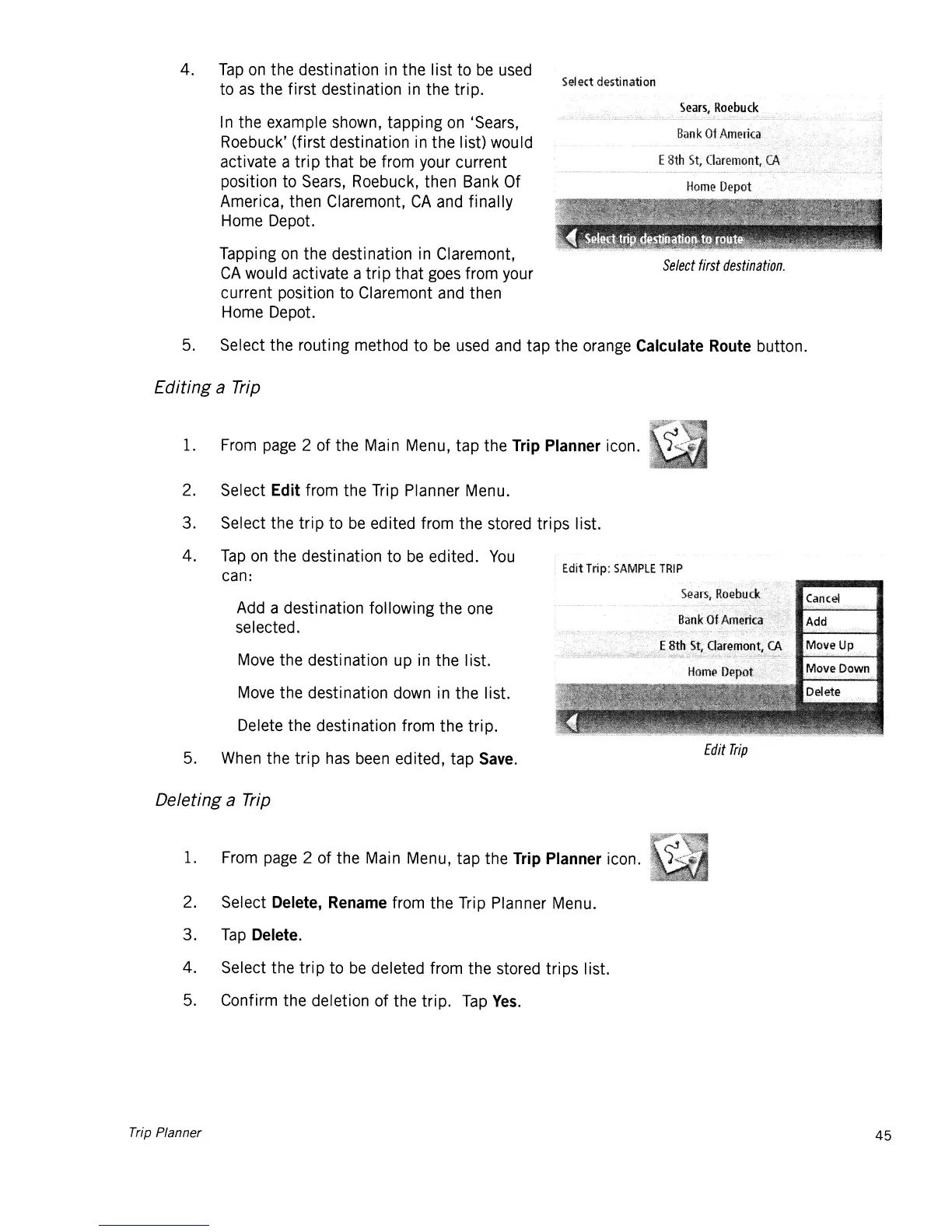
Select
first
destination.
Select destination
4.
Tap
on
the destination in the list
to
be
used
to
as
the first destination in the trip.
In the example shown, tapping
on
'Sears,
Roebuck' (first destination in the list) would
activate a trip
that
be
from your current
position to Sears, Roebuck, then Bank Of
America, then Claremont,
CA
and
finally
Home Depot.
Tapping
on
the destination in Claremont,
CA
would activate a
trip
that
goes from your
current position to Claremont and then
Home Depot.
5. Select the routing method to
be
used and tap the orange
Calculate
Route
button.
Editing a
Trip
1. From page 2 of the Main Menu,
tap
the
Trip
Planner
icon.
Edit
Trip
Edit
Trip:
SAMPLE
TRIP
Move the destination up in the list.
Move the destination down in the list.
Delete the destination from
the
tri
p.
5. When the
trip
has
been edited, tap
Save.
2. Select
Edit
from the Trip Planner Menu.
3. Select the
trip
to
be
edited from the stored
trips
list.
4.
Tap
on
the destination
to
be
edited.
You
can:
Add a destination following the one
selected.
Deleting a
Trip
1. From page 2 of the Main Menu,
tap
the
Trip
Planner
icon.
2. Select
Delete,
Rename
from the Trip Planner Menu.
3.
Tap
Delete.
4. Select the
trip
to
be
deleted from the stored
trips
list.
5. Confirm the deletion of the
trip.
Tap
Yes.
Trip Planner
45













 To Next Page