Special
Routing
Functions
When
a route
is
active, the
Main
Menu
functions
are
changed
to support special routing functions.
Routing to a POI Near an Approaching Freeway Exit
Note:
This function
is
available only while
on
a
freeway.
Also,
when
you
create a route to a
POI
near
an
exit, the original route will
be
canceled.
You
will
need
to
reset
the original
route
when
you
are
ready
to
continue.
1.
From
the Map
screen,
tap MENU.
2.
Tap
the
Exit
POls
icon.
3.
Tap
on
the
POI
icon
(restaurant,
gas
station,
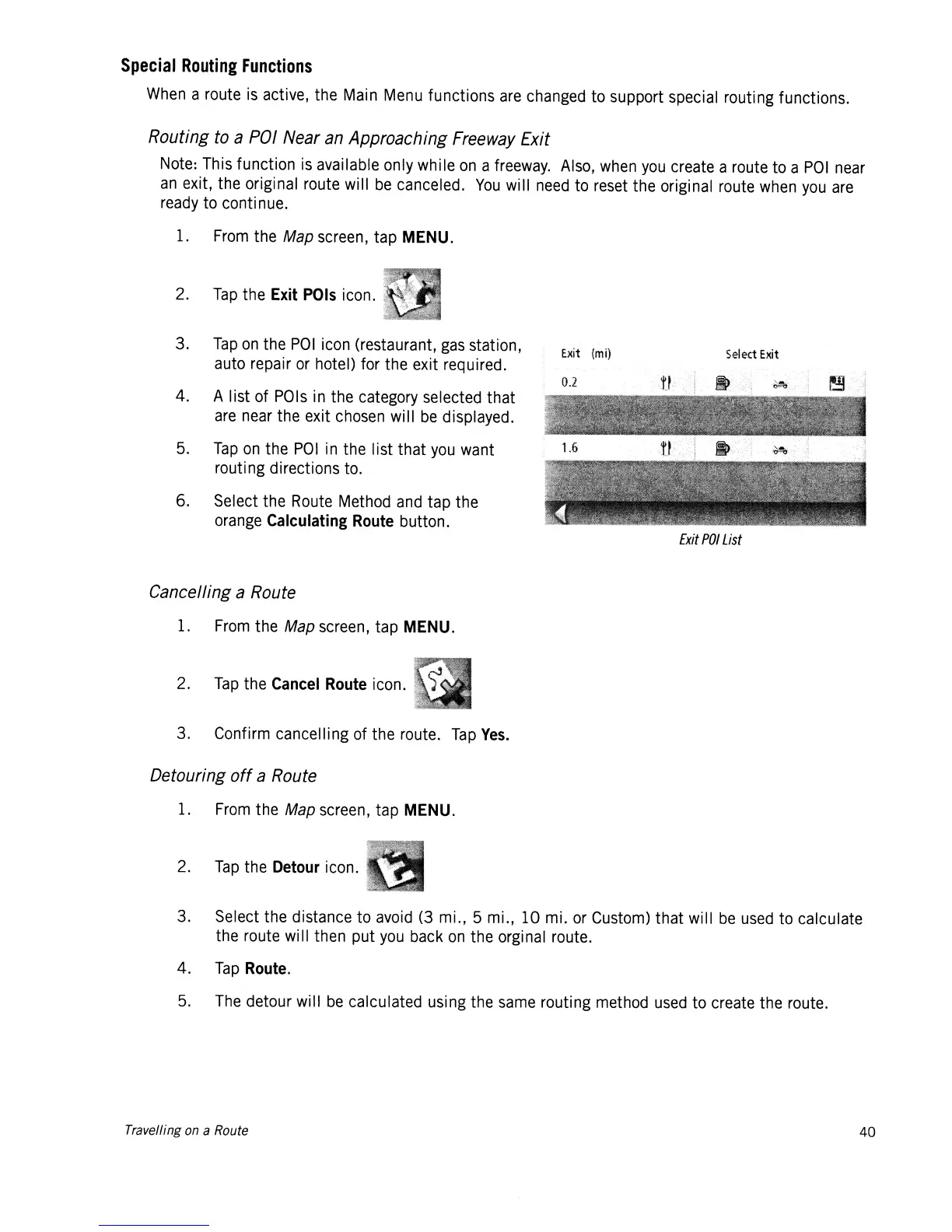
Exit
{mil
Select
Exit
auto repair
or
hotel) for the exit required.
4. A list of
POls
in
the
category
selected that
are
near
the exit
chosen
wi
II
be
displayed.
5.
Tap
on
the
POI
in
the list that
you
want
routing directions
to.
6. Select the
Route
Method
and
tap the
orange
Calculating
Route
button.
Exit
POI
List
Cancelling a Route
1.
From
the Map
screen,
tap MENU.
2.
Tap
the
Cancel
Route
icon.
3. Confirm cancelling of the route.
Tap
Yes.
Detouring
off
a Route
1.
From
the Map
screen,
tap
MENU.
2.
Tap
the
Detour
icon.
3. Select the distance to
avoid
(3
mi., 5 mi., 10 mi.
or
Custom)
that will
be
used
to calculate
the route will then put
you
back
on
the orginal route.
4.
Tap
Route.
5.
The
detour will
be
calculated using the
same
routing
method
used
to
create
the route.
Travelling on a Route
40













 To Next Page