EasyManua.ls Logo

Magellan Maestro 4040 - Routing to an Address from Your Favorites List; Editing an Address from Your Favorites List; Deleting an Address from Your Favorites List; Creating a New Entry

Magellan Maestro 4040
104 pages
Print Icon
To Next Page IconTo Next Page
To Previous Page IconTo Previous Page
Loading...
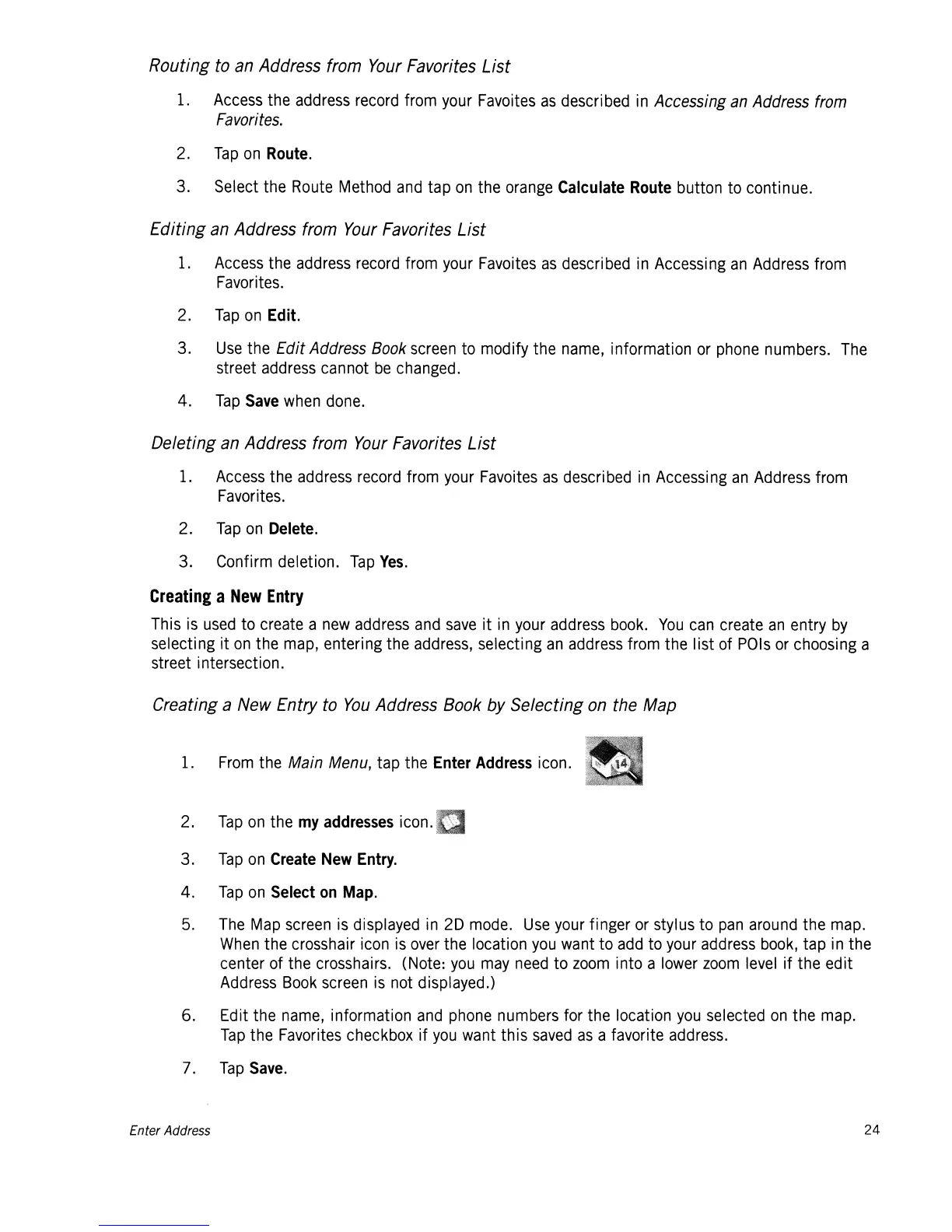
Routing to an Address from
Your
Favorites
List
1.
Access
the
address
record
from
your
Favoites
as
described
in
Accessing
an
Address
from
Favorites.
2.
Tap
on
Route.
3. Select the
Route
Method
and
tap
on
the
orange
Calculate
Route
button to continue.
Editing
an
Address from
Your
Favorites List
1.
Access
the
address
record
from
your
Favoites
as
described
in
Accessing
an
Address
from
Favorites.
2.
Tap
on
Edit.
3.
Use
the Edit
Address
Book
screen
to modify the
name,
information
or
phone
numbers.
The
street
address
cannot
be
changed.
4.
Tap
Save
when
done.
Deleting an Address from
Your
Favorites List
1.
Access
the
address
record
from
your
Favoites
as
described
in
Accessing
an
Address
from
Favorites.
2.
Tap
on
Delete.
3. Confirm deletion.
Tap
Yes.
Creating
a
New
Entry
This
is
used
to
create
a
new
address
and
save
it
in
your
address
book.
You
can
create
an
entry
by
selecting it
on
the
map,
entering the
address,
selecting
an
address
from the list of
POls
or
choosing a
street intersection.
Creating a New Entry to
You
Address Book by Selecting
on
the Map
1.
From
the
Main
Menu,
tap the Enter
Address
icon.
2.
Tap
on
the
my
addresses
icon.
3.
Tap
on
Create
New
Entry.
4.
Tap
on
Select
on
Map.
5.
The
Map
screen
is
displayed
in
20
mode.
Use
your
finger
or
stylus to
pan
around
the
map.
When
the crosshair
icon
is
over
the location
you
want
to
add
to
your
address
book,
tap
in
the
center of the crosshairs. (Note:
you
may
need
to
zoom
into a
lower
zoom
level
if the edit
Address
Book
screen
is
not displayed.)
6. Edit the
name,
information
and
phone
numbers for the location
you
selected
on
the
map.
Tap
the
Favorites
checkbox if
you
want
this
saved
as
a favorite
address.
7.
Tap
Save.
Enter Address
24

Table of Contents

Related product manuals