EasyManua.ls Logo

Magellan Maestro 4040 - Creating a Route to a POI by Name; Enhanced POIs; Loading a POI File

Magellan Maestro 4040
104 pages
Print Icon
To Next Page IconTo Next Page
To Previous Page IconTo Previous Page
Loading...
Creating a Route to a POI by Name
1.
From
the
Main
Menu,
tap the
Enter
Address
icon.
2.
Select
Search
by
Name.
3. Spell the
name
of the
POI
to
be
used
as
the
destination.
You
need
not
enter the full
name,
but the
more
characters
you
enter,
the
easier
it will
be
to
find the
exact
POI
you
are
search
i
ng
for.
4.
Select the
search
criteria:
Near
Current
Position,
Near
City
(requires entering a city
name)
or
Near
Address
(requires entering
an
address).
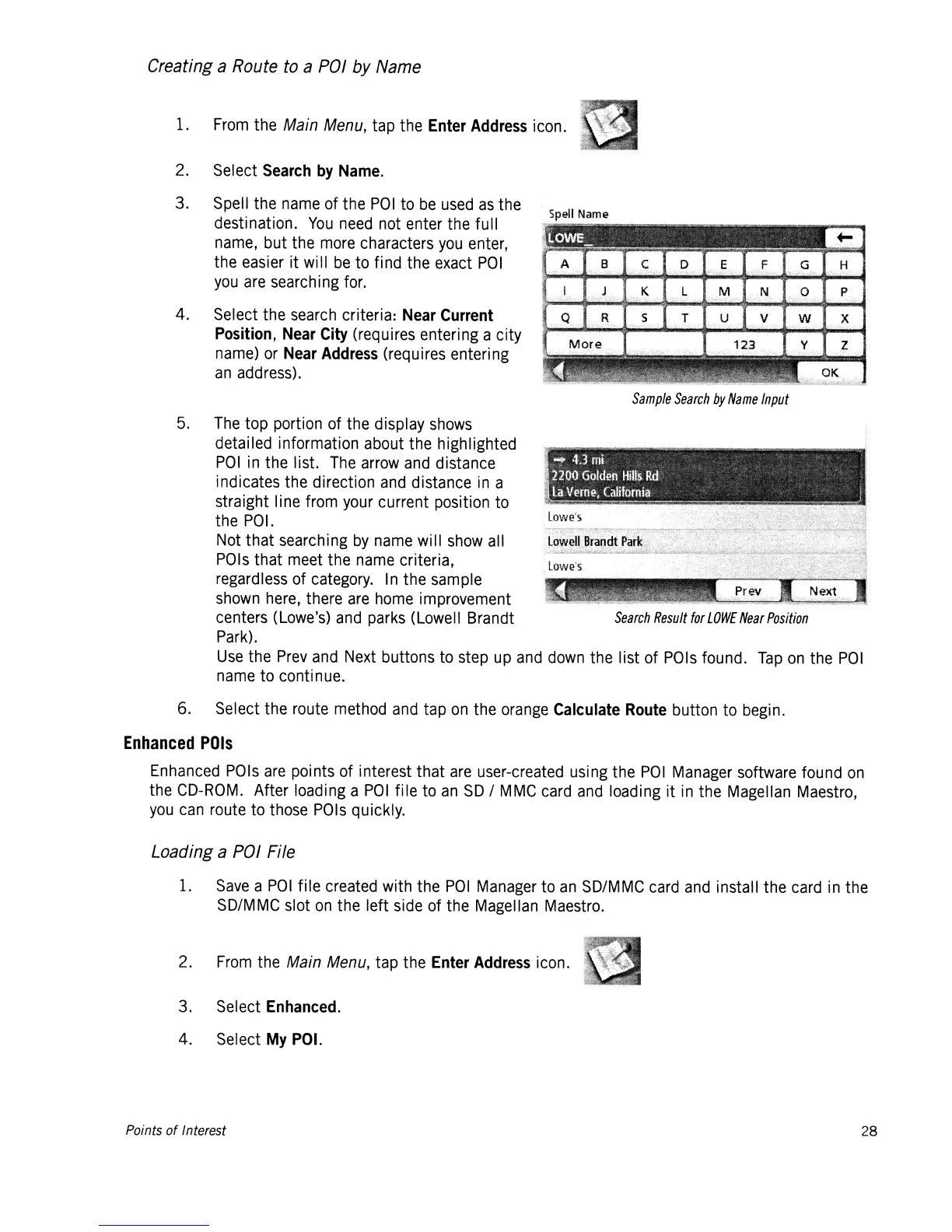
Sample
Search
by
Name
Input
5.
The
top portion of the display
shows
detailed information about the highlighted
POI
in
the list.
The
arrow
and
distance
indicates the direction
and
distance
in
a
straight line from
your
current position to
the
POI.
Not
that searching
by
name
will
show
all
POls
that
meet
the
name
criteria,
regardless
of
category.
In
the sample
shown
here,
there
are
home
improvement
centers
(Lowe's)
and
parks
(Lowell Brandt
Search
Result
for
LOWE
Near
Position
Park).
Use
the
Prev
and
Next
buttons
to
step
up
and
down
the list of
POls
found.
Tap
on
the
POI
name
to continue.
6.
Select the
route
method
and
tap
on
the
orange
Calculate
Route
button to
begin.
Enhanced
POls
Enhanced
POls
are
points of interest that
are
user-created using the
POI
Manager
software found
on
the
CD-ROM.
After loading a
POI
file
to
an
SO
/
MMC
card
and
loading it
in
the Magellan
Maestro,
you
can
route to
those
POls
quickly.
Loading a POI File
1.
Save
a
POI
file
created
with the
POI
Manager
to
an
SD/MMC
card
and
install the
card
in
the
SD/MMC
slot
on
the left side of the
Magellan
Maestro.
2.
From
the
Main
Menu,
tap the
Enter
Address
icon.
3.
Select
Enhanced.
4.
Select
My
POI.
Points
of
Interest
28

Table of Contents

Related product manuals