day colors. The switch
to
day colors will occur
the
following morning and then stay in day
colors.)
4.
Tap
Save
to record
the
changes and exit.
Setting Detour Options
Normally
the
map is displayed in
the
pastel colors for daytime
use
and a black background for
nighttime
use. Unchecking the Auto
Night
Mode will keep the map display using the pastel colors.
1. From page 2 of the Main Menu, tap
User
Options.
2.
Tap
Detour
Options.
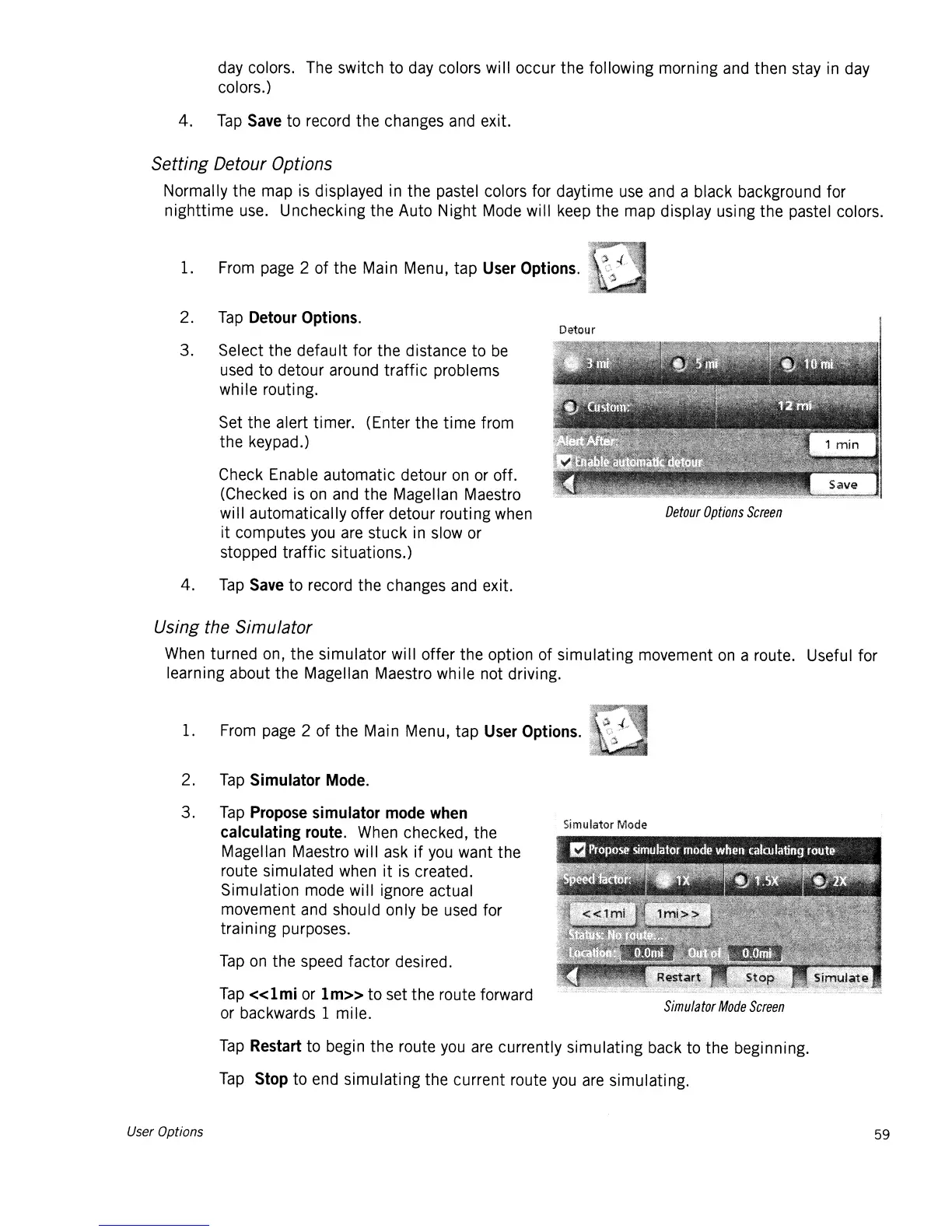
3. Select the
default
for the distance
to
be
used
to
detour around
traffic
problems
while routing.
Set the alert timer. (Enter the
time
from
the
keypad.)
Check Enable automatic detour
on
or off.
(Checked is
on
and the Magellan Maestro
wi
II
automatically offer detour routi ng when
it
computes you are stuck in slow or
stopped
traffic
situations.)
4.
Tap
Save
to
record
the
changes and exit.
Detour
Options
Screen
Using the Simulator
When turned on,
the
simulator will offer the option
of
simulating
movement
on
a route. Useful for
learning about the Magellan Maestro while not driving.
1. From page 2 of the Main Menu,
tap
User Options.
2.
Tap
Simulator
Mode.
3.
Tap
Propose
simulator
mode
when
calculating
route.
When checked, the
Magellan Maestro wi
II
ask
if
you want the
route simulated when
it
is created.
Simulation mode will ignore actual
movement and should only
be
used for
training
purposes.
Tap
on
the speed factor desired.
Tap
«lmi
or
1m»
to
set the route forward
or backwards 1 mile.
Si
mulatar
lViode
Simulator
Mode
Screen
User Options
Tap
Restart
to begin the route you are currently
simulating
back to the beginning.
Tap
Stop
to end
simulating
the
current route
you
are simulating.
59













 To Next Page