EasyManua.ls Logo

Magellan Maestro 4040 - Routing to a Panned Position; Current Location Screen; Accessing the Current Location Screen; Saving Your Current Location to Your Address Book

Magellan Maestro 4040
104 pages
Print Icon
To Next Page IconTo Next Page
To Previous Page IconTo Previous Page
Loading...
6.
When
the details for this
address
are
acceptable, tap l Save
7.
If
you
want to
now
route to th
is
address
tap [
.......
~~~~~
.....
]
or
if
you
are
done
tap
rcance'd].
8.
Tap
to
exit panning
and
return the
icon
to
your
current position.
Routing to a Panned Position
1.
Pan
the
map
until the
icon
crosshairs
are
over
the location
you
want
to route to.
2.
Tap
in
the center of the
icon
circle. (If nothing
happens
then
you
are
not
zoomed
in
enough.
Tap
the
zoom
in
icon
and
try again.)
3.
On
the Route
To
This
Address?
screen,
tap
4.
Select the routing method desired
and
tap the Calculate
Route
button.
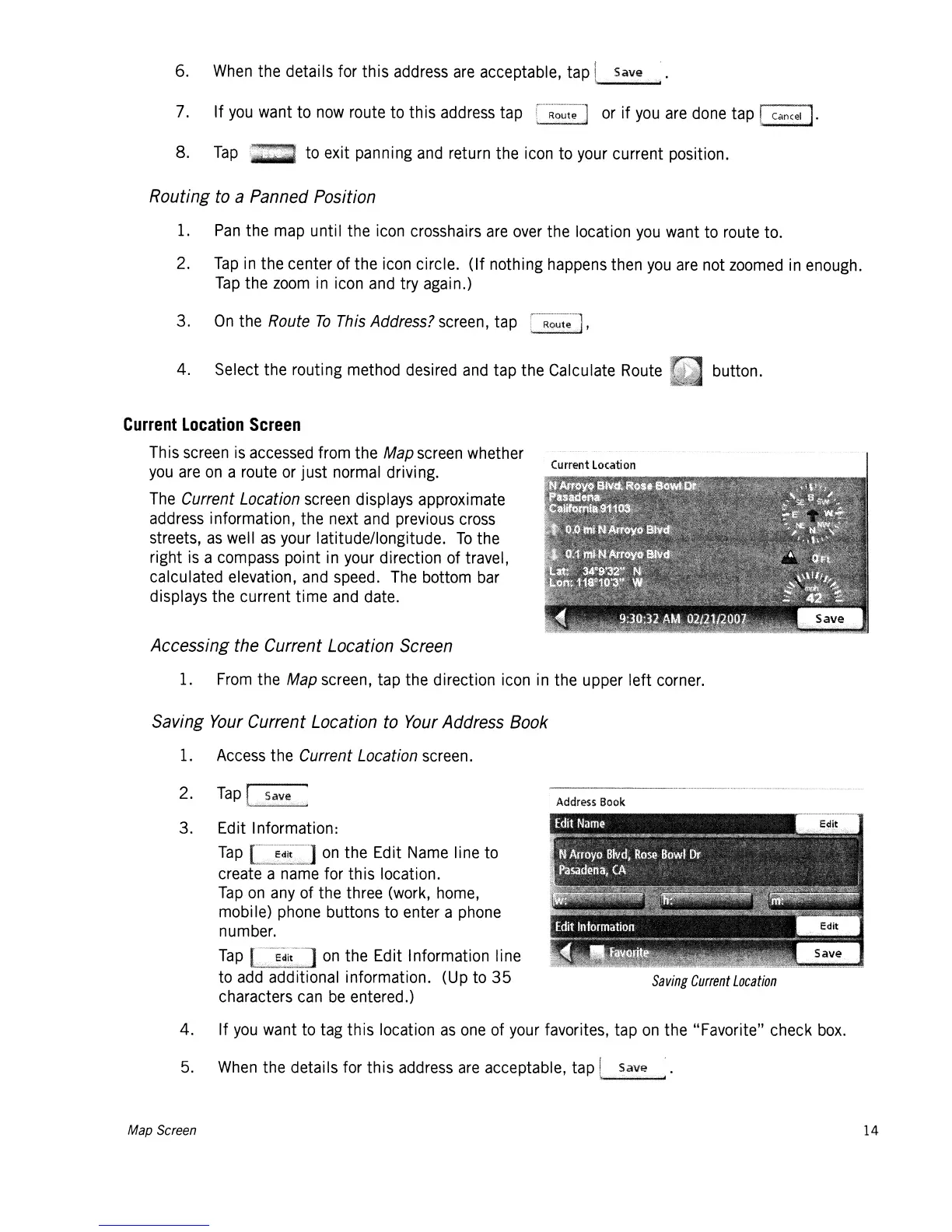
Current
Location
Screen
This
screen
is
accessed
from the
Map
screen
whether
you
are
on
a
route
or
just
normal
driving.
The
Current Location
screen
displays approximate
address
information, the
next
and
previous
cross
streets,
as
well
as
your
latitude/longitude.
To
the
right
is
a
compass
point
in
your
direction of travel,
calculated elevation,
and
speed.
The
bottom
bar
displays the current time
and
date.
Accessing the Current Location Screen
1.
From
the
Map
screen,
tap the direction
icon
in
the upper left
corner.
Saving
Your
Current Location to
Your
Address Book
1.
Access
the Current Location
screen.
2.
Tap
:~=.w~
Address
Book
Saving
Current
Location
3. Edit Information:
Tap
on
the Edit
Name
line to
create a
name
for this location.
Tap
on
any
of the three
(work,
home,
mobile)
phone
buttons to enter a
phone
number.
Tap
[.=~:~~L~~~~<J
on
the Edit Information line
to
add
additional information.
(Up
to
35
characters
can
be
entered.)
4. If
you
want
to
tag
this location
as
one
of
your
favorites, tap
on
the "Favorite" check
box.
5.
When
the details for this
address
are
acceptable, tap
~
...............
~
Map Screen
14

Table of Contents

Related product manuals