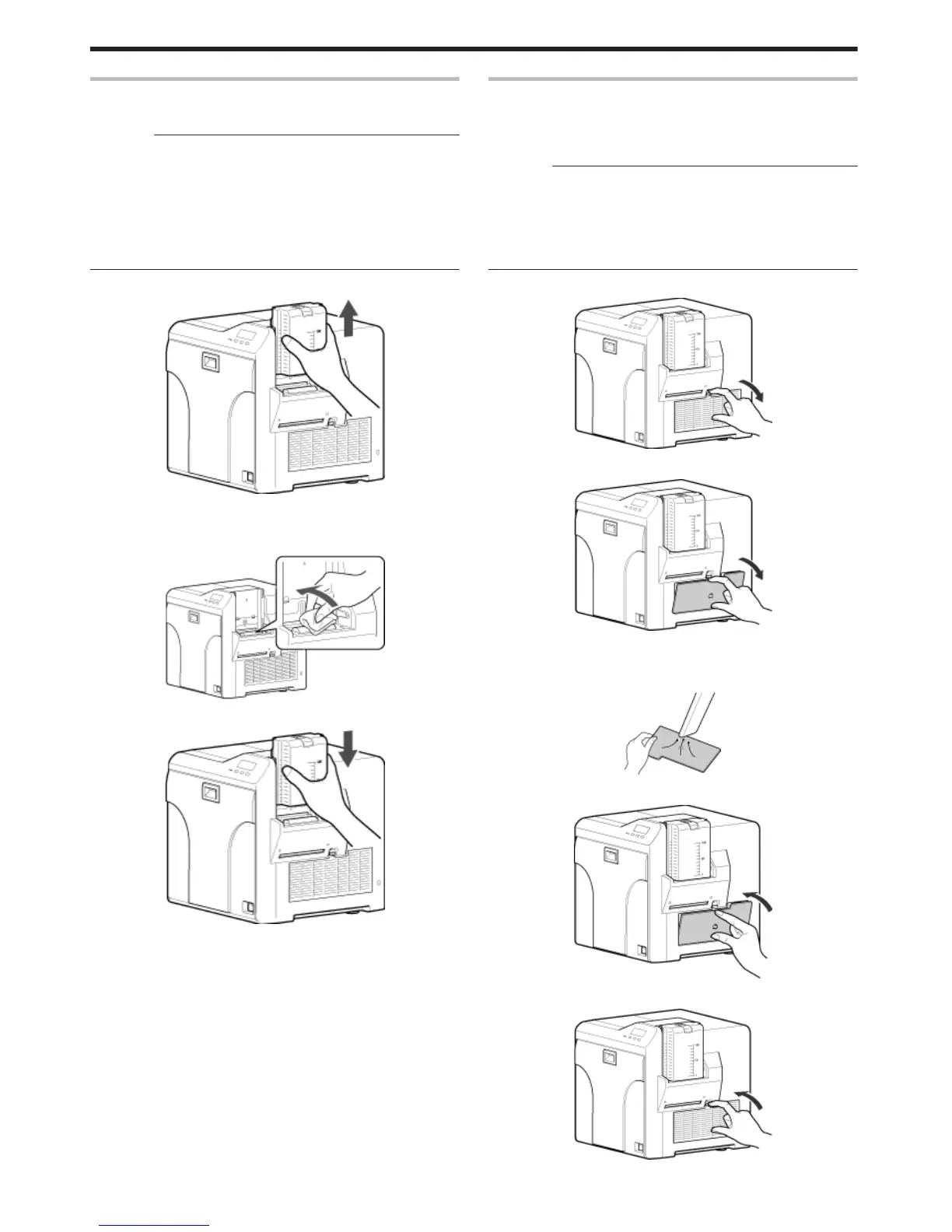
Card Load Roller
v
Card jams may occur if the card load roller is dirty.
Cautions:
v
If the security lock is on, deactivate it. After work is complete,
activate the security lock again.
v
Start work after ensuring that the power has been turned off.
v
After cleaning is complete, check to ensure that all dismantled parts
are restored to their original positions. Failure to restore the parts
may result in malfunction of the printer.
v
For details on separately sold items, please consult our authorized
dealers.
1
Remove the card hopper
.
2
Apply alcohol (sold separately) to a wiper (sold separately), and use
it to wipe the surface of the card load roller
v
Wipe while turning the card load roller in the anti-clockwise direction.
.
3
Install the card hopper
.
Fan Filter
v
The color of the printed card may appear faded or dirt may appear
conspicuous if the fan filter is dirty.
v
Perform cleaning after printing about 10,000 cards.
Cautions:
v
Start work after ensuring that the power has been turned off.
v
After cleaning is complete, check to ensure that all dismantled parts
are restored to their original positions. Failure to restore the parts
may result in malfunction of the printer.
v
Replace the fan filter with a new one after using it for about one year.
For details on its replacement, please consult our authorized dealers.
1
Remove the filter cover located on the side of the printer
.
2
Remove the fan filter
.
3
Remove any dirt that is attached to the fan filter using a vacuum cleaner
v
Hold the filter with your hand to prevent it from being sucked into the
vacuum cleaner.
.
4
Set the fan filter
.
5
Set the filter cover
.
Maintenance
36



 To Next Page