20 Matrox Extio 3 Series – User Guide
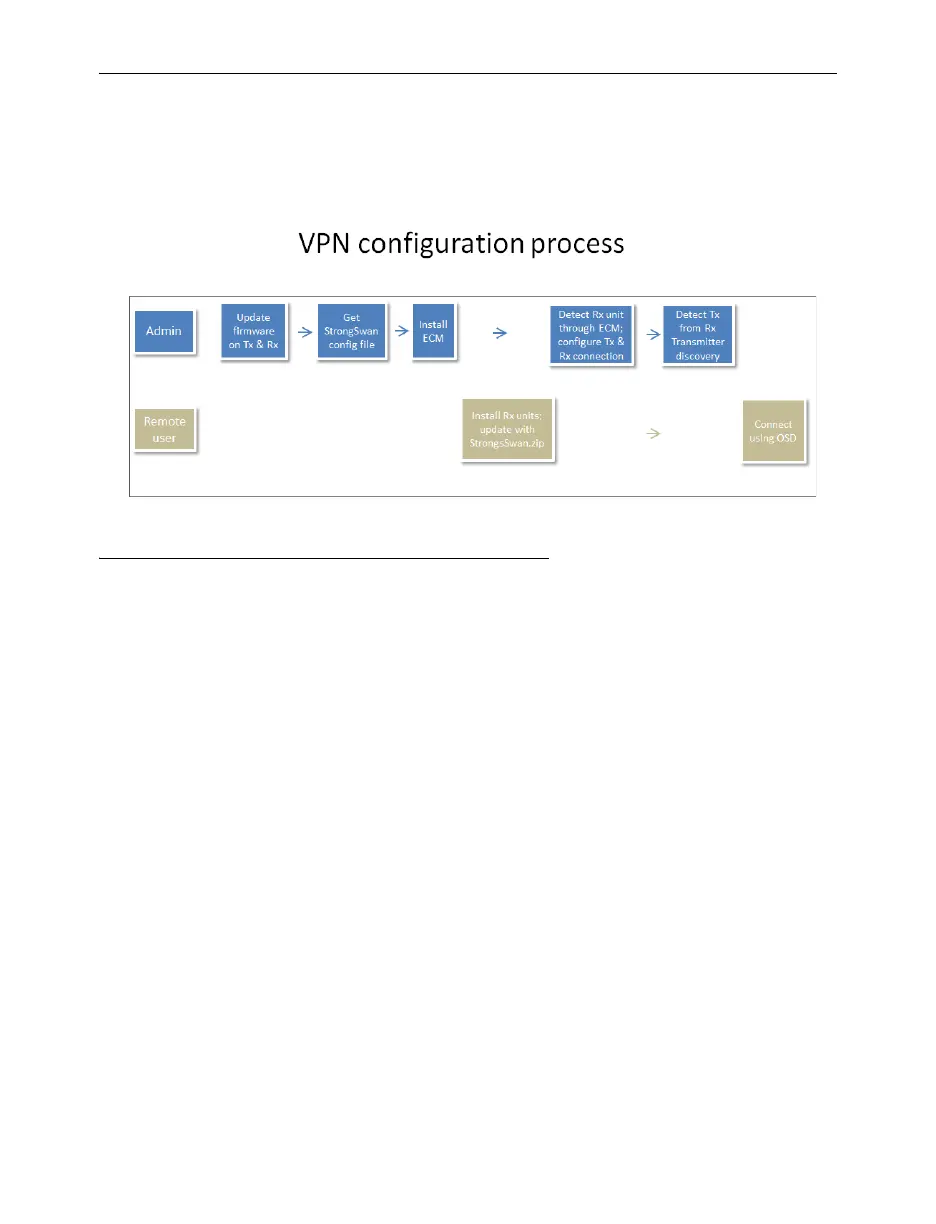
VPN configuration
To configure the Internet with IPSec VPN connection on the receiver, the network administrator as
well as the remote user must perform the tasks described in this section.
Generate the VPN configuration file (network administrator)
Matrox Extio 3 uses Strongswan 5.8.4 IPsec VPN in tunnel mode.
The network administrator must do the following:
1
Generate a swanctl file for Strongswan 5.8.4. in the JSON format (2.1) and name it
swanctl.json
.
Note
: Matrox then converts
swanctl.json
to
swanctl.conf
internally. Matrox
provides a template JSON file (
swanctl-template.json
) that lists all supported parameters
with their default values when omitted. For more information, see “Appendix E - File
structure for swanctl.json”, page 108.
2
Next, create a “.zip” configuration file containing the s
wanctl.json
file, and optionally the
certificates and private keys in their respective swanctl sub-folders. For more
information, see “File structure for the VPN configuration file (strongswan.zip)”,
page 26.
3
Name the file
strongswan.zip
.
This file
must not
be password protected.
4
Place the file in the root of the first partition of a USB mass storage device.
Note
: The
USB mass storage device needs to be formatted as FAT32.
5
Make the USB mass storage device available to the remote user.
The remote user has to import this VPN configuration file into the Extio3 receiver unit using the USB
mass storage device.



 To Next Page