74 Matrox Extio 3 Series – User Guide
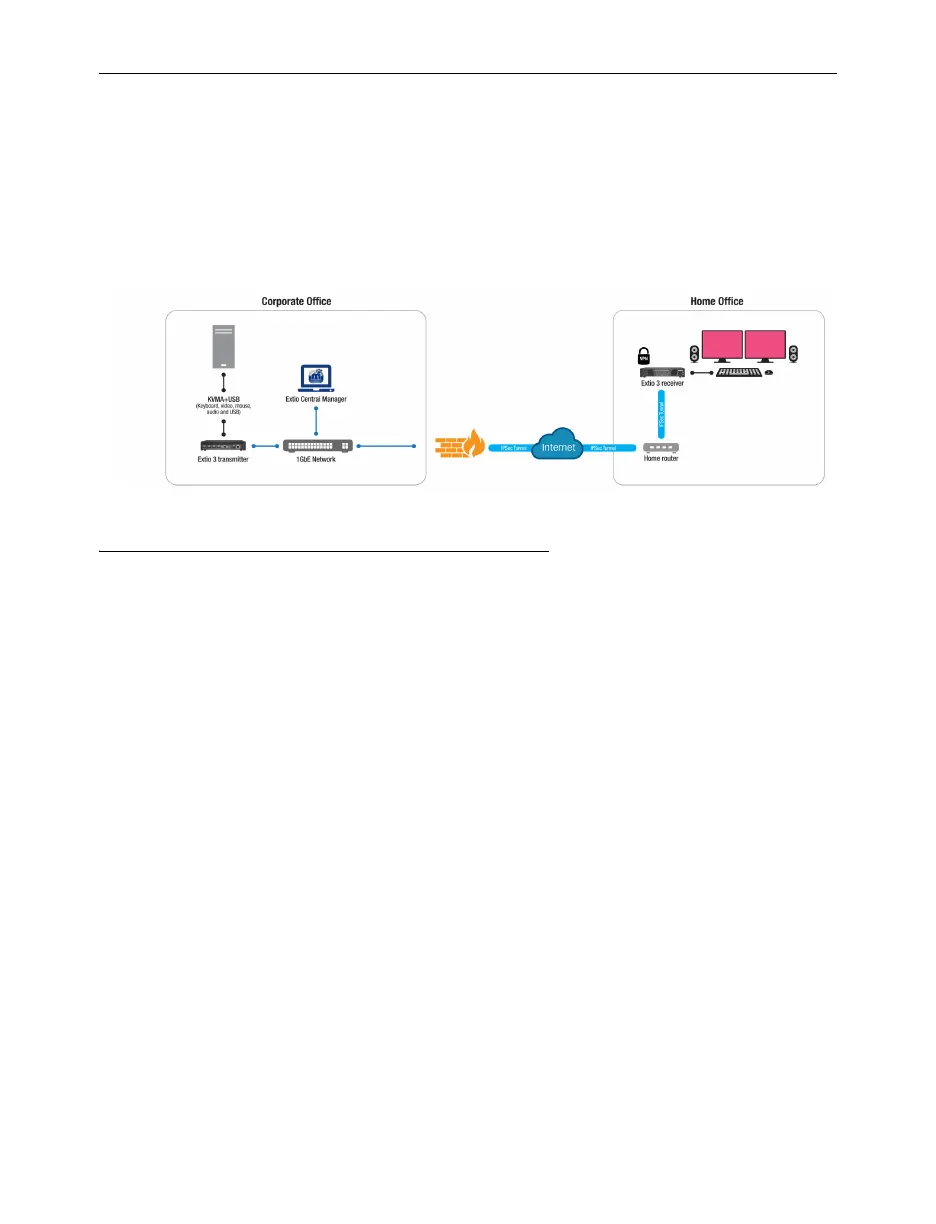
Setting up networked mode (Internet
with IPSec VPN)
Your Matrox Extio 3 over Internet allows multiple users, from different locations, to securely access
and control the same system and collaborate on the same tasks. In Networked-Internet with IPSec
VPN mode, an Extio 3 device is ensured a safe connection via an IPSec VPN client that allows the
communication to be private and offers multi-factor authentication.
Before you begin
Whenever you change your connection setup, make sure you’re using the correct
connectors and that all connectors are properly fastened. Also, don’t change connections
while your Extio transmitter and receiver are turned on. For more information, see
“Connecting your Extio 3 devices”, page 31.
Make sure your Extio Central Manager software is installed on a separate system on your
network, and you’ve set the allowed connections between your Extio transmitter and
receiver devices. For more information, see your Matrox Extio Central Manager User
Guide.
Make sure all of your Extio 3 transmitter and receiver devices are using version 3.01.50
or 3.03.00 or higher of the Matrox Extio 3 firmware package. For more information, see
“Updating your Matrox Extio 3 firmware (Networked-LAN mode)”, page 48.
Make sure all your Extio 3 devices are using the
same version
(3.01.50, or 3.03.00 or
higher) of the firmware package. Also, the version of your firmware package must match
the version of your Extio Central Manager software package.
To assign an initial IP address to your devices, a DHCP (Dynamic Host Configuration
Protocol) server is required.
Windows Server 2019 and 2022
– Make sure the SSDP Discovery service, network
discovery, and file sharing options are enabled.



 To Next Page