48 Matrox Extio 3 Series – User Guide
Updating your Matrox Extio 3 firmware (Networked-LAN mode)
1 Download and extract the firmware package
Download the latest firmware package and extract the files to a local folder on your system
(for example,
C:\Extio3FirmwareUpdate
).
2 Run the Updater Over Network file
Browse to the folder containing the extracted files, then run the
UpdaterOverNetwork.exe
file.
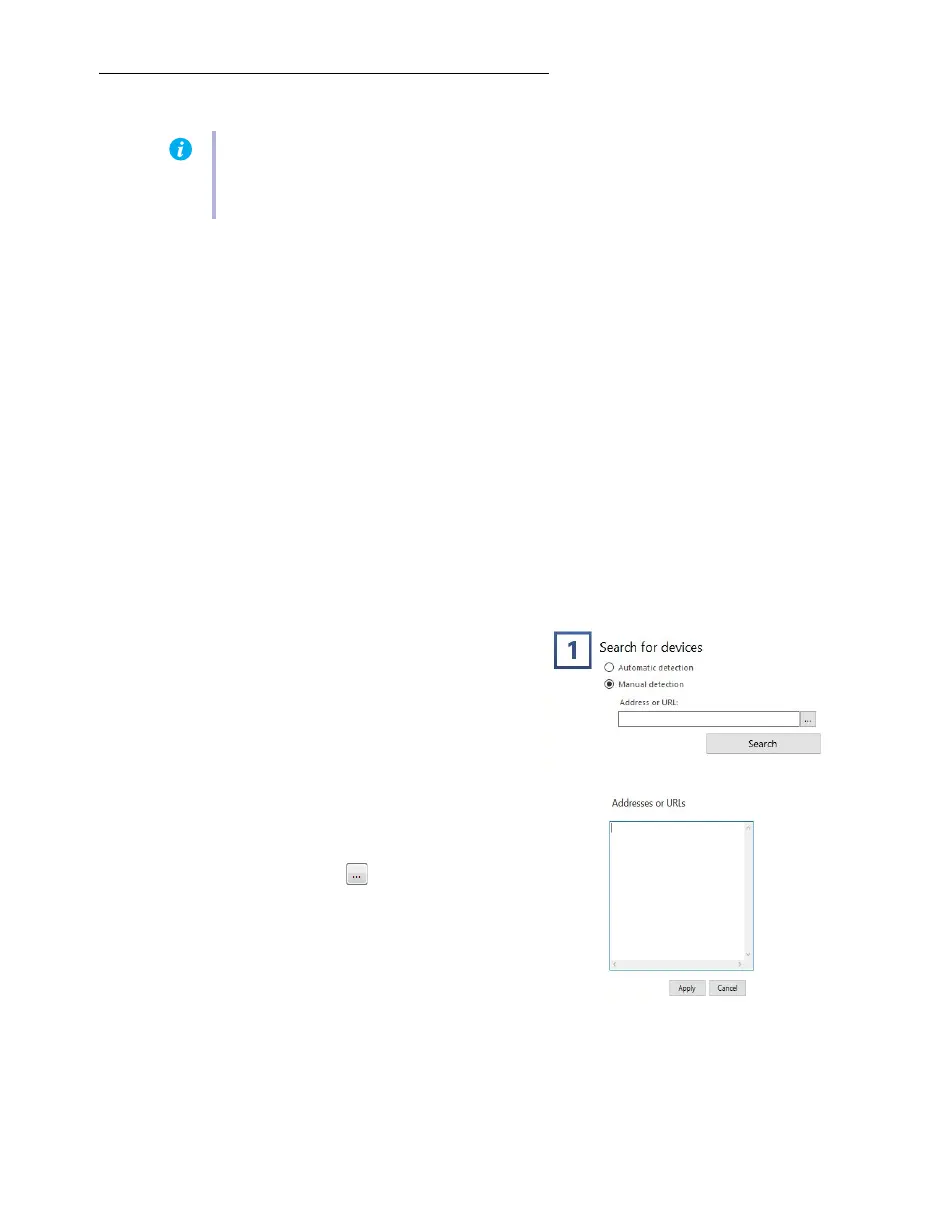
3 Search for available Extio 3 devices or locate your Extio 3 device
using the IP address
Automatic detection
– To search for the Extio 3 devices on your subnet, select
Automatic
detection
.
To start searching for devices, click
Search
.
Manual detection
– If devices aren’t
automatically detected, you can manually
locate one or more Extio 3 devices using
their IP address. To manually locate the
devices, select
Manual detection
,
and next to
Address or URL
enter the IP address of each
Extio 3 device you want to locate.
If you’re entering multiple addresses,
separate each address with a space. (You can
also enter the addresses or URLS by clicking
the browse button ( ) and entering one IP
address per line.)
When you’re done entering the addresses or
URLs, click
Apply
. To discard the last
changes made, click
Cancel
.
To start searching for devices, click
Search
.
To stop searching for devices, click
Stop
. To resume searching for devices, click
Search
again.
Note:
If you’re using Networked-LAN mode, make sure the version of your firmware
package matches the version of the Matrox Extio Central Manager software package
installed on your controller system.



 To Next Page