18 Matrox Extio 3 Series – User Guide
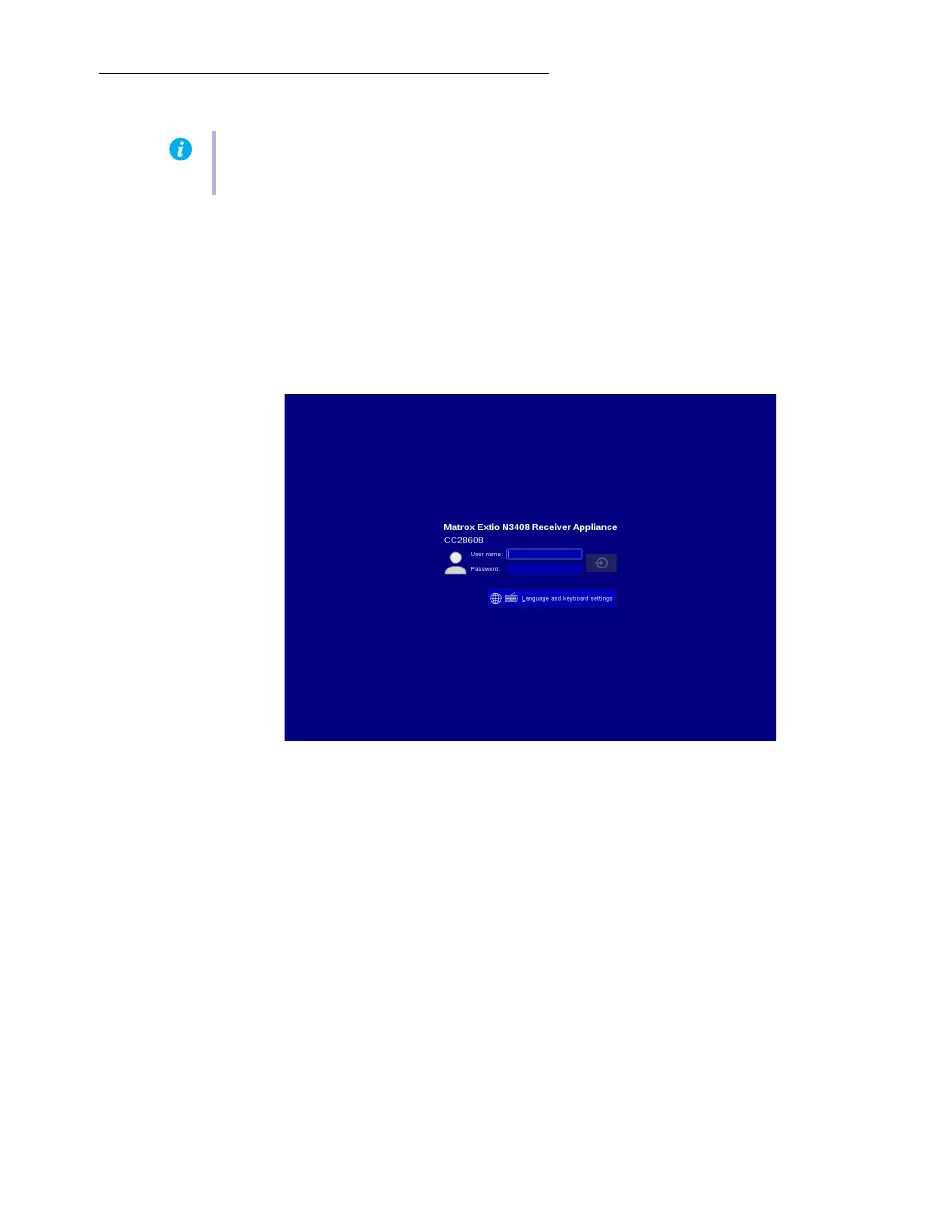
Changing the OSD language
The first time the OSD login screen displays, the field labels are displayed in the default language set
in the Matrox Extio Central Manager software (
Default OSD language settings
option in the
OSD
page).
To change to your preferred language:
1
From the OSD login screen, click the
Language and Keyboard settings
button found at
the bottom.
Note:
You can select the language to use in the OSD user interface if your company has
customized languages set up through the OEM customization module.



 To Next Page