HELIOS LED Processing Platform - USER GUIDE 105
Stacking Settings
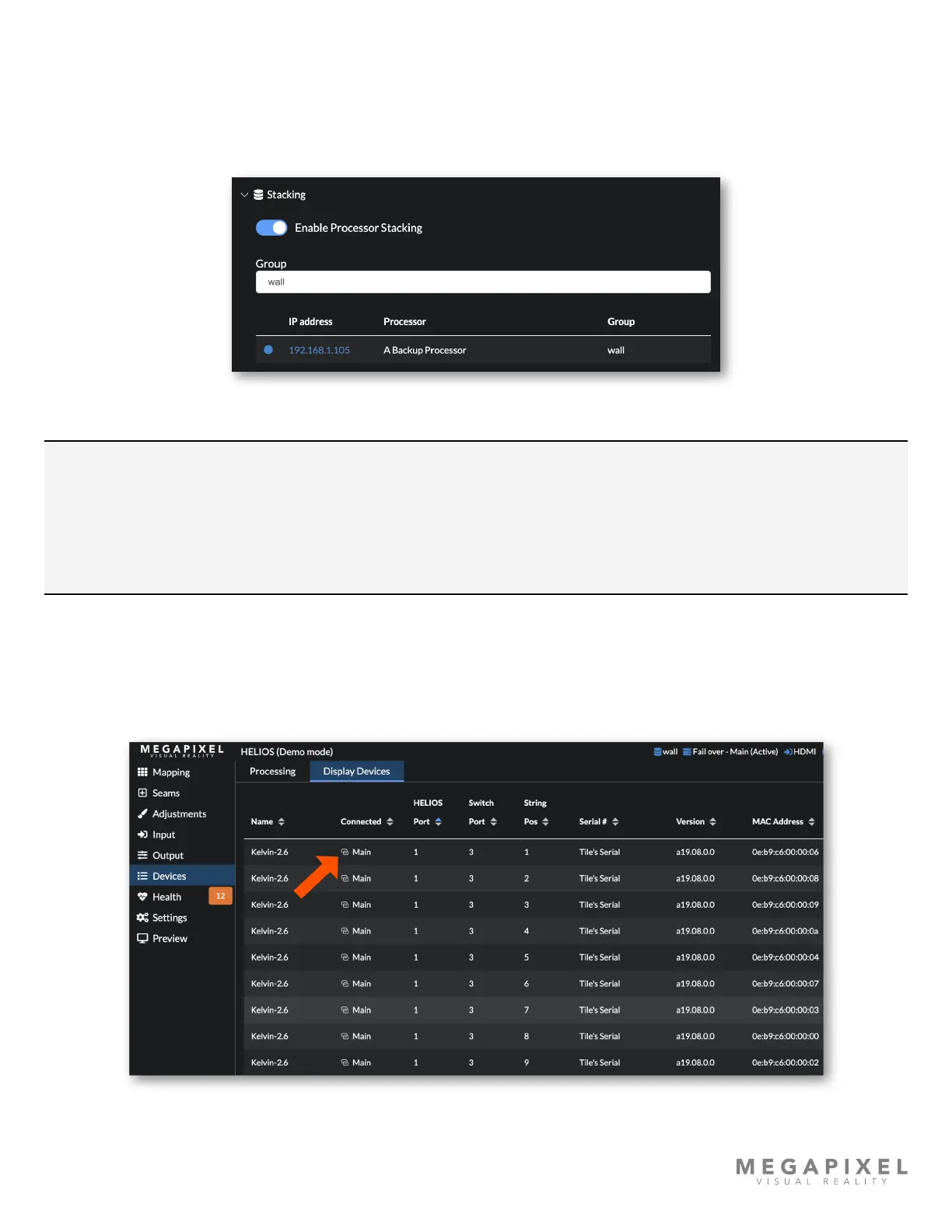
Stacking should be used when conguring a redundant system. When enabled, processors share states such as global
brightness, tile positions, and redundancy settings. After enabling stacking, enter a group name to join a stacking group.
If another processor is found with the same group name, a blue dot icon shows up in the list next to the IP address
indicating that the processor has joined the group. Click the IP address to open the HELIOS UI of that processor.
Figure 141: Stacking settings
NOTE: Let stacking take care of sharing data from one processor to another. Do not manually transfer saved
congurations from one stacked processor to another. Stack processors before mapping tiles. Alternatively,
create the stack group with the primary processor rst. The order in which processors join a stack group
matters! Settings are propagated based on how long processors have been part of the group. Newly added
processors will copy the settings from the existing. If stacking is done in the wrong order, without a saved
conguration, settings will be lost.
Devices Pane Link Icon
The devices pane shows a link icon next to items connected to the same system as the current webUI. In other words, if
the operator is currently controlling the Main system while browsing the Display Devices tab, all of the tiles connected to
the Main processor show link icons as in the example below.
Figure 142: Devices Pane link icon



 To Next Page