HELIOS LED Processing Platform - USER GUIDE
82
Seams Pane
Displays occasionally have minor intensity variations at physical tile seams. This is usually caused by inconsistent physical
gaps between tiles. Prior to adjusting seams electronically, the installation should be checked for hardware
inconsistencies (e.g. latches not engaged, tiles and LDMs not seated properly). The HELIOS Processor provides seam
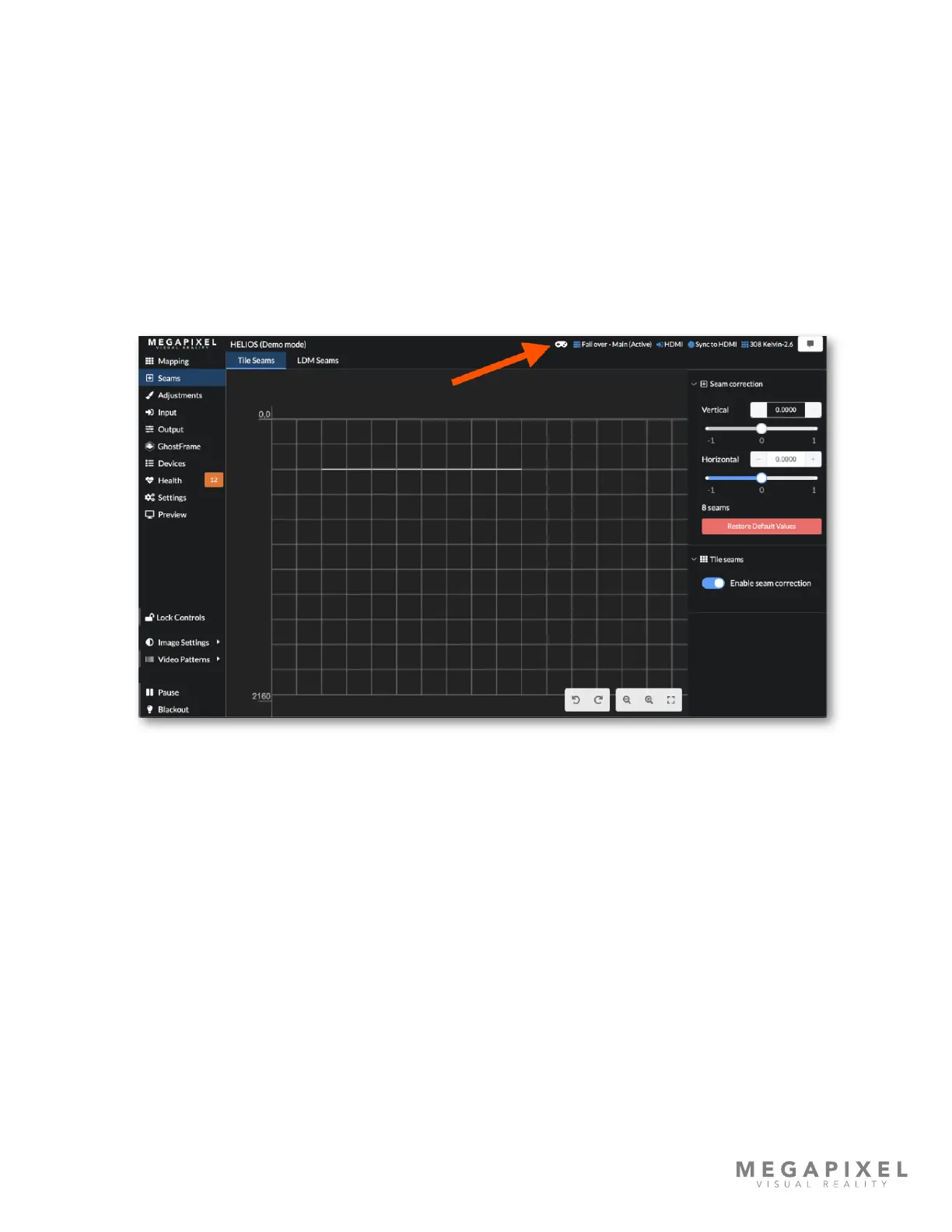
correction by specically adjusting the intensity of the edge LEDs. Shown below is a selection of horizontal seams
highlighted in light blue. When using the Tile Seams tab, each selectable region in the user interface is the edge of a tile.
When using the LDM Seams tab each selectable regions is an LDM (LED module) boundary.
We have found that video game controllers are well suited for the seam correction workow. The HELIOS UI supports
Xbox and Playstation* controllers. The game controller connects via USB or Bluetooth to the laptop or mobile device that
is running the HELIOS web UI. Multiple users are supported as each browser connection can have a game controller
connected.
Figure 113: Seams pane.
Steps to setup a Bluetooth controller with a mobile host:
1. Begin with the controller turned off. Then, put the controller in pairing mode:
▪ Xbox - press the Xbox button to turn on the controller. Then, press and hold the Connect button for a few seconds.
▪ PlayStation - press and hold the PS and Share buttons at the same time until the light bar begins to ash.
2. Navigate to the Settings and ensure Bluetooth is turned on.
▪ Find the name of the controller under Other Devices. Tap the name to connect.
3. With the web browser in focus and connected to HELIOS press the X button on the controller.
4. A game pad icon should appear on the HELIOS UI conrming the link with the game controller.
* Xbox is a trademark of Microsoft® Corporation. PlayStation is a trademark of Sony Interactive Entertainment Inc.


 To Next Page