Envoy 2 E Series User Guide 20190805-30.docx || © 2019 MegaVoice Ltd. || Page 17 of 68
Navigation button specifics
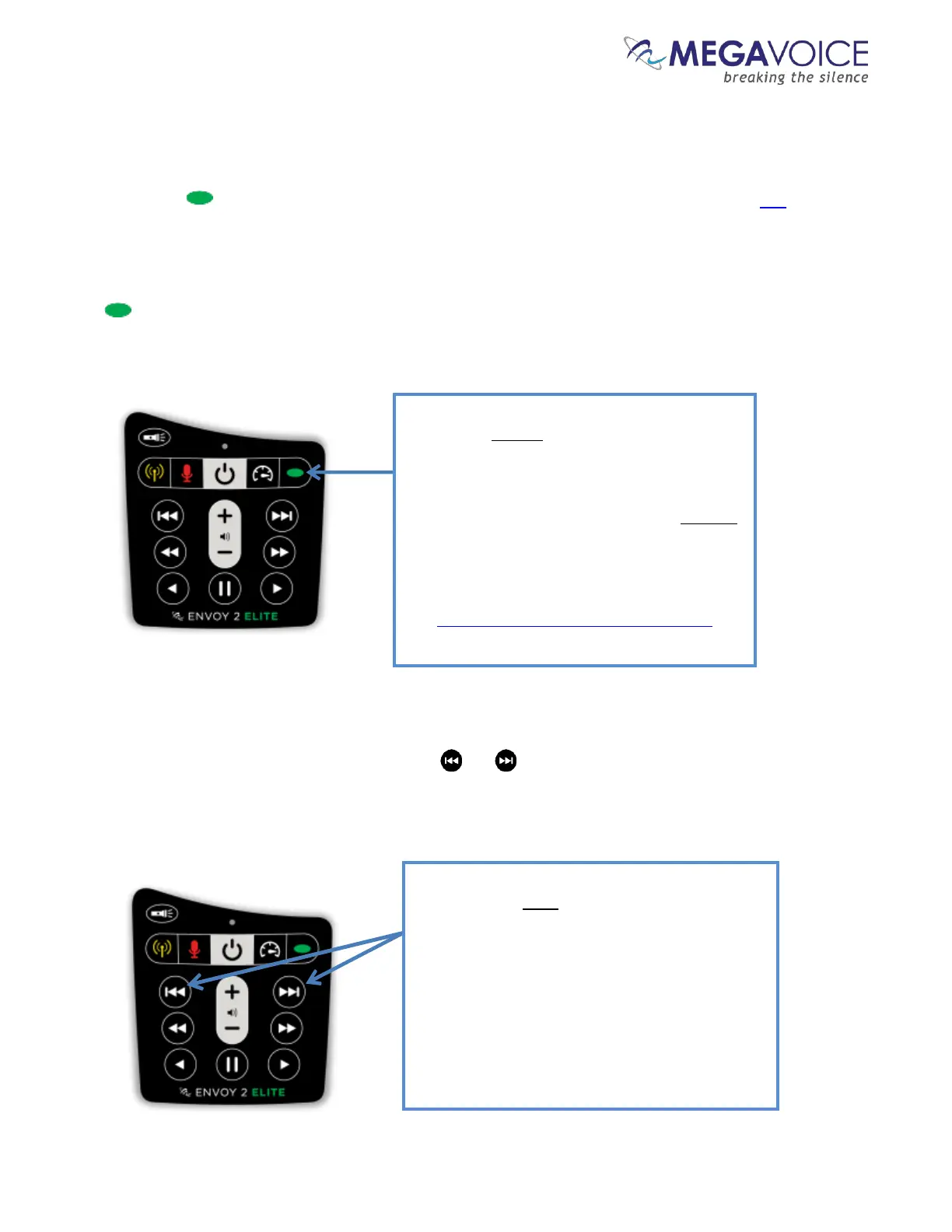
Initially, the player will start in audio playback mode. From any other mode, a 2-second press on the Green
Channel button will put the player in audio playback mode. While in audio playback mode the LED will be
green. The following diagrams address navigation while in audio playback mode, associating folders and files
within the valid structures to specific buttons.
There may be one or two Channel groups on the player. Each Channel may contain one or more “Sections”.
The button controls forward navigation through the Sections and Channels.
Figure 7: Channel and Section control buttons
Each Section may contain one or more “Books”. The and buttons control reverse/forward navigation
through the Books.
A click on the Green Channel button will scroll
to the next Section within the current Channel.
From the last Section it will scroll back to the
first within the current Channel. There may be
up to 20 Sections within a Channel folder.
A 2-second press will scroll to the next Channel
(if there is one). From the last Channel it will
either scroll to the beginning of the microSD
card (if present) and beep once, or scroll back
to the first Channel in the onboard memory.
See potential issue when multiple Channels.
A click on one of these buttons will scroll to the
previous/next Book in the current Section within
the current Channel.
When the first/last Book in the current Section is
reached, a click will navigate to the last/first
Book in the previous/next Section within the
current Channel.
A 2-second press will skip up to 5 Books at a time.
Press and hold will skip up to 5 Books at a time
until the button is released or the first/last Book
within the current Section is reached.
Figure 8: Book control buttons


 To Next Page