Envoy 2 E Series User Guide 20190805-30.docx || © 2019 MegaVoice Ltd. || Page 34 of 68
Loading the Audio using SaberCopy
The following is an excerpt from the user guide Using SaberCopy to Program MegaVoice Players.
If you already have SaberCopy installed and your screens look different than those in the following example,
please click here to download the latest version and install it.
This section will briefly describe the steps necessary to perform a typical audio load using SaberCopy. It is
intentionally non-specific to a player model.
Recommended settings are displayed with no explanation and no functional details will be discussed here.
They are all described in detail in the full SaberCopy user guide.
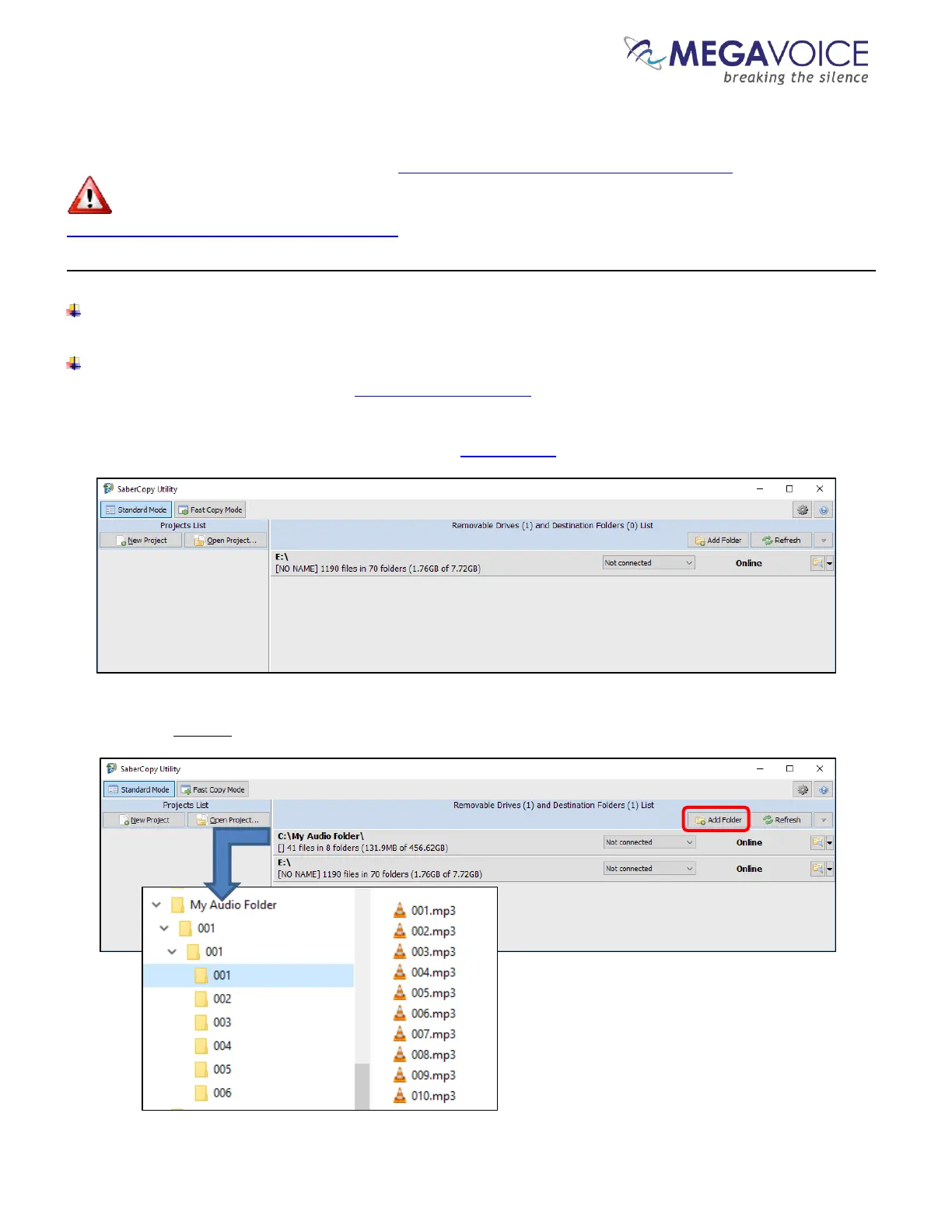
1. Open SaberCopy and connect your player(s) with an SLS USB cable.
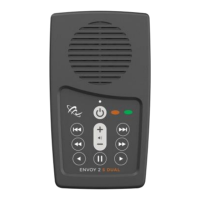
2. Click on the “Add Folder” button. Navigate to your audio folder and select it. Note that your audio folder is the
folder that contains all the (correctly structured) audio you want loaded to the player.


 To Next Page