Envoy 2 E Series User Guide 20190805-30.docx || © 2019 MegaVoice Ltd. || Page 7 of 68
Overview
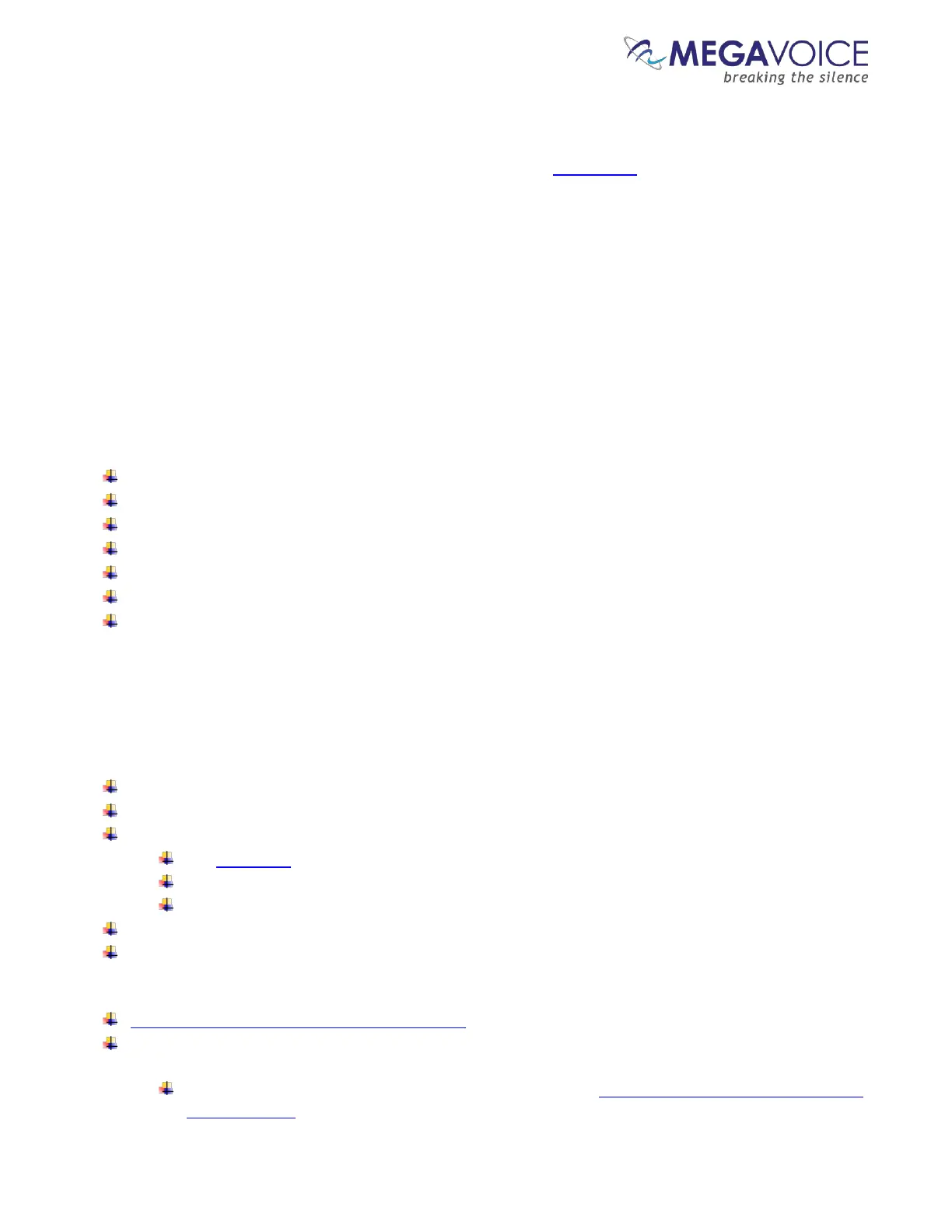
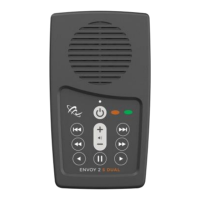
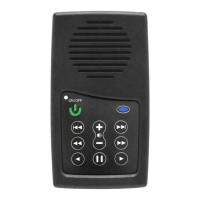
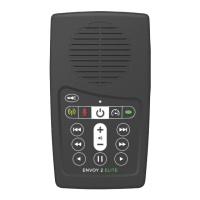
The Envoy 2 E Series – one of the newest lines from MegaVoice with four models of advanced solar digital audio
players: Elite, Equip, Echo and Ember.
Cost effective and smaller than the average smartphone, the Envoy 2 E Series is lightweight and perhaps one
of the most powerful teaching and training tools available. The intuitive raised-button keypad with four levels
of navigation (for multiple Languages) makes searching hundreds of hours of audio Bible content easy and
accessible – especially for the blind, visually impaired, elderly and even oral learners.
The Envoy 2 E Series comes with 8 GB of onboard memory, which is programmable via the micro-USB port with
the SaberCopy software, making it simple and secure for you to update content. USB hubs allow for multiple
players to be loaded at the same time.
In addition, the enhanced 2 E Series provides the following features:
Audio recorder with playback (Elite and Echo only)
Programmable FM radio receiver (Elite and Equip only)
Audio playback speed control*
4 mode LED flashlight*
microSD card reader*
Battery level indicator
Stereo output using the 3.5mm audio jack
*Some versions of the Envoy 2 E may not include this feature
Audio Programming Requirements
Hardware Requirements
A Windows PC or Mac (Intel only)
At least one USB port (2.0 or higher)
Enough disk space for…
The SaberCopy software program (around 10 MB)
Each of your audio messages (up to 7.8GB per message)
Additional work area for restructuring message folders
One SLS USB cable per parallel connected player (available from MegaVoice)
A powered USB 2.0 (or higher) hub (optional – for programming multiple players concurrently)
Software Requirements
SaberCopy software (available from MegaVoice)
PC Operating System: Windows 7, 8.x or 10 (SaberCopy will work on XP but is not recommended since XP is
no longer supported by Microsoft)
SaberCopy will work on Mac but requires additional setup (see section "Using SaberCopy on Mac
OSX" for details)


 To Next Page