Envoy 2 E Series User Guide 20190805-30.docx || © 2019 MegaVoice Ltd. || Page 45 of 68
Managing the recording files
You can access the recording files on the 2 E Series players by connecting your player to a computer using an SLS
USB to micro-USB cable and opening the RECORD folder.
If you recorded to a microSD card, you can also access the contents of the card while loaded in the card reader
of the player. You can even format microSD cards while they are loaded in the player’s card reader.
You can copy, rename or delete recording files while the player is connected to the computer.
Care must be exercised when accessing the player contents while connected to the computer, making
sure not to alter the folders or files comprising the audio message. Correct playback could be impacted if not.
Once you make recordings, it is advisable to rename them to something meaningful as soon as you can for easier
identification later. The player will still be able to access and play these files. The order of playback should remain
the same.
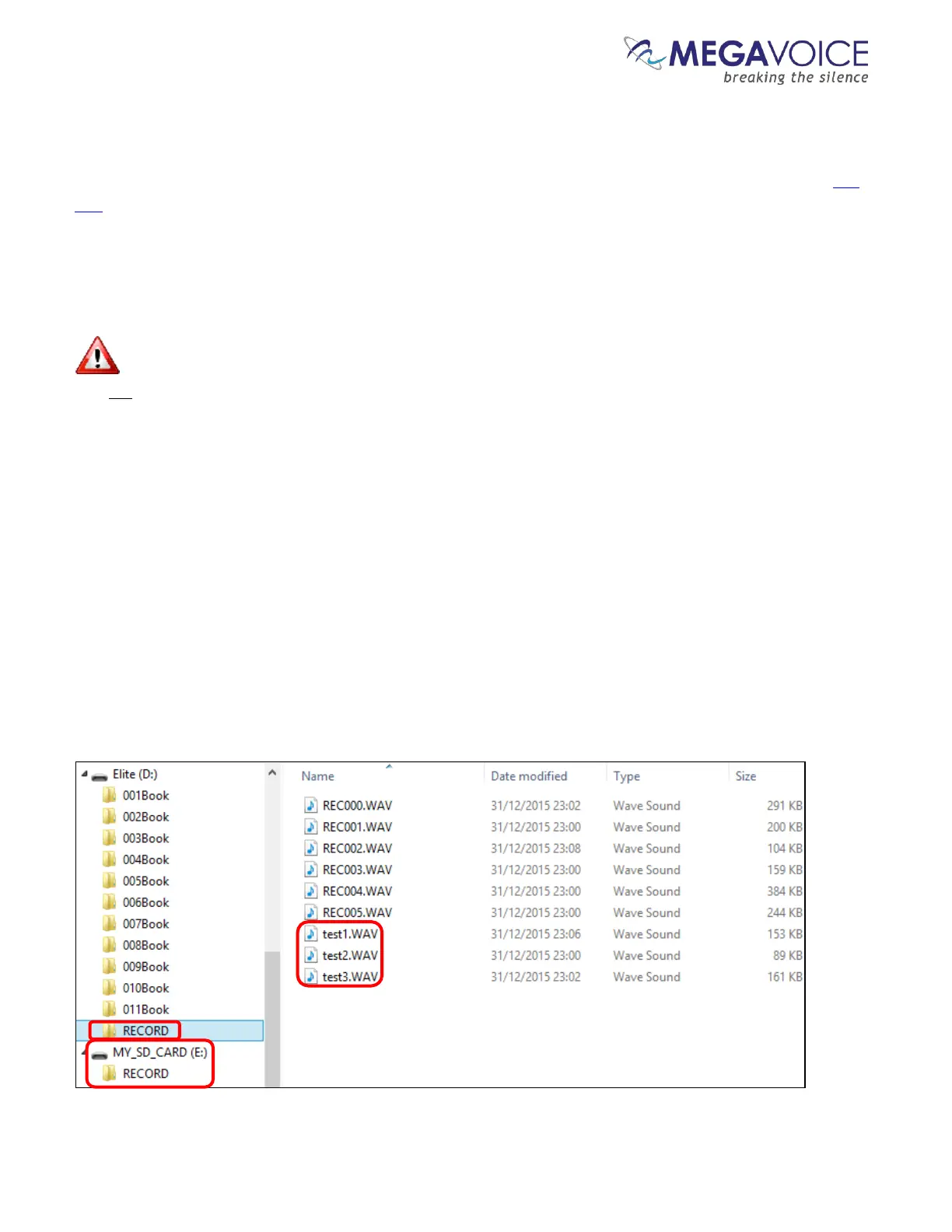
In the example below, using an SLS USB cable, a player is connected with a microSD card loaded in the card
reader. There are RECORD folders in both the player’s onboard memory (Elite D:) and the microSD card
(MY_SD_CARD E:). Three recording files in the RECORD folder of the onboard memory were manually renamed
after they were created.
In this example, the intended use for the microSD card was solely for recordings so the only object in the root is
the RECORD folder.


 To Next Page