Envoy 2 E Series User Guide 20190805-30.docx || © 2019 MegaVoice Ltd. || Page 54 of 68
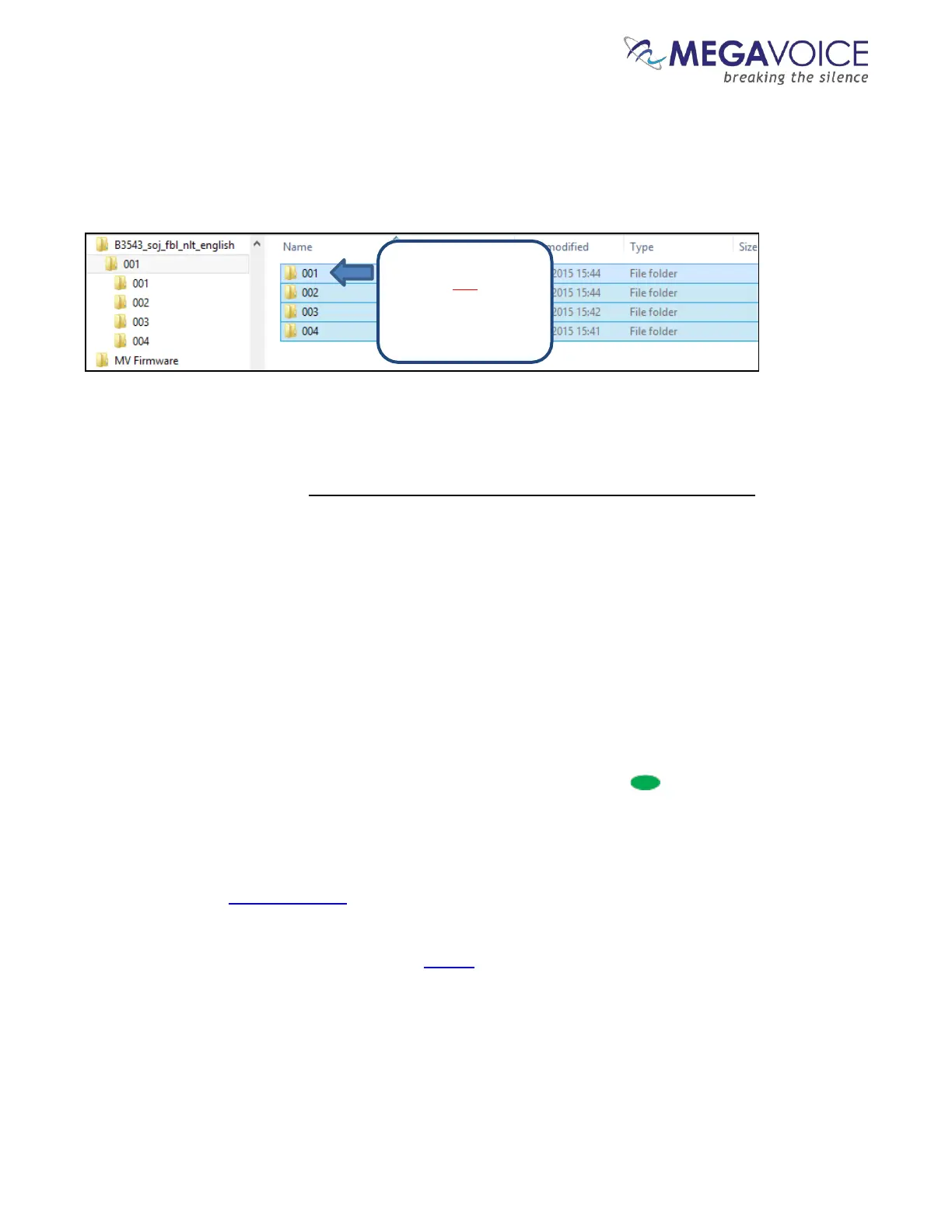
In the Windows example below, there are 4 Section folders, each containing multiple Book folders with each of
those containing individual audio Chapter files. The folders need to be copied in order beginning with 001, then
002 and so on. If the folders (and their content) are not copied in that order, the E Series may not play back the
audio in proper order.
The best way to ensure your data is copied in the correct sequence is to first highlight the folders in question. In
Windows this can be done a number of ways such as using the “Ctrl+A” shortcut key, choosing “Select All” from
the menu presented from a right-click or using the “Select All” icon in the ribbon area of File Explorer.
Once the folders are highlighted, you must point to the first folder of the group with your mouse (in the example
above it is folder “001”) and then drag the group to the SD card volume and drop them. Or you can right-click on
the first item, choose “Copy”, go to the SD card volume, right-click and choose “Paste”.
Listen to the message on the SD card
Once the SD card is programmed, you should listen to it to make sure it begins playback from the beginning
and that navigation among the various audio files is in the order you intended.
Load the card (see Inserting a microSD card) and then press the Channel button for 2 seconds repetitively
until the player beeps once. Playback will now begin from the card.
If the player immediately beeps 4 times and goes into pause mode (see Buttons for navigating the Current
Chapter, the Pause button), more than likely the folder structure copied to the SD card is incorrect. Please
review the section on Structuring Rules.
If navigation among the different folders and files on the card is not in the order you expected, and you
used the File Explorer method, please review that section again for details on how to copy/move folders
and files.


 To Next Page