Envoy 2 E Series User Guide 20190805-30.docx || © 2019 MegaVoice Ltd. || Page 53 of 68
Using the File Explorer
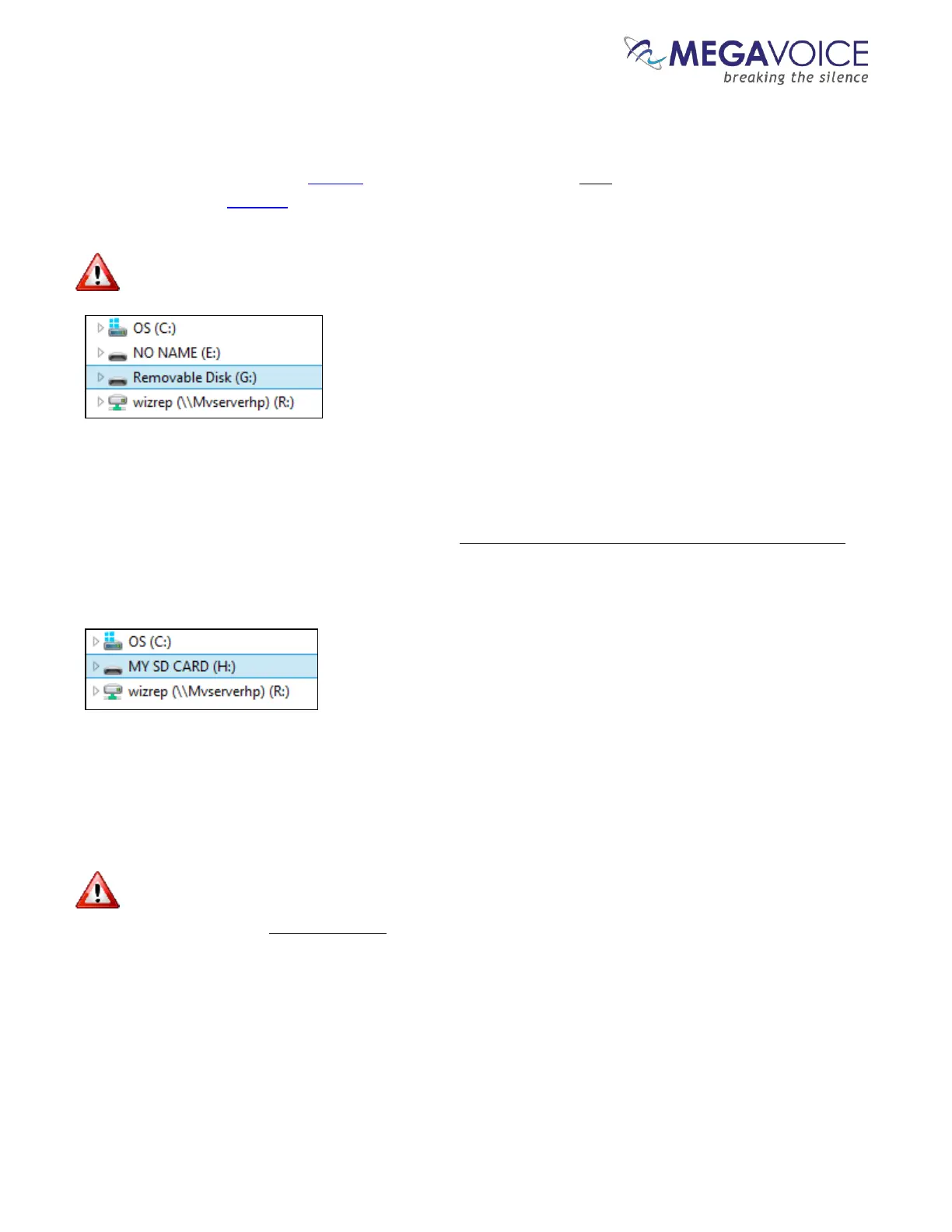
If you connect a player using the SLS USB cable with an SD card loaded, both the on-board memory and SD card
appear and show as “Volumes”. In the Windows example below, the player is identified as “NO NAME” and the
SD card (with no volume name) is identified as “Removable Disk”.
Please note that the way the volumes are displayed depends on the operating system being used.
If you use a microSD USB adapter (see SanDisk microSD-to-USB adaptor) and connect it to your PC/Mac using a
standard USB cable, the SD card will display with the Volume name (if set when it was last formatted) or may show
as “Removable Disk” if no Volume name was specified. Again, this can vary depending on the operating system.
In the Windows example below, a microSD card loaded in a microSD USB adaptor and connected to the
computer shows as volume “MY SD CARD”.
Once the SD card(s) are connected to the PC/Mac using USB cables, you simply copy the contents of your audio
folder to the SD card volume(s). This can be done using “copy and paste” or “drag and drop”.
For the player to properly navigate among the audio files on an SD card, it is critical that the folders (and
their content) are copied in proper sequence. Windows and Mac don’t necessarily copy in sequence as the order
doesn’t usually matter, but in this case it definitely does. Keep reading - you can force the copy order.


 To Next Page