Envoy 2 E Series User Guide 20190805-30.docx || © 2019 MegaVoice Ltd. || Page 52 of 68
Using SaberCopy
When connecting with an SLS USB cable, the challenge when using the Envoy 2 E to load a microSD card is that
both the onboard memory and microSD card reader show as “volumes”. The best way to distinguish the player
from the microSD card reader is to connect the player first without a microSD card loaded.
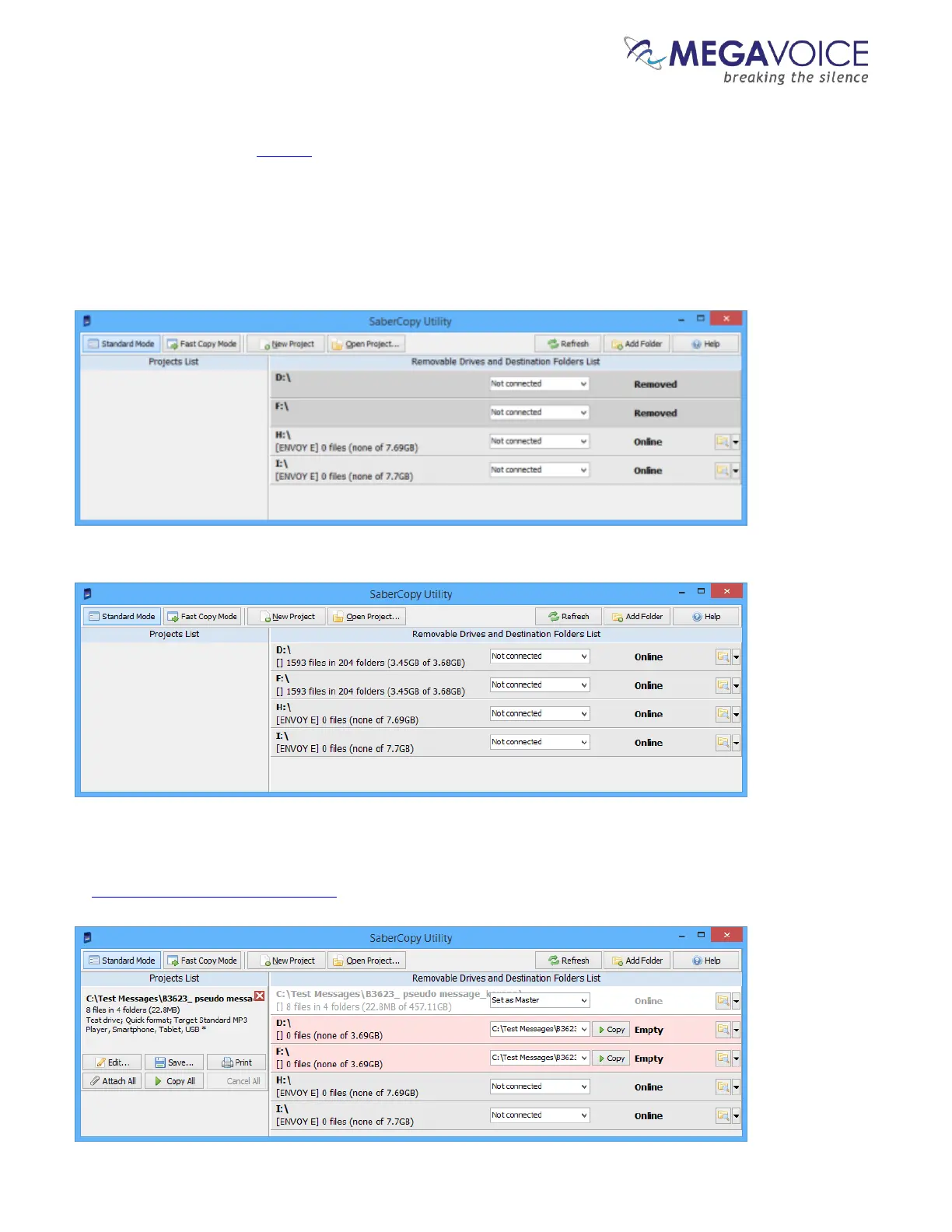
In the example below, two Envoy 2 E players are connected with SLS cables- without microSD cards loaded. The
onboard memory of each is volumes H: and I: and show with a status of Online. The microSD card readers
appear as volumes D: and F: and show with a status of Removed.
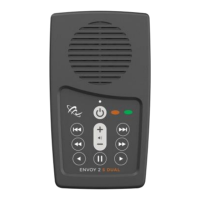
Once you insert microSD cards in the reader of both players (D: and F:), they also show as Online. See below:
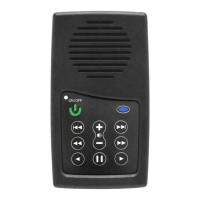
Once you identify the correct “drives” you would choose the audio project folder desired, set it as
“master”, edit the project settings, assign it to the correct drives and begin the copy procedure as outlined
in Loading the Audio using SaberCopy.


 To Next Page