Envoy 2 E Series User Guide 20190805-30.docx || © 2019 MegaVoice Ltd. || Page 35 of 68
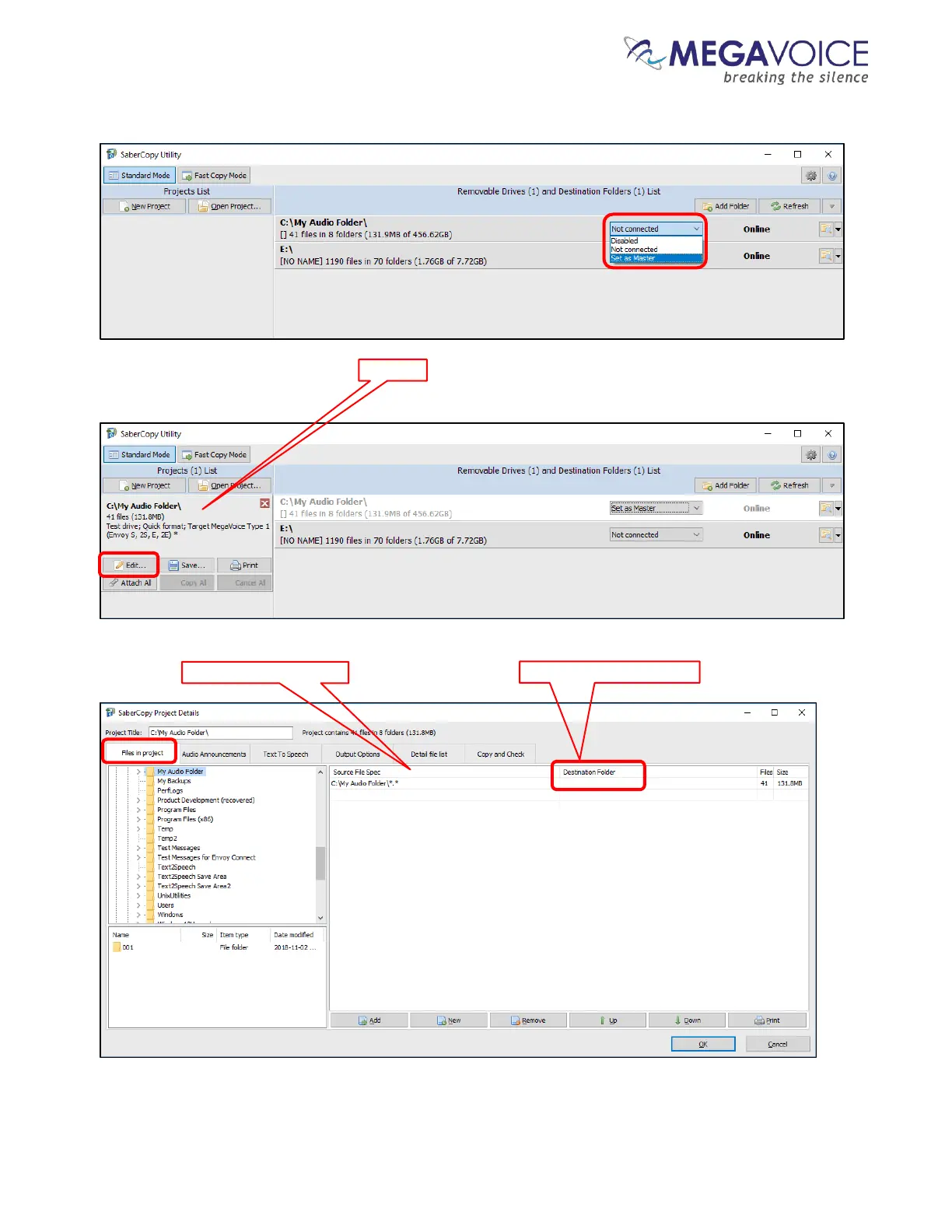
3. In the entry for your audio folder, change the drop list setting from “Not connected” to “Set as Master”.
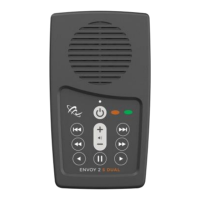
4. SaberCopy will automatically create a “project” for you named after your audio folder. Click on the “Edit”
button to adjust the settings.
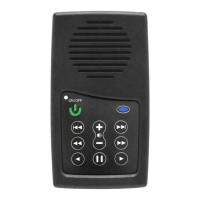
5. The “Project Details” dialog will open. The “Files in Project” tab should already be correctly set with your audio
folder in the “Source File Spec” field. Just make sure that the “Destination Folder” field is blank.


 To Next Page