29
Chapter 4 Congure the Router in Wireless Router Mode
How can I do that?
1. Change the routers’ LAN IP addresses to two dierent IP addresses on the same
subnet. Disable Router B’s DHCP function.
2. Visit http://mwlogin.net, and log in with your Mercusys ID or the password you
set for Router A.
3. Go to Advanced > Network > Routing and locate the Static Routing section.
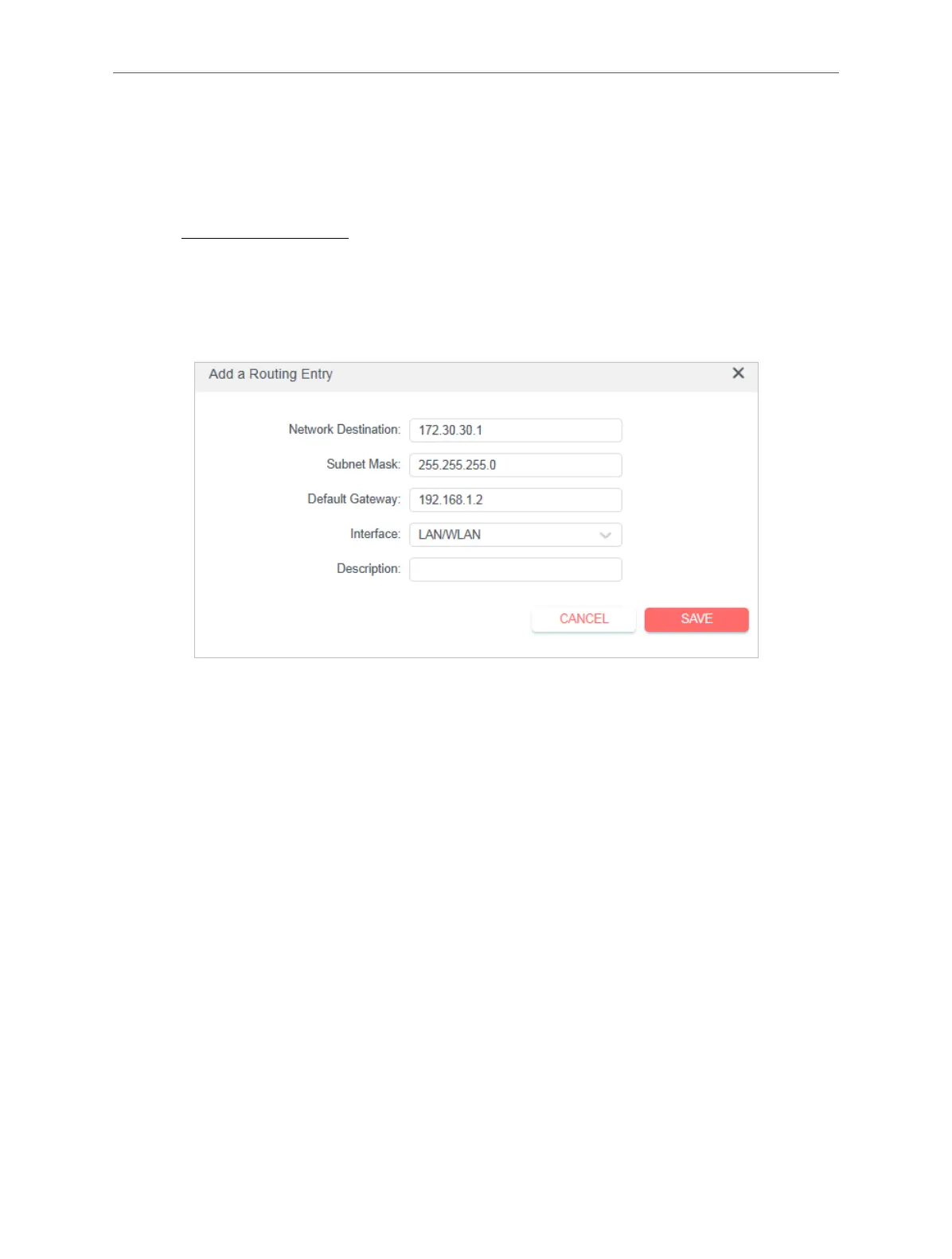
4. Click Add and nish the settings according to the following explanations:
• Network Destination - The destination IP address that you want to assign
to a static route. This IP address cannot be on the same subnet with the
WAN IP or LAN IP of Router A. In the example, the IP address of the company
network is the destination IP address, so here enter 172.30.30.1.
• Subnet Mask - The Subnet Mask determines which portion of an IP address
is the network portion, and which portion is the host portion.
• Default Gateway - The IP address of the gateway device to which the data
packets will be sent. This IP address must be on the same subnet with the
router’s IP which sends out data. In the example, the data packets will be sent
to the LAN port of Router B and then to the Server, so the default gateway
should be 192.168.1.2.
• Interface - Determined by the port (WAN/LAN) that sends out data packets.
In the example, the data are sent to the gateway through the LAN port of
Router A, so LAN/WLAN should be selected.
• Description - Enter a description for this static routing entry.
5. Click SAVE.


 To Next Page