96
MIDI Prerequisites:
It is mandatory to use a MIDI Jack ¼ with the proper pin out. Follow the previous use cases
Monitoring and Inputs setup.
About the Anubis MIDI I/O:
The Anubis MIDI I/O provides a MIDI connection between class compliant Core MIDI devices
such as keyboards, drum machines, sound modules and other controller. The MIDI IN and MIDI
OUT ports located at back of the Anubis use a 1/4" jack sockets for connection of external MIDI
equipment, refer to the User Manual Appendices section for details on the MIDI cable pinout. The
MIDI ports will be available in your computer once the Anubis drivers are installed and once
you’ve follow the PC or Mac procedure below.
Note: Anubis can be use either with MIDI I/O or GPIO> Since GPIO is currently under development MIDI
I/O is the default mode.
Warning: Merging recommends to Power off Anubis when making your MIDI IO Connections To avoid
damage to the instrument and other devices
PC Users
1. Make sure your Horus / HAPI is detected in MT Discovery
2. Download and install RTPMidi http://www.tobias-erichsen.de/software.html
3. Start RTP MIDI
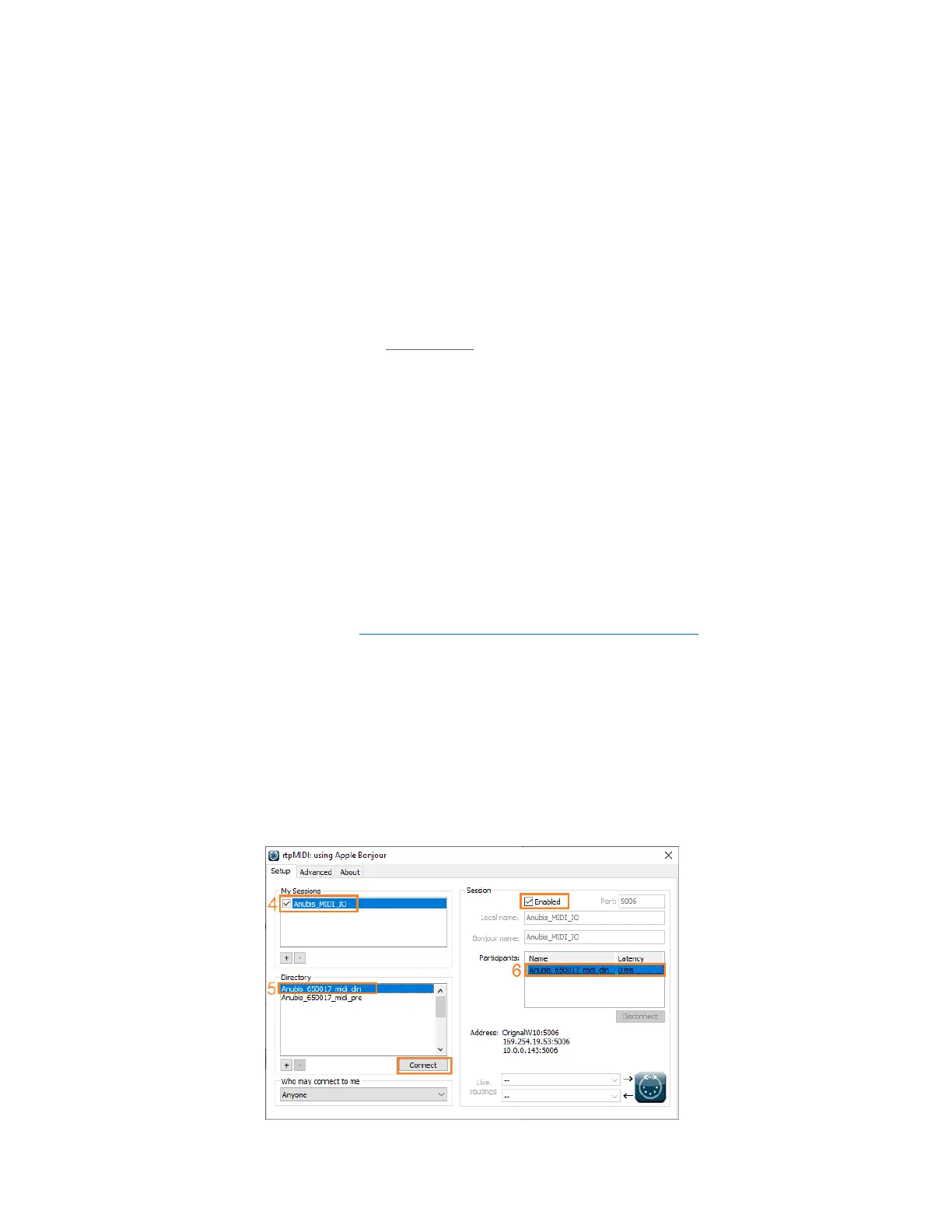
4. Under My Sessions section, click on the + sign to create a new session, and name it.
5. Once the Session has been created, select the Anubis_<Serial>_midi_din in the available
streams and click on Connect.
6. The midi_din stream will be passed in the Participants section, make sure that this one is
enabled above. You can now use it in your preferred DAW/MIDI application.


 To Next Page