EasyManua.ls Logo

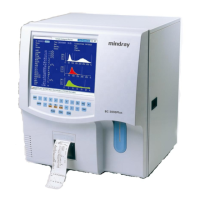
Mindray BC-3000 Plus - User Manual

Mindray BC-3000 Plus
325 pages
Print Icon
To Next Page IconTo Next Page
Loading...
BC-3000 Plus
Auto Hematology Analyzer
Operation Manual

Table of Contents

Questions and Answers

  • V
    vhowardSep 1, 2025
    How to fix Lyse Expiry error on Mindray Measuring Instruments?
    • D
      Darrell RussellSep 1, 2025
      If the Mindray Measuring Instruments shows 'Lyse Expiry', it means the lyse is expired or the expiration setting is incorrect. Check if the lyse has expired. If so, change a new container of lyse. If not, reset the expiration date.
  • H
    Harry RomeroSep 12, 2025
    What does Rotation Motor Error mean on Mindray Measuring Instruments?
    • X
      xloganSep 12, 2025
      If the Mindray Measuring Instruments displays a 'Rotation Motor Error', it could be due to a jammed sample probe, poor contact of the signal line, a damaged motor, poor connection between the drive board and the CUP board, or a malfunctioning photo coupler. Open the front panel and check if the sample probe is jammed. Enter the “Service ? System Test” screen and check the motor. The error will be removed if the test result is normal.
  • S
    Sherry ZimmermanAug 30, 2025
    What causes Lyse Empty error on Mindray BC-3000 Plus Measuring Instruments?
    • B
      branchkimAug 31, 2025
      If the Mindray Measuring Instruments displays 'Lyse Empty', it indicates either no lyse is present or there is a malfunctioning level transducer. Check if the lyse has run out. If it has, change a new container of lyse.
  • M
    Matthew SmithSep 14, 2025
    How to fix PLT Interrupt Error on Mindray BC-3000 Plus Measuring Instruments?
    • K
      Kenneth HaynesSep 14, 2025
      If the Mindray Measuring Instruments displays a 'PLT Interrupt Error', it indicates something is wrong with the A/D part of the CPU board. Enter the “Service ? System Test” screen and check the PLT AD interrupt. The error will be removed if the test result is normal.
  • C
    Cynthia PearsonSep 13, 2025
    What does RBC Interrupt Error mean on Mindray Measuring Instruments?
    • A
      Ashley MccoySep 14, 2025
      If the Mindray Measuring Instruments displays a 'RBC Interrupt Error', it indicates something is wrong with the A/D part of the CPU board. Enter the “Service ? System Test” screen and check the RBC AD interrupt. The error will be removed if the test result is normal.
  • D
    Donald EatonSep 18, 2025
    How to fix HGB Error on Mindray BC-3000 Plus Measuring Instruments?
    • C
      Chad HendersonSep 18, 2025
      If the Mindray Measuring Instruments displays a 'HGB Error', it indicates that the HGB blank voltage is within 0 V - 3.2 V or 4.9 V - 5 V. Do the “Probe Cleanser Cleaning” procedure. If the problem persists, adjust the HGB gain to set the voltage within 3.4 - 4.8V, preferably 4.5V.
  • B
    Brian BowenSep 23, 2025
    What to do if Mindray Measuring Instruments says Press Bar Up?
    • E
      Ellen DavisSep 23, 2025
      If the Mindray Measuring Instruments displays 'Press Bar Up', press the tension lever.
  • J
    Jacqueline JonesAug 27, 2025
    What causes Background Abnormal error on Mindray BC-3000 Plus?
    • C
      Christopher LongAug 27, 2025
      If the Mindray Measuring Instruments shows a 'Background Abnormal' error, it could be due to contaminated diluent, diluent lines, or bath(s), expired diluent, or pressed tubes at the back of the analyzer. Check if the diluent is contaminated or expired, and inspect the tubes at the back of the analyzer to ensure they are not pressed. Enter the “Count” screen and press [STARTUP] (or [F3] of the external keyboard) to do the startup procedure. If the problem persists, do the probe cleanser cleaning procedure.
  • T
    Tyler SavageAug 26, 2025
    How to fix Com Error on Mindray BC-3000 Plus Measuring Instruments?
    • D
      Donna EvansAug 26, 2025
      If there is a 'Com Error' on the Mindray Measuring Instruments, it could be due to a communication cable that is not well connected or inappropriate communication settings. Check if the communication cable is properly connected and verify the communication settings to ensure they match the host's settings.
  • F
    Frederick FloydAug 25, 2025
    What to do if Mindray BC-3000 Plus recorder is out of paper?
    • J
      jbarnettAug 26, 2025
      If the Mindray Measuring Instruments recorder is out of paper, it's either because the recorder paper has run out or it isn't properly installed. Check if the recorder paper has run out and install the paper. Also, check if the recorder paper is properly installed, and if not, reinstall it.

Summary

1 Using This Manual

1.1 Introduction

Explains the purpose and content of the operation manual.

1.2 Who Should Read This Manual

Identifies the target audience for this manual.

1.3 How to Find Information

Guides users on how to locate specific information within the manual.

1.4 Conventions Used in This Manual

Explains typographical conventions used for clarity.

1.5 Special Terms Used in This Manual

Defines specific terms used throughout the manual.

1.6 Symbols

Explains symbols used in the manual and on the analyzer.

2 Understanding Your Analyzer

2.1 Introduction

Provides a general overview of the BC-3000 Plus analyzer.

2.2 Intended Use

Describes the purpose and applications of the analyzer in clinical laboratories.

2.3 User Interfaces

Details the front and back panel components and their functions.

2.4 Instrument Software

Explains the main screen layout and system menu options.

2.5 Reagents, Controls and Calibrators

Outlines the types of reagents, controls, and calibrators used with the analyzer.

4 Installing Your Analyzer

4.1 Introduction

Introduces the analyzer installation procedure.

4.2 Installation Requirements

Details space, power, and environmental requirements for installation.

4.3 Unpacking

Provides instructions for safely unpacking and inspecting the analyzer.

4.4 Installation Procedure

Guides through connecting components like reagent containers and probes.

4.5 Starting the Analyzer

Explains the initial startup and initialization process for the analyzer.

5 Customizing the Analyzer Software

5.2 Print

Describes how to configure printing options for reports.

5.3 Count time

Explains how to set reference times for WBC and RBC counts.

5.4 Password

Details user classification and administrator password settings.

5.5 Transmission

Covers communication settings for data transfer.

5.6 Setting system time (Date & Time)

Guides on setting the system's date and time.

5.7 Gain

Explains how to adjust gain settings for WBC, RBC, and HGB channels.

5.8 Auto Clean Time

Describes setting the interval for automatic fluidic line cleaning.

5.9 Reagent Exp. Date

Explains how to input and manage reagent expiration dates.

5.10 Report Title (external keyboard required)

Details setting custom titles for printed reports.

5.11 Parameter Units

Covers configuration of reporting units for various parameters.

5.12 Other

Covers miscellaneous system settings like beeper and LCD contrast.

6 Operating Your Analyzer

6.2 Initial Checks

Lists essential checks to perform before powering on the analyzer.

6.3 Power-on

Explains the procedure for turning on and initializing the analyzer.

6.4 Daily Quality Control

Emphasizes the importance of running daily quality control checks.

6.5 Sample Collection and Handling

Provides guidelines for proper sample collection and handling.

6.6 Running Whole Blood Samples

Details the steps for analyzing whole blood samples.

6.7 Running Prediluted Samples

Outlines the procedure for analyzing prediluted samples.

6.8 Shutdown

Describes the correct procedure for shutting down the analyzer daily.

7 Reviewing Sample Results

7.2 Browsing All Sample Results

Explains how to view saved sample results in table or histogram format.

7.3 Searching for Interested Sample Results

Guides users on how to search for specific sample results.

8 Using the QC Programs

8.2 “L-J Analysis” Program

Details the setup, running, and review of L-J analysis for QC.

8.3 “ X Analysis ” Program

Covers setup, running, and review of X Analysis for QC.

8.4 “ X -R Analysis” program

Explains setup, running, and review of X-R Analysis for QC.

8.5 “X-B Analysis” Program

Outlines setup, performing, and reviewing X-B Analysis for QC.

9 Using the Calibration Programs

9.2 When to calibrate

Specifies the conditions requiring analyzer calibration.

9.3 How to Calibrate

Details the procedures for auto and manual calibration.

10 Maintaining Your Analyzer

10.2 General Guidelines

Provides a schedule and overview of routine analyzer maintenance.

10.3 Using the “Maintenance” Program

Explains how to access and use various maintenance functions.

10.4 Using the “System Status” Program

Describes how to check the analyzer's functional status.

10.5 Using the “Valve Test” Program

Details how to test the analyzer's valves for malfunctions.

10.6 Using the “System Test” Program

Guides through running system tests for diagnostics.

10.7 Using the “Prepare to ship” Program

Provides instructions for preparing the analyzer for storage or shipping.

10.8 Using the “Error Message” Program

Explains how to view and interpret stored error messages.

10.9 Calibrating Sample Probe Position

Details the procedure for adjusting the sample probe position.

10.10 Replacing the Probe Wipe.

Provides instructions for replacing the probe wipe.

10.11 Replacing the Filter of the Vacuum Chamber

Guides on replacing the vacuum chamber filter.

10.12 Using the [Flush] key

Explains the use of the flush key for unclogging apertures.

10.13 Using the [Startup] key

Describes the function of the startup key for fluidic lines.

11 Troubleshooting Your Analyzer

11.2 Errors without available error messages

Lists common errors and their solutions not indicated by error messages.

11.3 Errors indicated by error messages

Details error messages, causes, and recommended actions for various issues.

12 Appendices

A Index

Provides an alphabetical index of terms and their corresponding page numbers.

B Specifications

Provides technical specifications for the analyzer and its components.

C Precautions, Limitations and Hazards

Lists important safety precautions, limitations, and potential hazards.

D Communication

Details data transmission methods and formats for external communication.

Mindray BC-3000 Plus Specifications

General IconGeneral
TypeAutomated Hematology Analyzer
CategoryMeasuring Instruments
Power SupplyAC 100-240V, 50/60Hz
PrinterBuilt-in thermal printer
ReagentsDiluent, Lyse, Cleaner
HGB Measurement Range0-300 g/L
Throughput60 samples per hour
DisplayLCD display
InterfaceRS232
PrinciplesElectrical impedance for cell counting
WBC Counting Range0.0-99.9 x 10^9/L
RBC Counting Range0.00-9.99 x 10^12/L
PLT Counting Range0 - 999 x 10^9/L
Operating EnvironmentTemperature: 15-30°C, Humidity: 30-85%
ParametersWBC, RBC, HGB, HCT, MCV, MCH, MCHC, PLT

Related product manuals