3.3 Video Recording Mode & Settings Menu
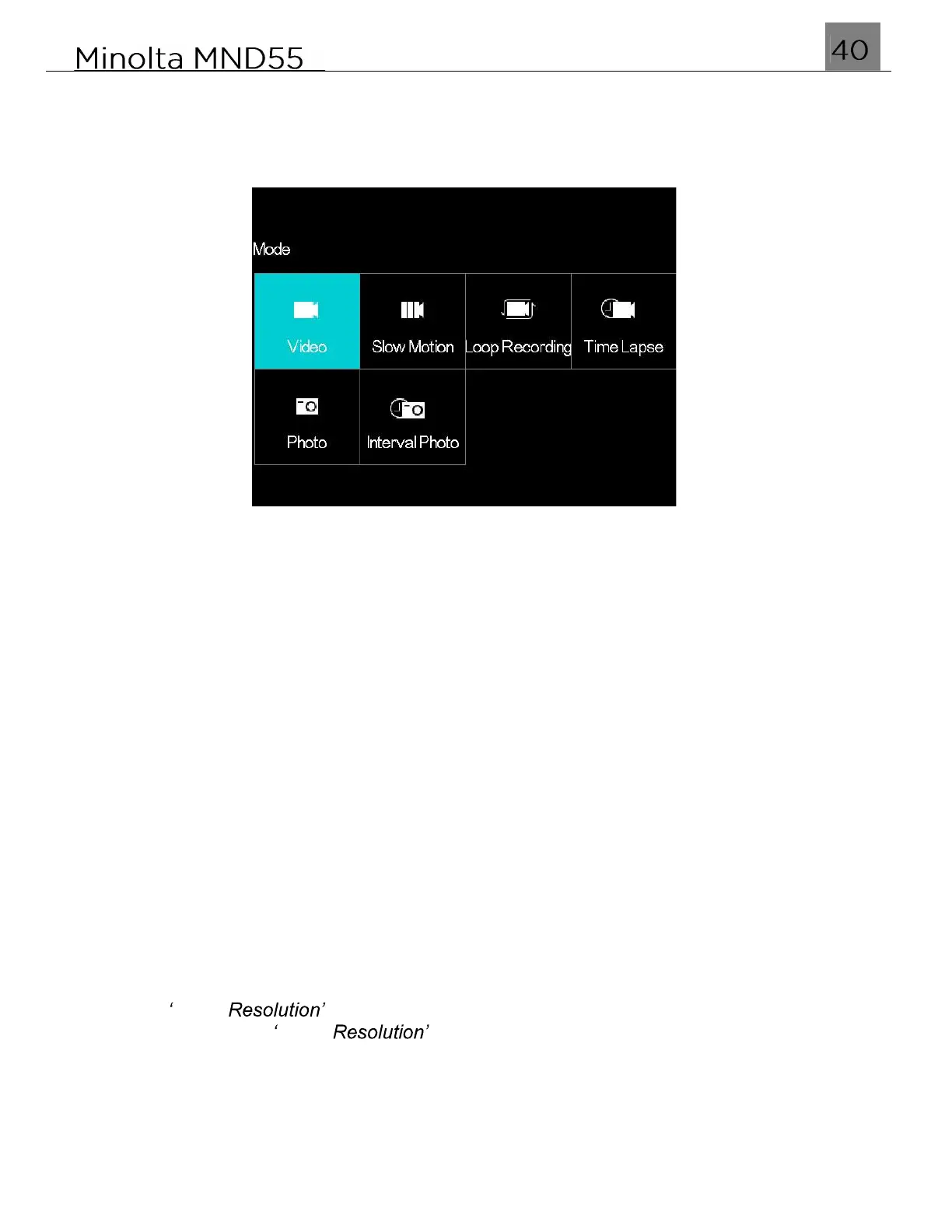
To enter Video Recording mode, power the camera on and press the MODE/OK button.
Use the LEFT or RIGHT buttons to select Video and press the MODE/OK button to
enter Video Mode. You can also press the Video button to quickly enter Video mode.
1.
Line up your shot by looking at the LCD screen to see what is in the shot.
2.
Press the SHUTTER button halfway to focus on the subject. When the focus frame
turns green, press the Video Record button to begin recording.
3.
When half-pressing the SHUTTER button, the lens will attempt to focus on your
intended subject. Once a satisfactory focus is achieved, the monitor will display a
green rectangle to notify you that it has a achieved a clear focus. If the monitor
displays a red rectangle, then the lens cannot achieve a clear focus and you need to
adjust your shooting distance or the video will capture blurry.
4.
When recording begins, a rolling timer will display at the top right corner of the screen
and the LED status light will blink blue. This indicates the recorded video time
elapsed.
5.
Press the Video Record button to stop recording. The recorded video files will
automatically save onto the inserted memory card.
3.3.1 Video Resolution
This function sets the video resolution. The higher the resolution, the greater the video
quality and the larger the file size of the video.
1.
In Video Mode press the MENU button.
2.
Select the Camera icon on the top of the left side of the screen using the UP or
DOWN buttons.
3.
Press the RIGHT button to enter the settings menu.
4.
Select Video using the UP or DOWN buttons and press the MODE/OK
button to enter the Video menu.
5.
Use the UP or DOWN buttons to navigate the menu, and press the MODE/OK button
to confirm your selected resolution (4K 60FPS, 4K 30FPS, 1080P 120FPS).
6.
Press the MENU button to exit the settings menu without making a selection.


 To Next Page