3.6 Time-Lapse Mode & Settings Menu
Time-lapse photography is a photographic technique in which the frequency at
which photo frames are captured (the frame rate) is much lower than the frequency
used to view the sequence. When played at normal speed, time appears to be
For example, an image of a scene may be
captured at 1 frame per second but then played back at 30 frames per second; the
result is an apparent 30 times speed increase. This mode will capture a sequence of
frames at a set interval to record changes that take place slowly over time. When the
frames are shown at normal speed, the action seems much faster.
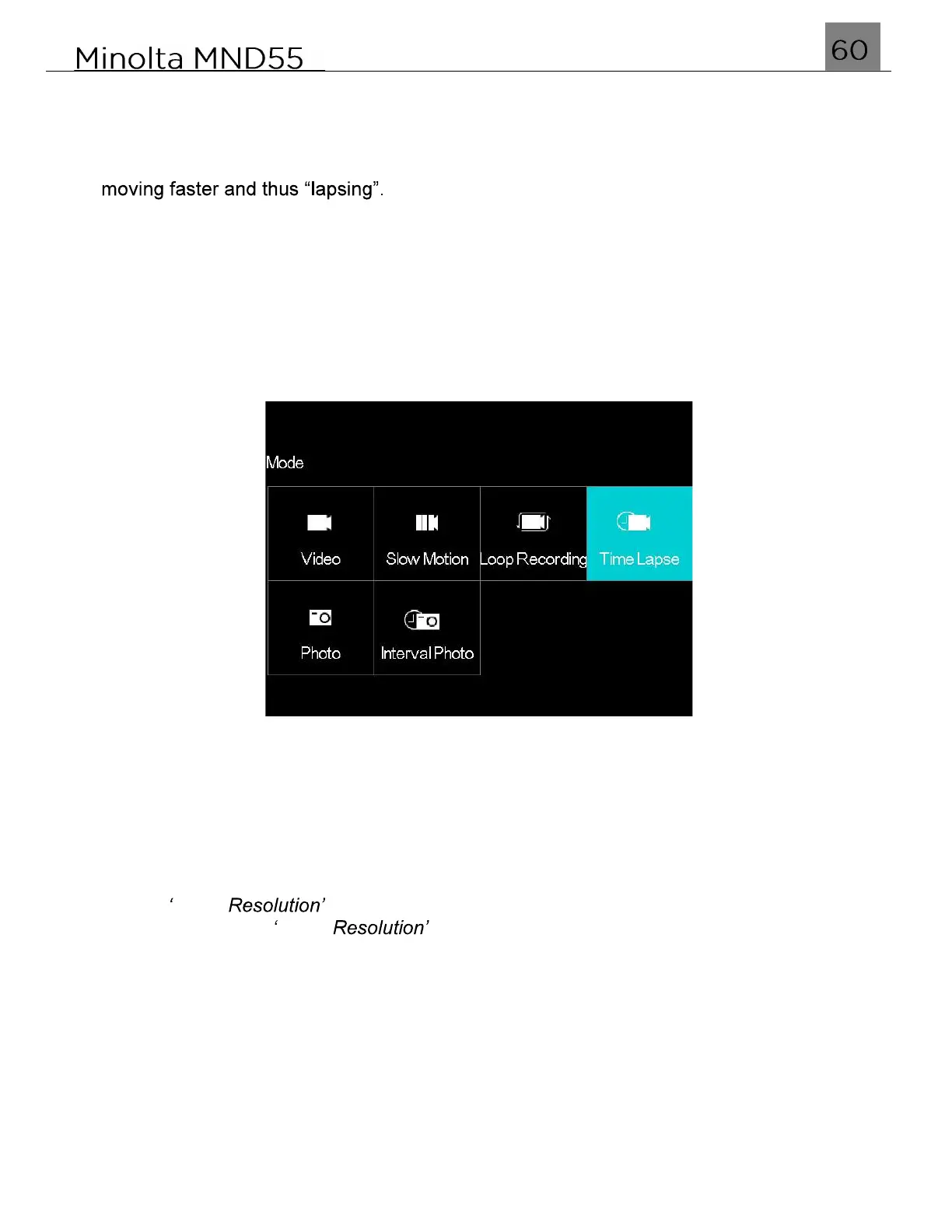
To enter Time-Lapse mode, power the camera on and press the MODE/OK button. Use
the LEFT or RIGHT buttons to select and press the MODE/OK button to enter Time-
Lapse Mode.
3.6.1 Video Resolution
This function sets the video resolution. The higher the resolution, the greater the video
quality and the larger the file size of the video.
1.
In Time Lapse Mode press the MENU button.
2.
Select the Camera icon on the top of the left side of the screen using the UP or
DOWN buttons.
3.
Press the RIGHT button to enter the settings menu.
4.
Select Video using the UP or DOWN buttons and press the MODE/OK
button to enter the Video menu.
5.
Use the UP or DOWN buttons to navigate the menu, and press the MODE/OK button
to confirm your selected resolution (4K,1080P).
6.
Press the MENU button to exit the settings menu without making a selection.
3.6.2 Time-Lapse Interval
This setting allows you to set the amount of time in between image captures for the
time-lapse. For example, a setting of 2 Seconds will set the camera to capture an image
every 2 seconds duration the duration of recording.
1.
In Time Lapse Mode press the MENU button.
2.
Select the Camera icon on the top of the left side of the screen using the UP or
DOWN buttons.


 To Next Page