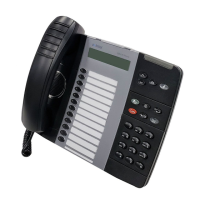
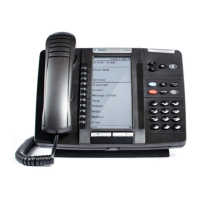
5330/5340 IP Phones – User Guide
- 24 -
Configuring the Integrated Office Companion Application on Your Phone
Use this procedure to connect your phone to the PC. This procedure is normally required only
once. When your PC and phone have successfully associated the first time, your settings are
saved and reused for each subsequent connection.
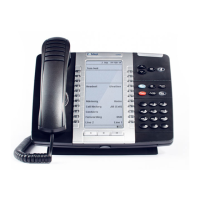
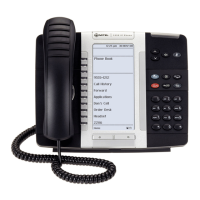
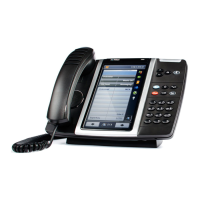
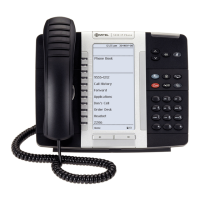
1. On the 5330 or 5340 press Settings or
, then select PC Connectivity.
The phone's IP Address appears on the display (IP Address for PC:
AAA.BBB.CCC.DDD).
2. Record the IP address, if desired, or repeat Step 1 when you need to view the IP
address.
3. Within the PC Connectivity window, select Enable.
4. Select Edit password and enter the password that will be used to set up the association
with the PC application. You can also choose to use the default password. Record this
password as you will need it to configure the PC application.
5. Proceed to Installing the Integrated Office Companion Application below.
Associating the Integrated Office Companion Application to Your Phone
Phone association can be performed during installation of the IOC application, or when you
first the application.
If this information was not entered, or only partially entered (such as entering only the IPC IP)
during installation, then you will need to enter the missing association information.
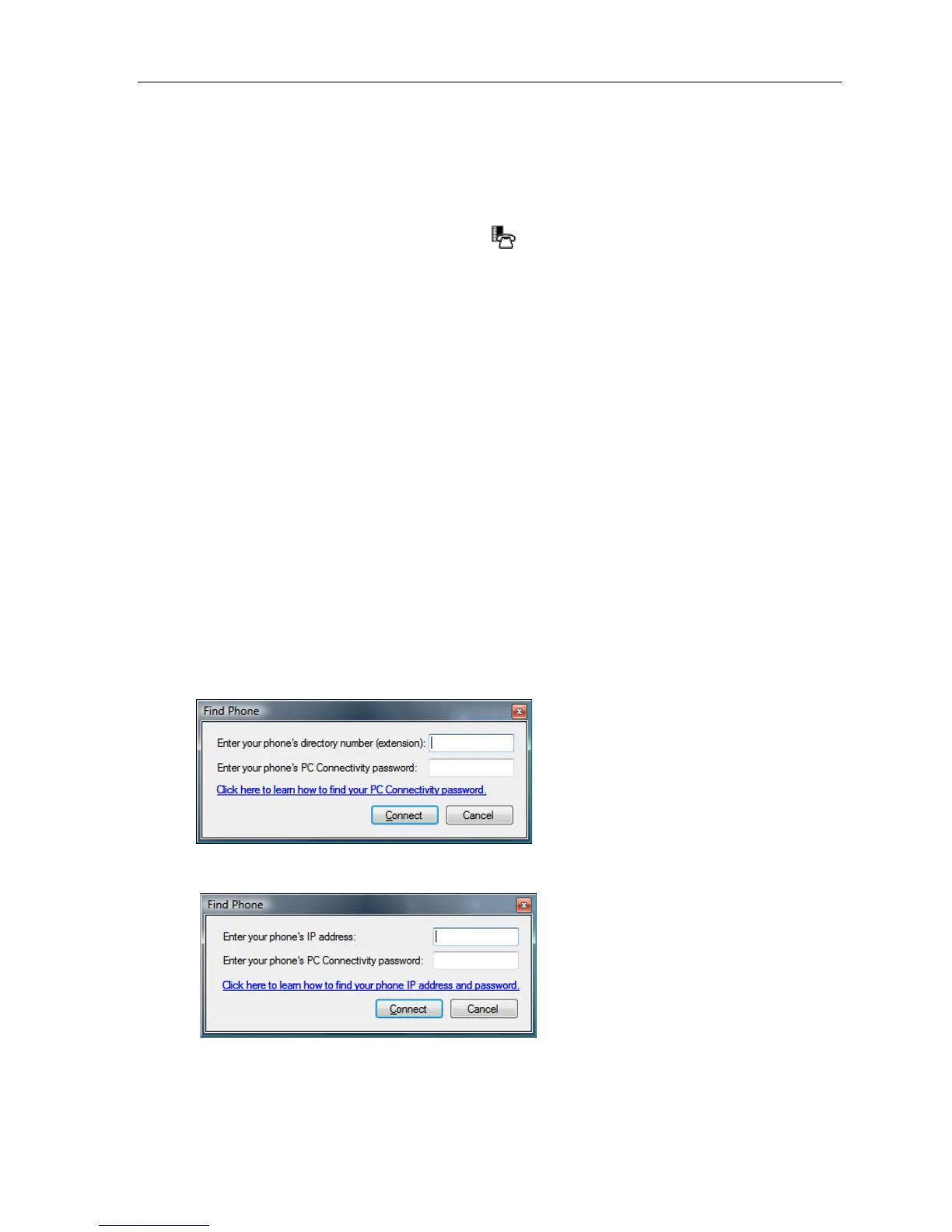
When setting up the association (either during the installation or when the application is first
run), a Find Phone dialog will appear:
or
Associate either by Directory Number or by IP Address, as described in the following
sections.




 To Next Page