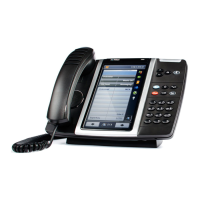
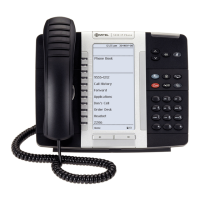
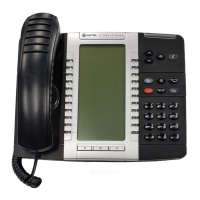
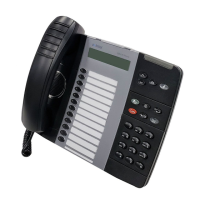
5330/5340 IP Phones – User Guide
- 28 -
Element Function
• Search Outlook Contacts For [Caller]… - Searches for a Microsoft
Outlook Contact for the current caller.
• Desktop Search for [Caller]… - Executes a Microsoft Desktop Search for
the current caller.
Note: Microsoft Outlook and Microsoft Desktop Search must be installed for these
respective options to be available.
Telephony Toolbar Menu
Click this button to bring up the Telephony Toolbar menu.
• Extra Phone Features… - Allows you to configure additional features.
• Settings… - Brings up the Settings Dialog Window. Here you can configure
a number of Telephony Toolbar settings.
• About… - Brings up the About Dialog Window. From here, you can also
upgrade your registration.
• Help… - Brings up a help website.
• Program Phone Keys – Hides or restores the Integrated Office Companion.
• Exit – Closes the Integrated Office Companion including the Telephony
Toolbar and the Tray Icon.
Using the Telephony Toolbar
By default, the Telephony Toolbar is not visible; only the Tray Icon will be visible when the
application begins.
Outgoing Calls
There are a number of ways to make an outgoing call via the Telephony Toolbar:
• Search though your contacts
• Manually dial a number using the PC keyboard
• Dial via Speed Dials or the Missed Calls Menu
Search Contacts
Search Options Menu:
The Telephony Toolbar has the ability to search your Microsoft Outlook Contacts or the
Corporate Directory.
The icons on the left side the Telephony Toolbar indicate the currently selected search
options.
Telephony Toolbar - Search Options




 To Next Page