Operation
100 5016072 A
To start a reading
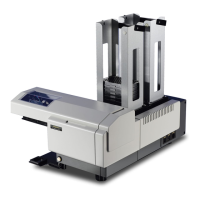
1. Turn on the StakMax microplate handler and reader
instruments. See Turning the StakMax Microplate Handler On
and Off on page 79.
2. Open the StakMax Software interface. See Opening the StakMax
Software Window on page 80.
3. Load the plates into the StakMax magazine. See Loading the
StakMax Microplate Handler on page 80.
4. Click Start Read.
The Read Plate window opens.
5. Specify the number of plates to read or indicate that you want to
read all of the plates in the input stack.
6. Select one of the following actions to take when the Plate
section(s) are filled:
Select Open a New Protocol to save the data to a different file
OR
Select Append a Plate Section to save the data from all of the
plates to the same file.
7. Click Assign to assign a protocol.
8. Select a protocol from the list and click Open.
9. Click Read.
After the reading starts, the status is displayed in the main
StakMax window next to Status. You can also click the Status
Window button to view more details about the reading.
Note: If you do not see the desired protocol in this list, refer to
the SoftMax
®
Pro User Guide for information on protocol
authoring.
Note: If you leave a plate in the reader and try to run a new
plate, the system detects that a plate is present and moves the
new plate back to the input stack. Use the Return Plate
command to move the previous plate to the output stack and
then restart your run.
StakMax-UG-5016072A.book Page 100 Friday, October 21, 2011 3:51 PM



 To Next Page