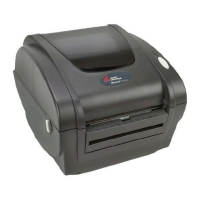
What to do if my Monarch 9855 is printing with voids?
- SshannonmccartyAug 27, 2025
If you notice voids in the printouts from your Monarch printer, try these steps: clean the printhead, change the supply type, and check the ribbon.

What to do if my Monarch 9855 is printing with voids?
If you notice voids in the printouts from your Monarch printer, try these steps: clean the printhead, change the supply type, and check the ribbon.
What to do if I get an error message during Monarch Printer startup?
If you receive an error message when starting your Monarch printer, turn it off, wait fifteen seconds, and then turn it back on. If the error message reappears, call Technical Support.
How to fix Monarch 9855 when it partially prints data?
To resolve the issue of partially printed data on your Monarch printer, clean the printhead and send a corrected format packet.
What to do if Monarch 9855 Printer serial bar codes do not print?
If serial bar codes are not printing on your Monarch printer, leave the printhead unlatched when not in use, use a print speed of 2.5 IPS, and adjust the print contrast.
What to do if my Monarch 9855 does not feed?
If your Monarch printer is not feeding, make sure to set the wide/narrow knobs correctly.
What to do if my Monarch 9855 prints blank labels or shows 750 series errors?
If your Monarch printer is printing blank labels or showing 750 series errors, clean the supply sensors.
What to do if my Monarch 9855 is printing shadows or smears?
If your Monarch printer is printing shadows or smears, you can try the following: clean the printhead, change the supply, and check the ribbon.
What to do if the script does not appear to be loaded after downloading to my Monarch Printer?
If, after downloading a script to your Monarch printer, the script does not appear to be loaded, try formatting the flash memory and then downloading the script again.
What to do if Monarch 9855 Printer displays “743 Program tag failed”?
If the Monarch printer displays a “743 Program tag failed” error, it means the RFID tag was detected but couldn't be programmed. Try increasing the number of write attempts. If the error persists, adjust the attenuation setting by one increment, either increasing or decreasing it. Be aware that setting the attenuation too low might affect the data programmed in adjacent labels.
What does it mean when my Monarch 9855 Printer displays “RFID Detection Not Complete”?
If the Monarch printer displays “RFID Detection Not Complete,” it means you tried to access the Setup, RFID Menu before the printer communicated with the interrogator. Press Escape/Clear until you see “Print Mode Ready.” Wait several seconds, and then try to access the Setup, RFID Menu again.
| Resolution | 203 dpi |
|---|---|
| Print Method | Thermal Transfer |
| Max Print Width | 4.09 in (104 mm) |
| Media Sensor | Reflective and Transmissive |
| Interface | USB |
| Print Technology | Thermal Transfer / Direct Thermal |
| Print Speed | Up to 4 ips (102 mm/sec) |
| Print Width | 4.25 inches |
| Paper Handling | Roll-fed, fanfold |
Step-by-step instructions for loading label rolls or tag supplies into the printer.
Specific procedures for loading labels when using the optional peel mode feature.
Guidance on using linerless printing supplies and related setup.
Instructions for loading and considerations for using string tag supplies.
Detailed steps for correctly loading a ribbon roll into the printer.
How to configure the printer for different types of supply materials like die-cut or continuous.
Configuring ribbon usage and adjusting the printer's print speed for optimal performance.
Configuring the printer's feed mode and backfeed settings for label handling.
Adjusting print, margin, cut, and dispense positions for accurate label output.
Adjusting the darkness and quality of the printed output for optimal readability.
Instructions for enabling and setting up the optional barcode verifier.
Configuring serial port parameters like baud rate, word length, parity, and flow control.
Configuring parallel port settings, including port selection and communication mode.
Options for using flash storage, formatting, checking availability, and packing memory.
Guidance on resolving common printer errors, messages, and operational issues.