NG-MB1/NG-MB2 User Manual
Page | 71 Copyright©2022 NGTeco. All rights reserved.
5. Time: Enter the Time by navigating to Hour and Minute text boxes by pressing <> or
<
> key. If the time format is 12-hours, then select [AM/PM] by pressing <> or <
>
key.
6. Select the attendance state as Check-in/Check-out by pressing <> or <
> key.
7. Navigate to [M/OK to Save] and press <M/OK>.
Note: Check-in and check-out information cannot be deleted from the device, but
administrators can use the edit check-in/check-out function in the NGTeco Time app. For
details, see Edit Punch
.
12 Time-Attendance Reports
You can generate statistical reports that display the attendance details of the users in the
specified pay period. The difficulty of maintaining the user’s time and attendance is lessened
with this simple reporting system. The data generated from these attendance reports assist
with efficient management of user's resources and report accuracy.
12.1 Report Parameters
The procedure to set the report parameters is given below:
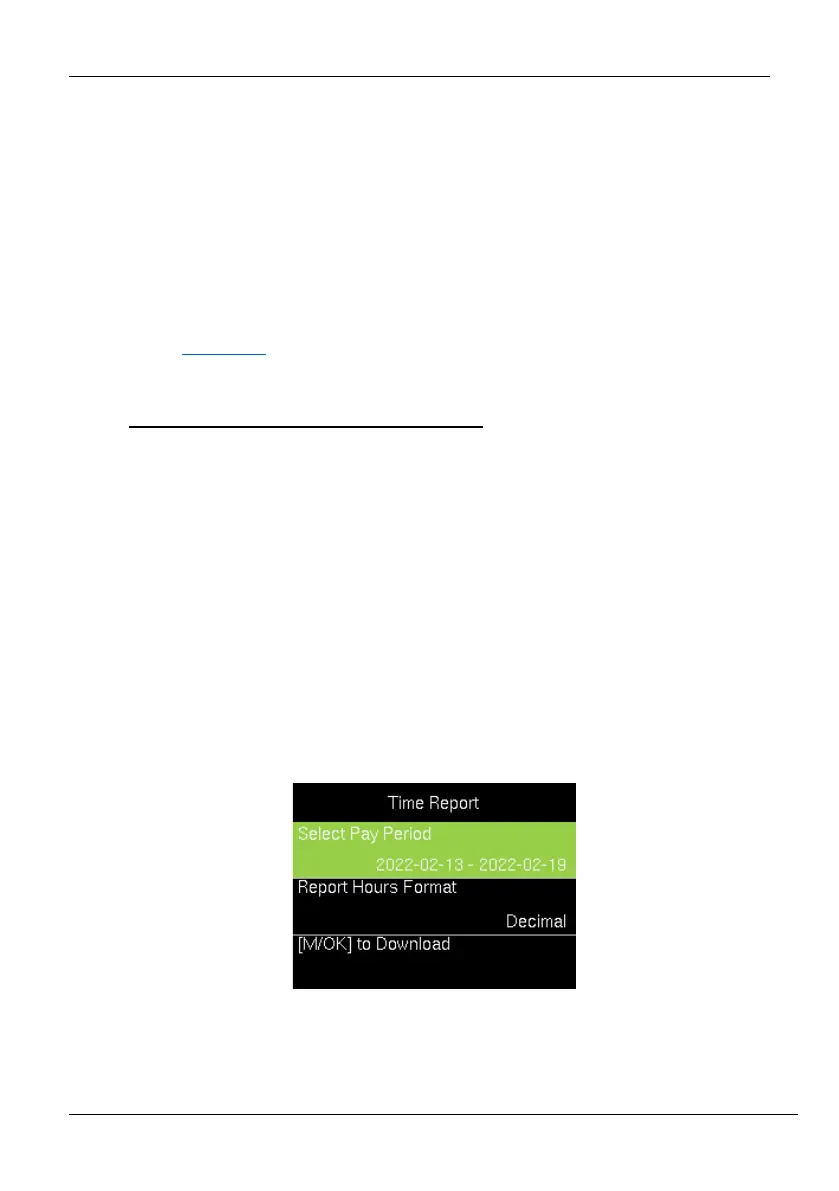
Go to [Time Report]. The interface to generate reports will be displayed as shown below:
Select Pay Period: The available pay period options are the Current Pay Period
and Custom Pay Period. You can also select the date range of the pay period



 To Next Page