28
Reference section 1 — Using the Chart Screen
Comparing vessel and browse modes
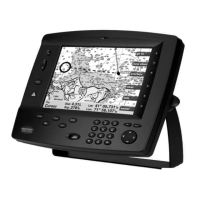
Northstar 6000i
Additional functions are available with
Gold Charts. You can also select various
obstructions, and display additional infor-
mation about them.
Comparing vessel and browse modes
The 6000i offers two display modes:
• vessel (your vessel is centered on the
screen)
• browse (a cursor is displayed, which
you can move to designate points or
explore other areas of the chart)
To switch from vessel mode to browse
mode, press the cursor pad. To switch back
to vessel mode, press the Vessel menu key.
Vessel mode
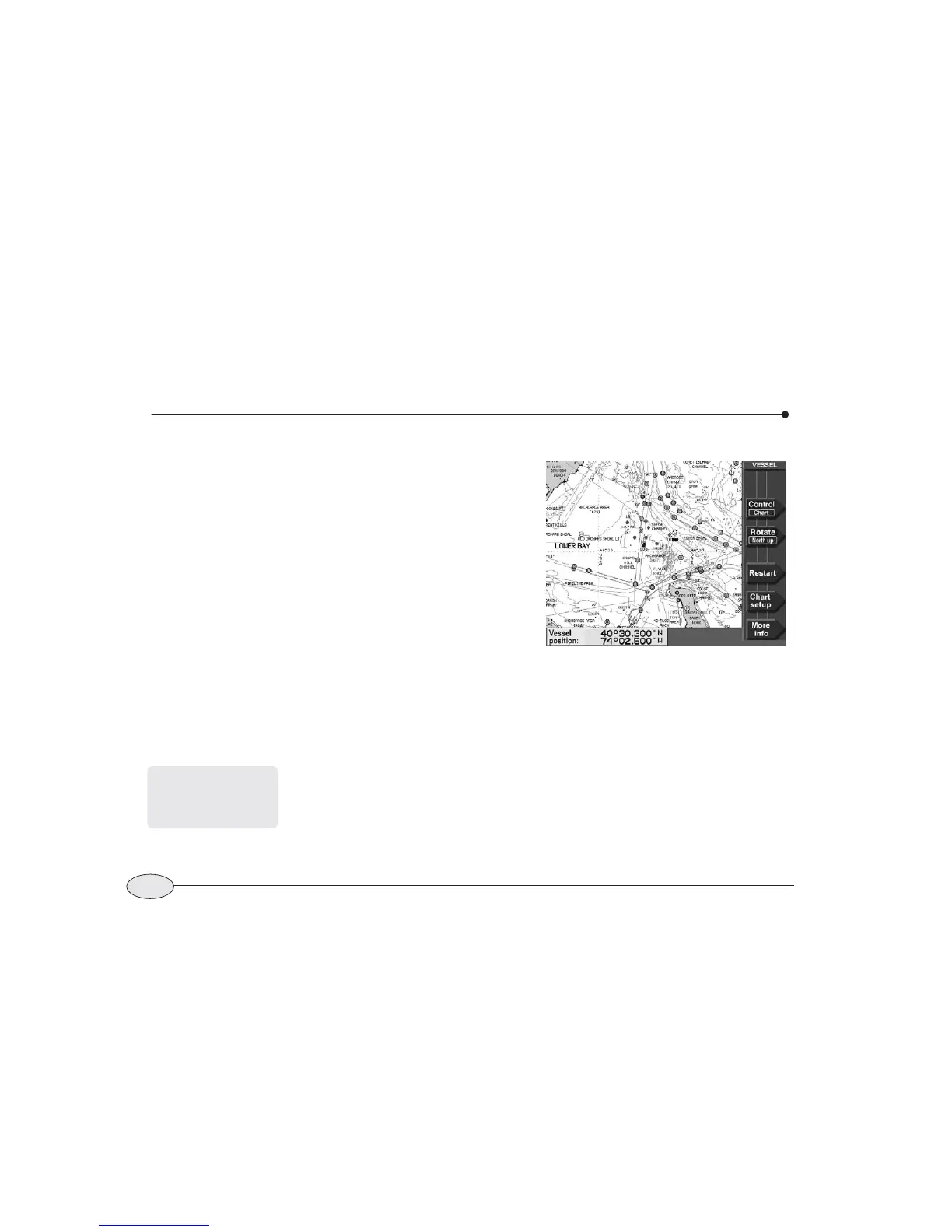
The word VESSEL in the upper right corner
of the screen means you are currently
using Vessel mode.
Vessel mode is the primary screen for navi-
gating — the chart moves automatically
under your vessel, which remains centered
on the screen. It provide a continuous view
of your surroundings.
Press More info to display your position
coordinates in the info bar at the bottom of
the screen. You can also display your SOG,
COG, or distance and bearing to the
current waypoint (if any).
When your vessel’s position
moves to the edge of a chart,
its icon may move from the
center of the screen.


 To Next Page