31
Reference section 1 — Using the Chart Screen
Setting up the chart screen (Classic charts)
Reference Manual Revision D
edges are shown as black or red dashed
lines.
The lat/lon grid is labelled only when the
chart is north-up.
How rotating affects the chart and
radar
The rotation of the chart and the rotation
of the radar image interact under certain
circumstances, as described below. Assume
that the chart and radar are both north-up
at the start:
Setting up the chart screen (Classic charts)
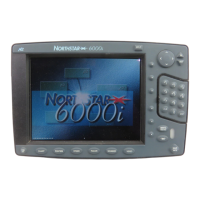
From the CHART SETUP/STATUS screen you
can select the details on the CHART screen,
adjust the 6000i’s track control, and
control Demo Mode to simulate naviga-
tion and radar.
Press the Chart Setup menu key on the
CHART screen. Setup options are displayed,
along with the chart cartridge’s name and
date.
If the Chart
screen’s in...
And the radar image is...
Overlaid on the chart Not overlaid
Browse mode The chart can’t rotate in Browse mode.
If you change the
Control key to
Radar, the chart’s mode automatically
switches to vessel mode and rotated
as described below).
The chart can’t rotate, but the radar can
rotate. Chart and radar can have different
rotations.
Vessel mode Chart and radar both rotate together. If
you change the rotation of one, the
other automatically changes to match.
Chart and radar can both rotate. Chart and
radar can have different rotations.


 To Next Page