70
Reference section 4 — Creating waypoints and routes
Editing waypoints
Northstar 6000i
Editing waypoints
You can change any information about an
existing waypoint (except for the type of
coordinates used to save it) or erase it
entirely by using the 6000i’s waypoint
editing function.
Changing waypoints
To change a waypoint’s name, description,
position coordinates, or warning radius:
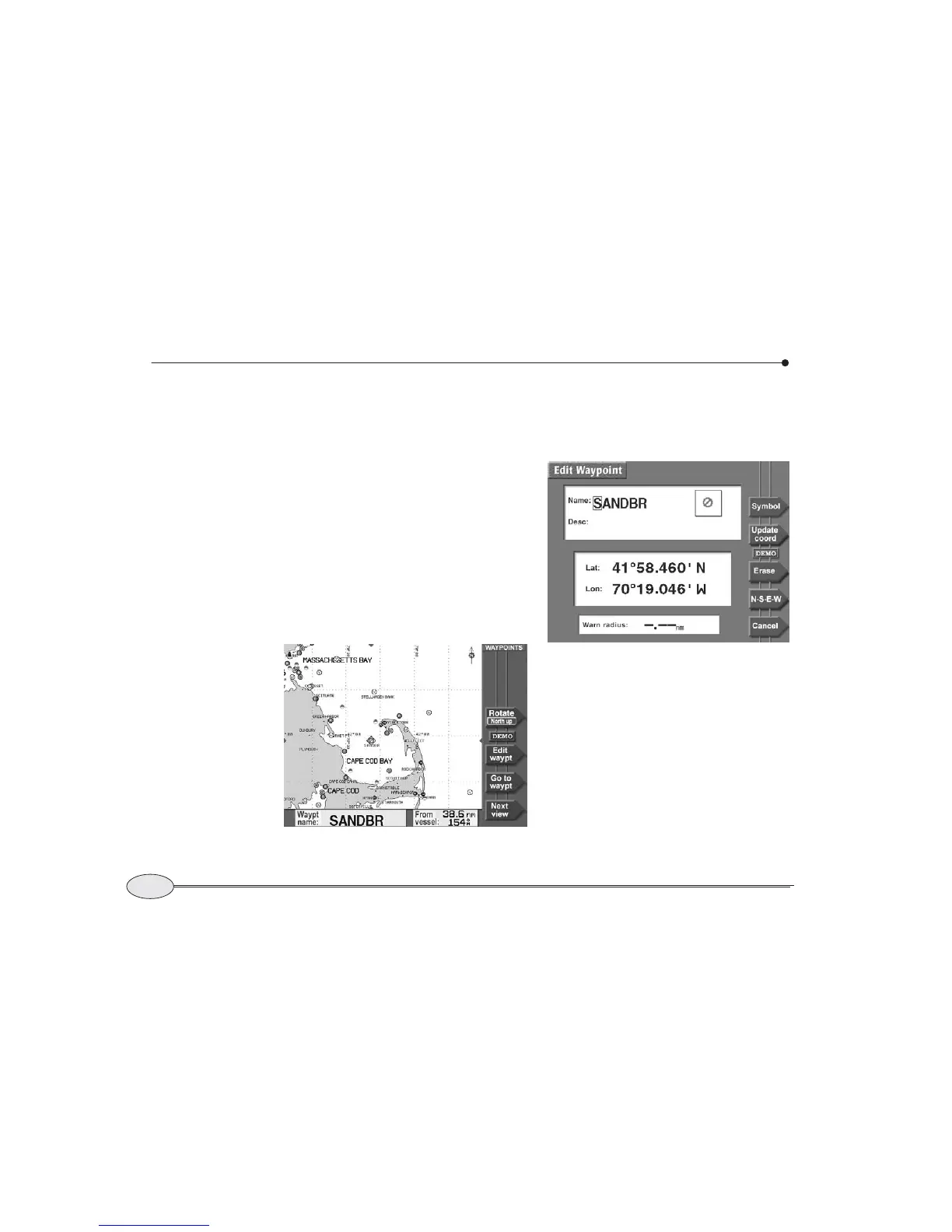
1. Press WAYPTS/ROUTES, then
Waypoints. If necessary, press Next
view
to display the waypoint screen you
want.
2. Select the waypoint by highlighting it with
the cursor pad.
3. To edit the waypoint, press Edit. (On the
WAYPOINTS CHART screen, the key is
labelled Edit waypt.)
The EDIT WAYPOINT screen appears, allowing
you to make changes just as if you were
entering a new waypoint. Press ENTER
when done.
If the waypoint is in an active navplan,
you must stop navigating before editing
it.
NOTE:
If you move the waypoint, any routes
containing this waypoint will be changed
to reflect the waypoint’s new position.
Waypoint “SANDBAR” selected


 To Next Page