76
Reference section 4 — Creating waypoints and routes
Editing a route
Northstar 6000i
3. As you pass the location of each desired
waypoint, press SAVE/MOB.
The vessel’s location will be saved as a
waypoint, and the waypoint will automati-
cally be added to the route being saved.
The waypoint is stored with a name simi-
lar to
(0001). The parentheses indicate
that the waypoint was automatically
named, and the four-digit number
uniquely identifies each waypoint. Each
waypoint is also given a description with
the time and date you stored the way-
point.
NOTE:
While you’re automatically saving a route,
you can also access all of the unit’s navi-
gation functions (except you can’t edit
the route you’re presently saving).
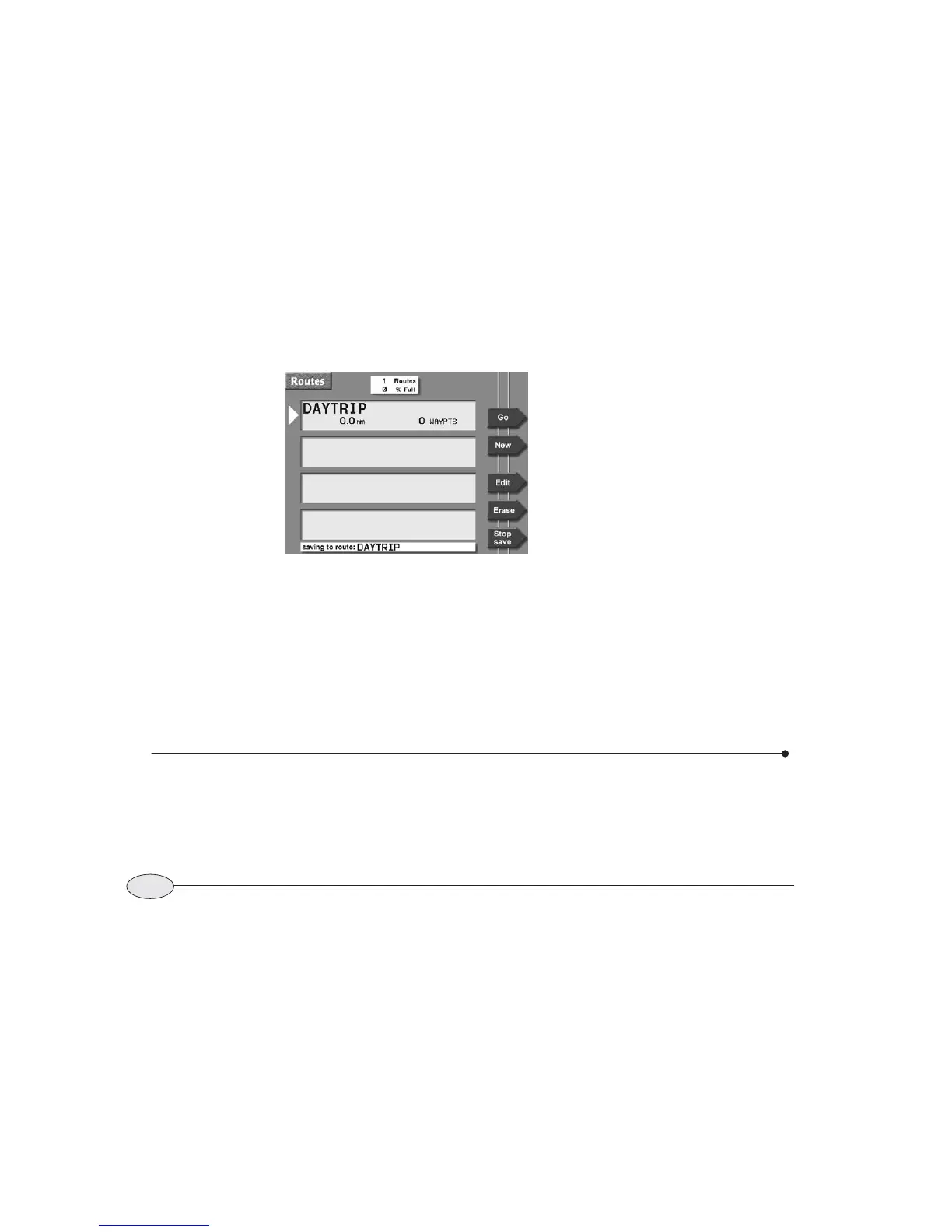
To check whether you’re still saving a
route, press
WAYPTS/ROUTES, then
Routes to display the ROUTES screen. If
you’re still saving a route, the message
“saving to route:” is displayed at the bot-
tom of the screen.
If the route becomes full (35 waypoints),
you may want to stop saving to this route
and start a second one.
To stop saving a route:
1. Press WAYPTS/ROUTES, then press
Routes.
2. Press Stop save and ENTER twice.
Editing a route
You can make changes to a route graphi-
cally using the CHART screen or you can
change it using a list of its waypoints.
You can make any of the following
changes:
• change the route name
Routes screen — saving a route


 To Next Page