32
Reference section 1 — Using the Chart Screen
Setting up the chart screen (Classic charts)
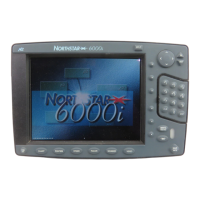
Northstar 6000i
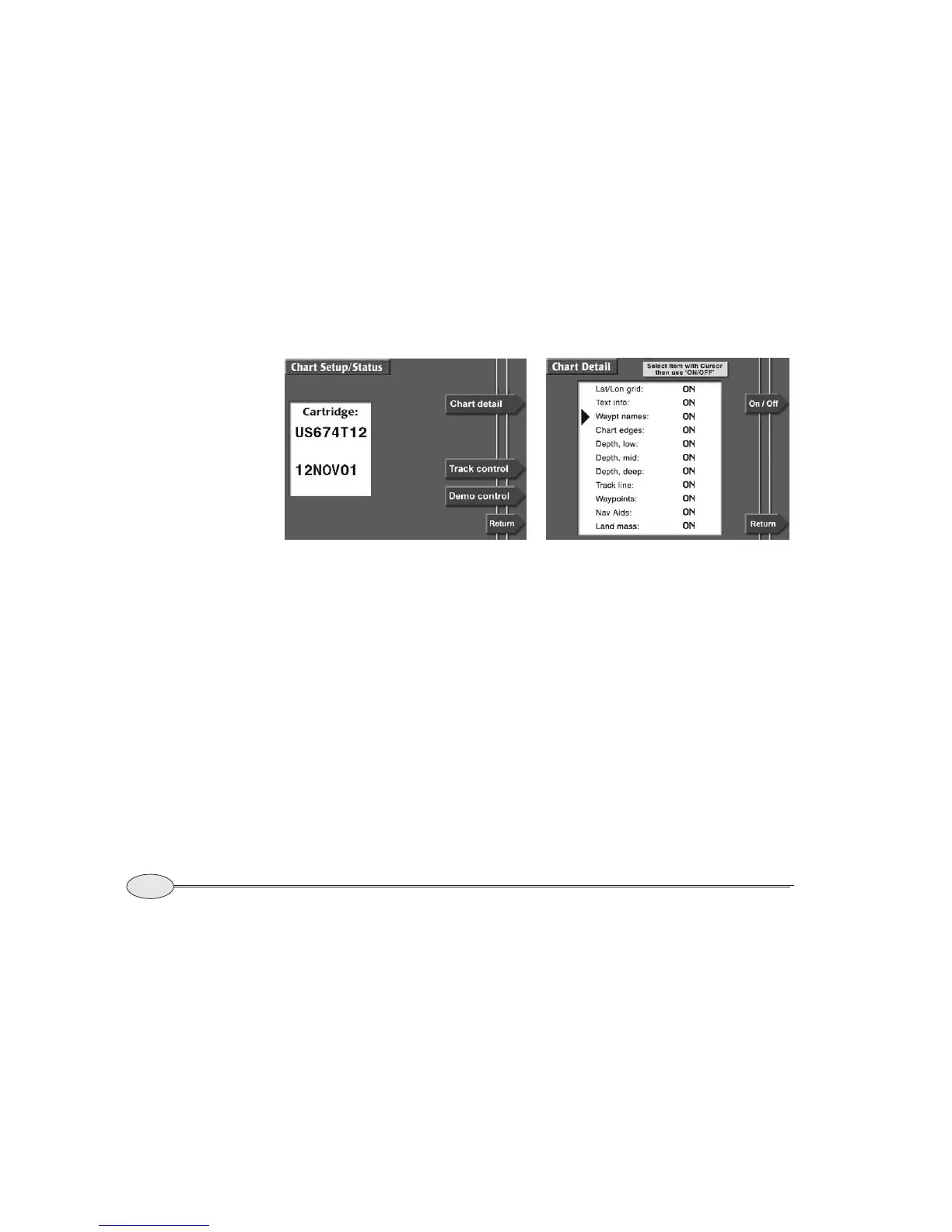
Choosing the chart details
To set up the chart details, press the Chart
detail
menu key to display the CHART
DETAIL
screen.
To change any option, press the cursor pad
to move the cursor triangle to the desired
item, then press the On/Off menu key to
change the item. An item that is turned off
is shown with two dashes.
Lat/lon grid
The ON setting displays lat/lon lines on the
CHART screen. Turn lat/lon lines off when
these lines add excessive clutter to your
screen.
Text info
The ON setting displays the names of local
cities, towns, harbors, channels, bodies of
water, etc.
Waypoint names
The ON setting displays the name of each
waypoint below its symbol. The OFF
setting displays just the symbol itself.
Chart edges
The ON setting displays the outlines of the
charts that are on the installed Navionics
chart cartridge or the built-in maps. Chart
edges are shown as dotted lines.
If the chart currently in use is rotated, its
edges are shown as solid lines.
Chart Setup/Status screen


 To Next Page