82
Reference section 4 — Creating waypoints and routes
Transferring waypoints/routes to other units
Northstar 6000i
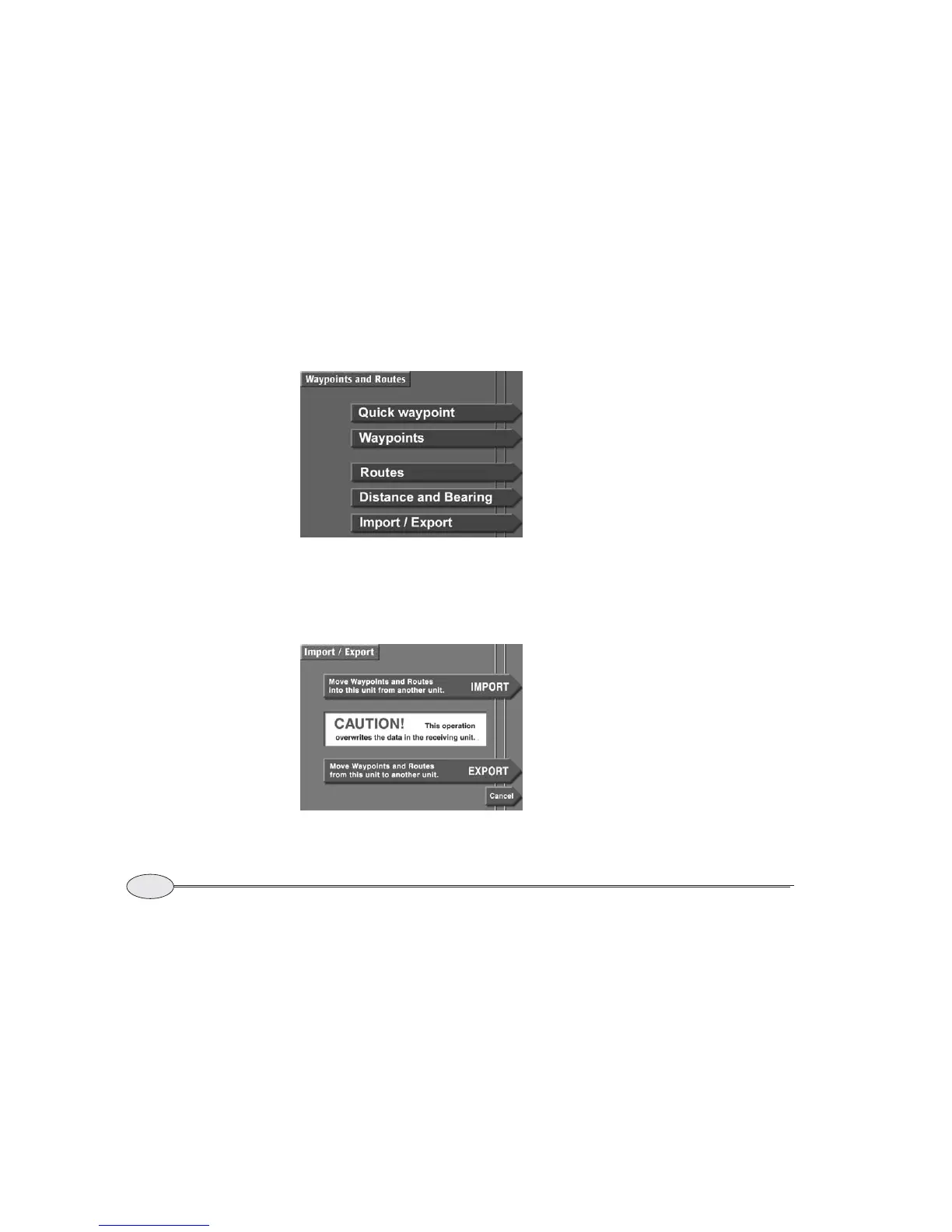
3. Press Import/Export.
4. Decide whether you want to import way-
points into the control unit, or export them
to the second unit.
5. Press Import or Export to display the
IMPORT or EXPORT DATA screen.
The status bar in the center of the screen
displays the message “R
eady to trans-
fer” to show that the transfer is ready to
start.
6. Before transferring, you can check the
communication link between the two units
by pressing Test comm.
The status bar should display the mes-
sage “R
emote link ok.”
7. To move waypoints and routes in the
direction you’ve chosen, press Start.
The status bar displays the message
“T
ransferring” and shows the number of
waypoints and routes already transmitted
against the total number. The progress
bar, located below the status bar, graphi-
cally displays the percentage completed.
If there’s a problem with the transfer pro-
cess, the following messages may
appear:
If the second unit is not ready, the control
unit displays “C
ouldn’t get remote
waypt/route count” or “Transfer
aborted by communication timeout”
and the status-bar message “Commu-
nication error.”
Waypoints and routes screen
Import/Export screen


 To Next Page