36
SECTION 4: NETWORKING YOUR DVR
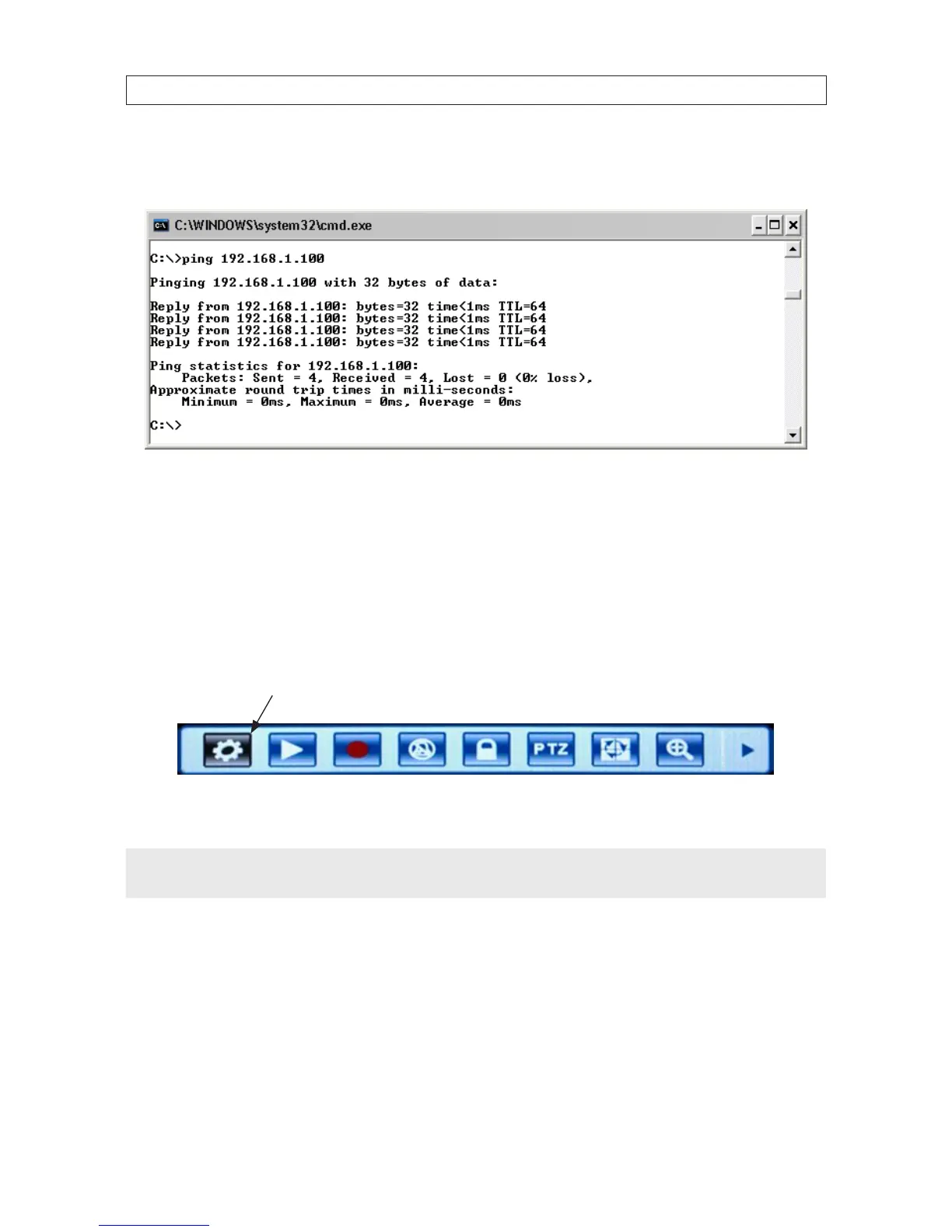
If the response to the ping command was “Reply from 192.168.1.100: ..” as shown below, a device exists on the
network that is using this IP address. If so, continue at step 2.e.
e. Since the response to ping test returned a reply as shown above, try the ping with another number between 1 and 255
until one is found that responds with the “Request timed out.” message. Use this IP address with your DVR and enter
it into Table 1.
f. In table 1, copy the PC’s Subnet Mask and Default Gateway entries into the DVR’s Subnet Mask and Default Gateway
cells.
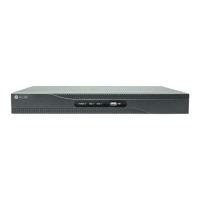
3. At your DVR, click the System Settings icon on the Tool Bar to open the SYSTEM tab window.
System Settings
4. Click NETWORK to open the NETWORK settings menu.
NOTE
The default IP addresses and port settings of your DVR may be dierent from those shown in this document. Always use
network settings that are compatible with your network(s).


 To Next Page