Omron TM Collaborative Robot: Conveyor Tracking User’s Manual 17
3. Operating Guide
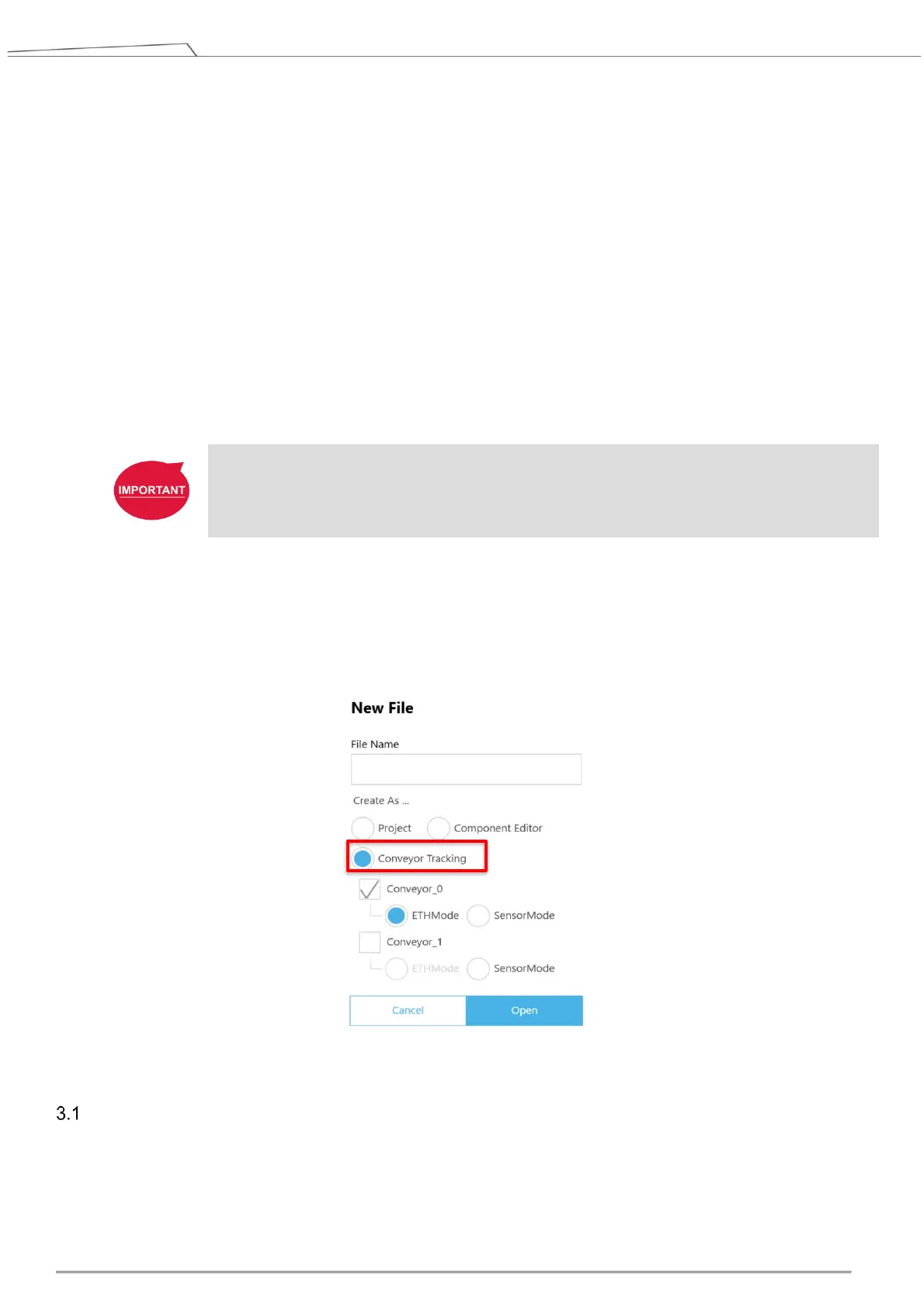
Under the Sensor Mode, click New > New Flow on the top-left corner of TMflow, click Conveyor Tracking
and select Conveyor_0 (using only one conveyor) or Conveyor_1 (using two conveyors), then choose
Sensor Mode to create a conveyor tracking project. To use the ETH mode, insert the TM dongle into the
control box before activating TMflow, and after TMflow is activated, click New > New Flow > Conveyor
Tracking > Conveyor_0 or Conveyor_1 > ETH Mode to create a conveyor tracking project.
Select “Conveyor_0” or “Conveyor_1”
Conveyor_0: application requires only one conveyor
Conveyor_1: application requires two conveyors
IMPORTANT:
To start any new Conveyor Tracking project with one connected conveyor, choose Conveyor_0
or Conveyor_1.
TM Conveyor Tracking supports two operating modes:
Sensor Mode: detect the objects passing through the sensor beam (default mode)
ETH Mode: obtain object position through camera imaging (requires a license dongle)
Figure 3: Create new project
Sensor Mode
Sensor Mode consists of a robot and external sensors. The sensor will detect objects passing through
the sensor beam. Application diagram of Sensor Mode is presented in Figure 4.



 To Next Page