Omron TM Collaborative Robot: Conveyor Tracking User’s Manual 36
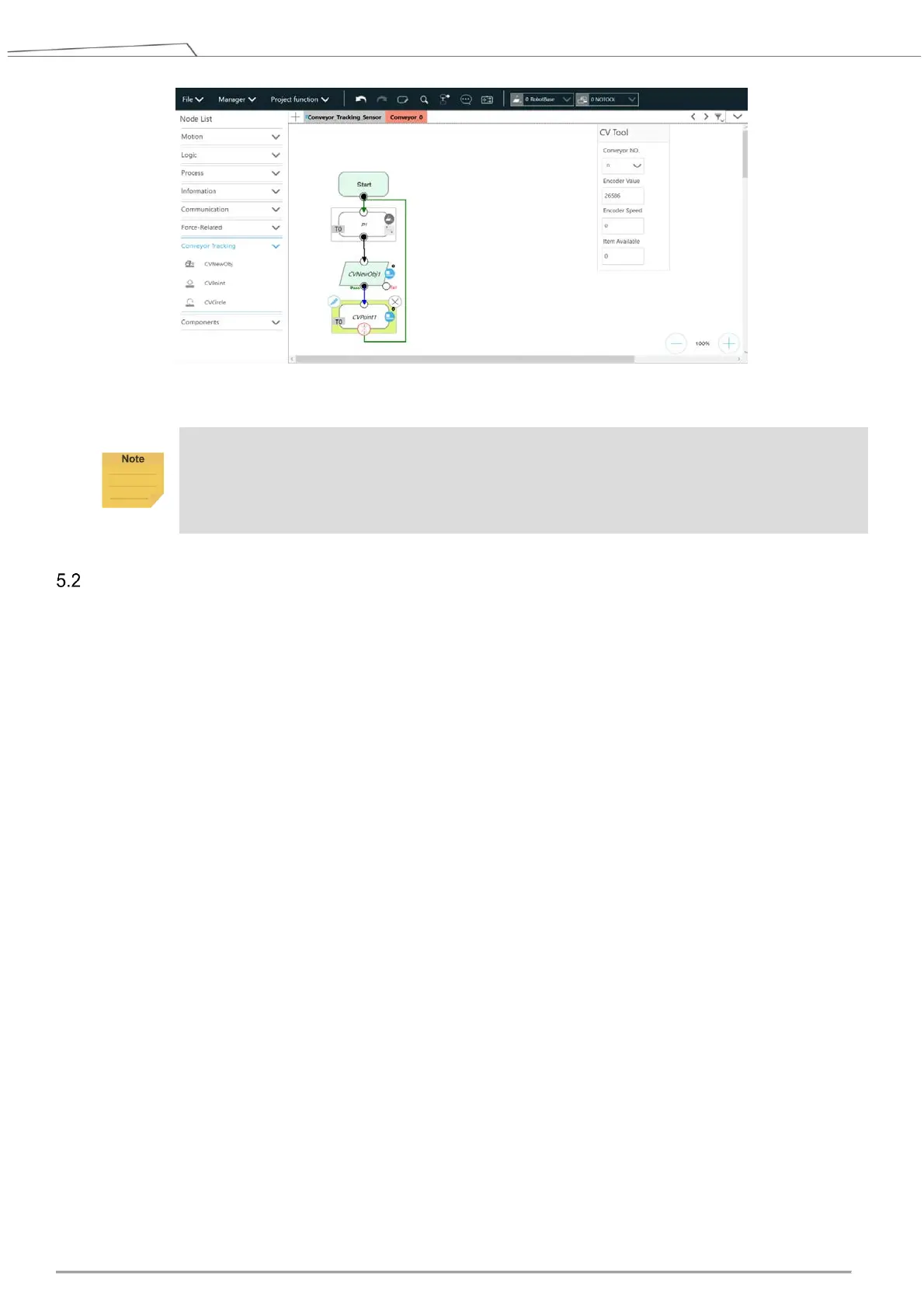
Figure 29: Form a loop
NOTE:
Use either the advanced setting of gripping objects to go with the CVPoint's end tool I/O status
and the point position setting or the output variables to go with Plug&Play software package to
control the end tool to complete the gripping and releasing process.
ETH Mode
ETH requires the purchase of a TM Dongle, and the Dongle must be inserted into the control box before
TMflow is activated.
1. Navigate to Configuration > Vision Setting and click Calibration. Choose the Conveyor Tracking
camera in the Camera List at the left. (If the camera is used for the first time, it will appear as
Unknown and with the Un-Calibrated state. If not, the camera appears as Conveyor Tracking and
with the Calibrated state. The example below is an un-calibrated one.)
2. Click Conveyor-tracking in Select Application, then click Automatic.
Camera calibration: By the instructions on the screen, put the calibration plate under the
Conveyor Tracking camera. In addition, users have to get 15 shots in different angles and
directions and ensure the shots are not distorted (this depends on whether the calibration plate is
tilted).



 To Next Page