108 The Information Company
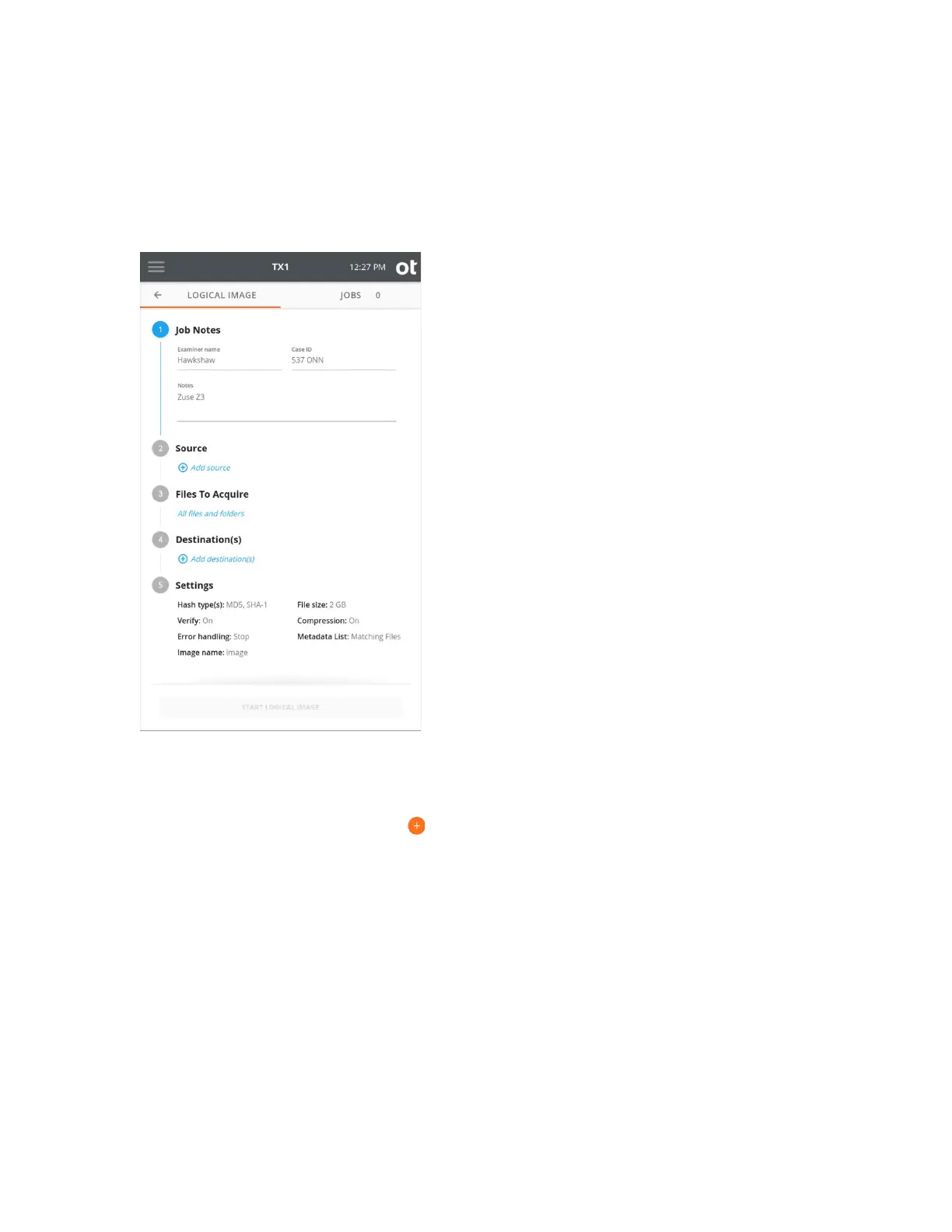
3. To modify or enter job notes, tap the 1 or Job Notes heading to expand the section.
Tap a text box to modify or enter Examiner name, Case ID, or notes values and the
virtual keyboard is displayed on the bottom half of the screen. If desired, you can also
attach a USB keyboard to one of the front Accessory USB ports.
4. To select a filesystem from an available source drive, tap the 2 or Source heading. A
list of attached drives will appear, with a filesystem summary tile shown under each
drive for any filesystems recognized by TX1. Note that network shares can also be
used as logical image job sources. To make a network share visible in the Select a
source list, tap the orange plus button at the top right of the modal and follow the
share mounting workflow. Source network shares can be mounted from the Sources
button on the main screen as well.
Once the source drive/share list is set, simply tap the desired filesystem tile to select
it as the source for the logical image job. A green check confirms your selection and
the source selection modal will auto-close. If a different source filesystem is desired
(or to verify the details of the selected filesystem), simply go back into the Select a
source screen by tapping the 2 or Source heading from the logical image job setup
stepper. Close the modal by tapping the X in the upper right corner or by tapping
outside of the modal.
Copyright © 2022 Open Text. All rights reserved. Trademarks owned by Open Text.



 To Next Page