Operator’s Manual – OPTI CCA-TS2 8-29
8 DIAGNOSTICS AND TROUBLESHOOTING
8.2.18 Checking the Touch Screen
The purpose of this test is to check the proper
operation of the touch screen.
In the main menu, press <System Manager ->
Diagnostics>.
• Select the <Tests> tab.
•
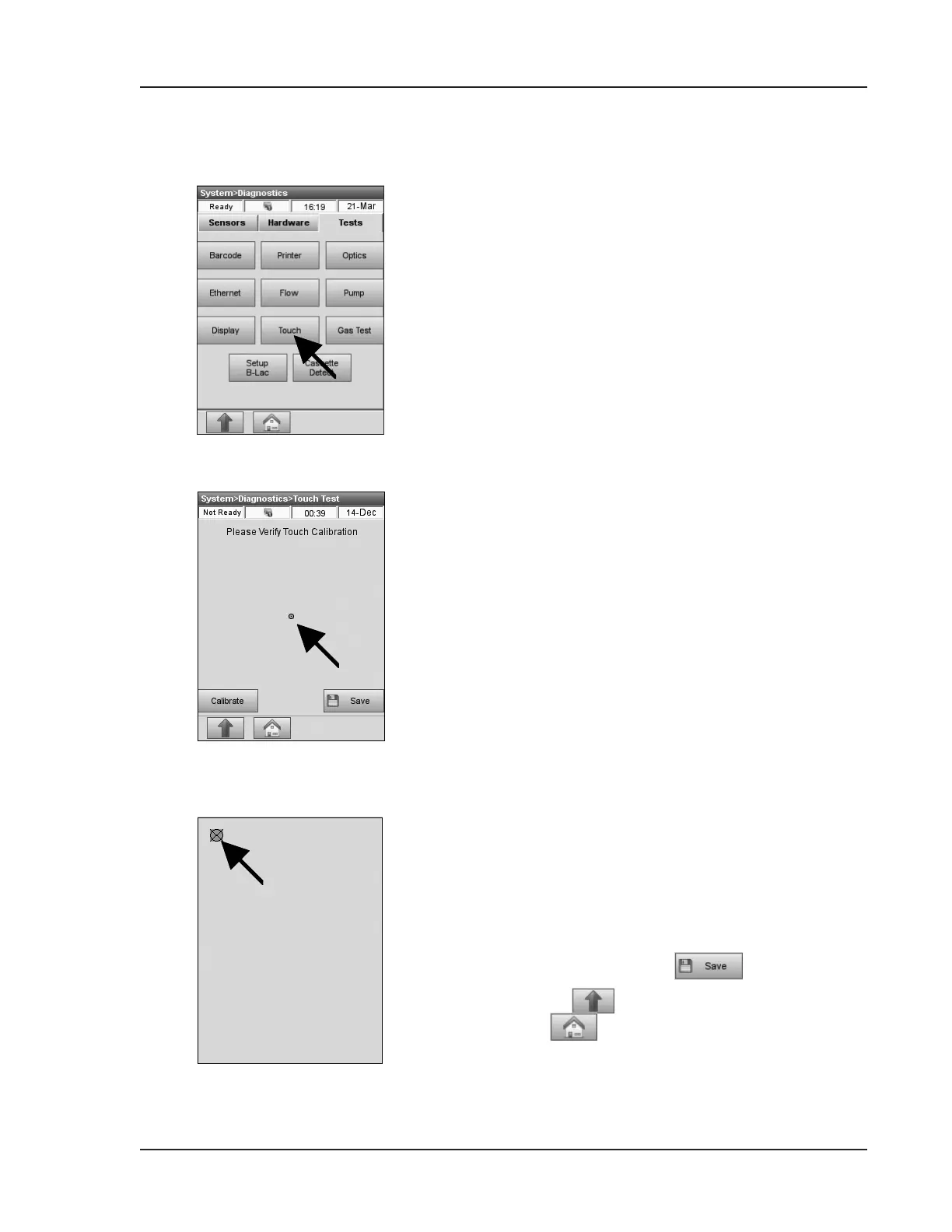
Press <Touch> to start the test (Fig. 8-30).
• Touch the screen and a dot should appear under
the touched location (Fig. 8-31).
• If not, press <Calibrate> to perform a touch
calibration.
• Using a nger, stylus or pointed object (e.g.
syringe adapter), touch the center of the
calibration mark as it moves around the screen
(Fig. 8-32).
NOTE:Donotusesharpobjects,sincetheymay
damagethescreen.
• When nished press .
• Press
to return to the <System> screen
or
to return to the main menu.
Fig. 8-30 Select Touch Test
Fig. 8-31 Perform Touch Test
Fig. 8-32 Touch Calibration


 To Next Page