Operator’s Manual – OPTI CCA-TS2 3-19
3 CUSTOMIZATION
3.2.2.7 Setting up Correlation Factors
Correlation factors let you correlate results from
your OPTI CCA-TS2 to other analyzers. Correlation
factors are available for all measured parameters.
NOTE: SlopeisamultiplicativefactorandOffset
isanadditivefactor,usingthefollowing
formula:
Correlatedvalue=Rawvalue*slope+
offset.
1. In the main menu, select <System Manager>
and <Setup>.
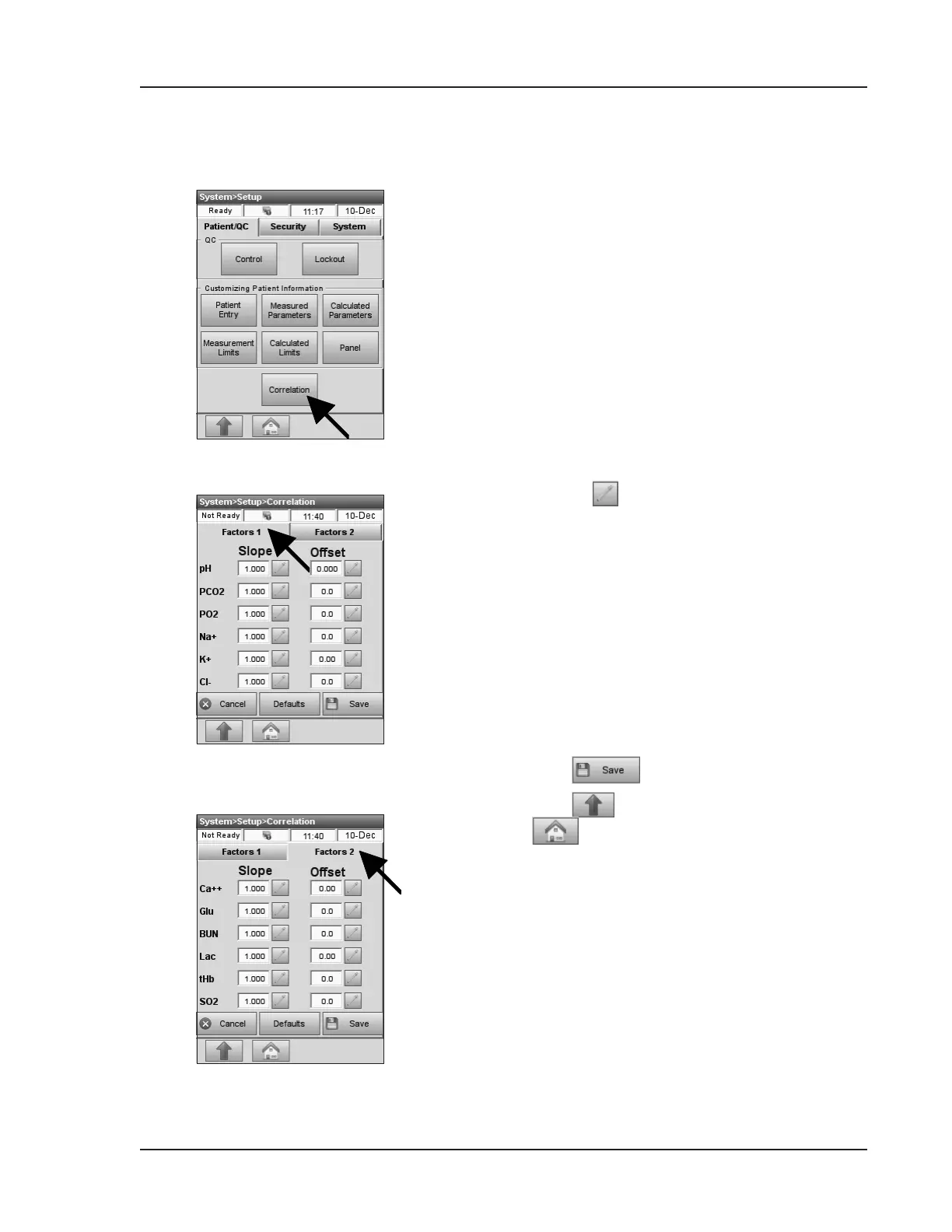
2. On the <Patient/QC> tab, press
<Correlation> (Fig. 3-41).
3. Select the numbers you want to change by
pressing (Fig. 3-42). Enter the new numbers.
4. Press <Factors 2> to go to the next screen
(Fig. 3-43).
5. When entering the actual offset value, select
whether it is an additive or subtractive value
using the +/- keys.
NOTE:Thefactorysettingis1.0(00)forallslopes
and0.0(00)fortheoffsets.Thisdeactivates
thecorrelationfactors.
6. Continue through the other parameters, setting
their correlation factors as above.
7. Press to accept the changes.
8. Press to return to the <Setup> screen or
to return to the main menu.
CAUTION:
Sincealteringthecorrelationfactors
willalteryourmeasurementresults,
beverycarefultoenterthecorrect
valuesandconrmthesettingsby
runningatleast10comparison
measurementsbetweentheOPTI
CCA-TS2andtheinstrumenttowhich
itistobecorrelated.
Fig. 3-41 Select Correlation
Fig. 3-42 Correlation Factors 1
Fig. 3-43 Correlation Factors 2


 To Next Page