164
Quality checks
CHAPTER SEVENTEEN
Quality checks
Details
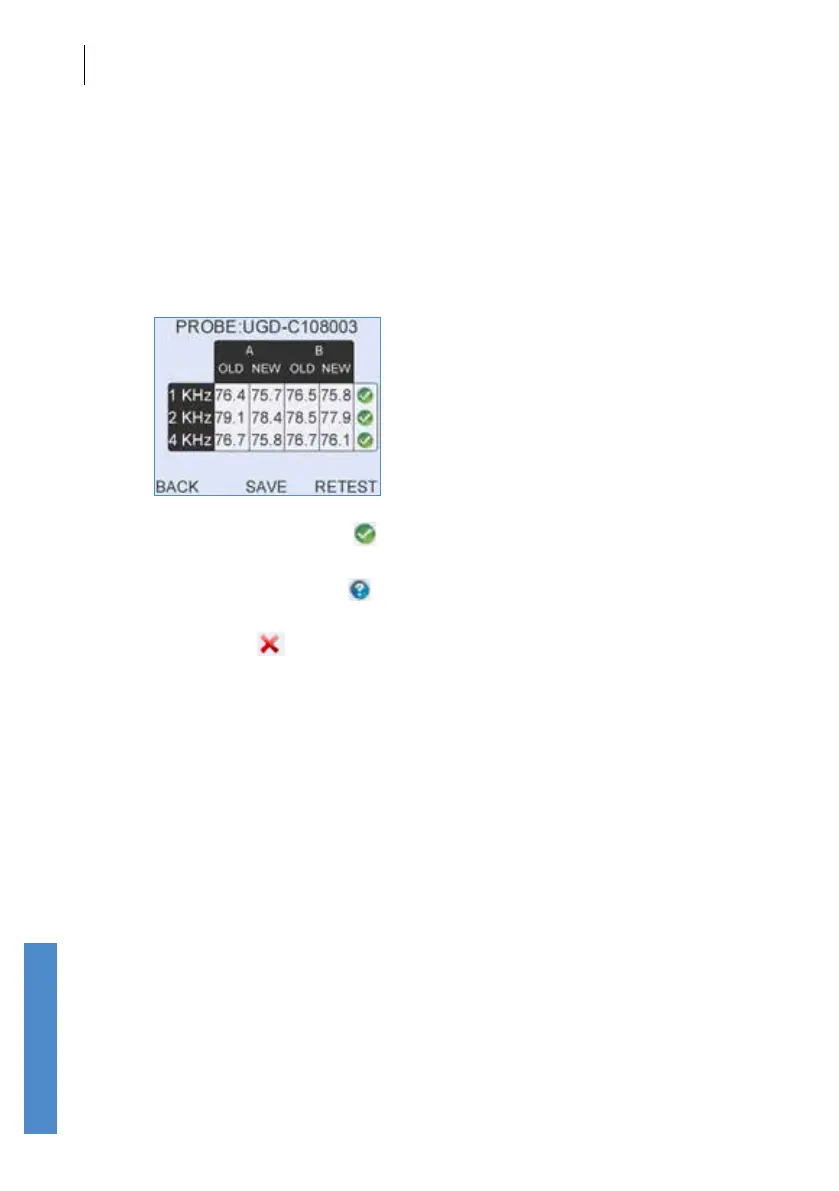
The full test result can be viewed by selecting Details. The details screen
shows the levels recorded from the probe loud speaker at each frequency
tested. The NEW column shows the levels just recorded and the OLD
results are the levels that are stored in the probe.
Results are given for each frequency tested:
Pass - Tick/Check mark ( ) The NEW and OLD (Stored) data for each of
the two channels are within ± 3dB and are within the absolute limits.
Query - Question mark ( ) Values dier by more than ± 3dB. The NEW
and OLD levels are highlighted.
Fail - Cross ( ) Values are outside the absolute range. The NEW level
only is highlighted.
The 1, 2 and 4kHz values may not be stored in the probe if a new probe is
being used with the system. To save new data, run a Probe Test, record the
values for each frequency and repeat by selecting Retest. Check that the
values from two sequential tests are within ± 0.5dB before selecting Save.
Save is only available to admin users. It is not available if the test was
noisy or if the levels were outside the absolute range.
On selecting Save, the screen title Overwrite Stored? will be shown
highlighted. Select Yes to save the new data or No to keep the current
stored values which may be blank for a newly registered probe. Before
entering Probe Test the user will be prompted to register the probe with the
Otoport.
Select Back to exit the Probe Test screen and return to the Conguration
screen.



 To Next Page