What are print modes
As well as printing postage, your device uses other ways to print and feed mail. Tap Print Mode in the
Envelope Printing app to see the available options.
l
Date and Time Stamp - Print just the date and time. Your device will not print any postage.
l
Graphic only - Print a graphic. Your device will not charge you for printing a graphic only.
l
Postage printing - Postage printing is the default mode for printing mail.
l
Seal only - Seal your envelopes. Your device will not print when you select Seal Only.
l
Key in Postage - Enter the price of your mail manually.
Printing a custom graphic
Customise your mail by adding a custom graphic or logo.
Add your own custom logo or graphics to your device. You can store up to 24 custom graphics.
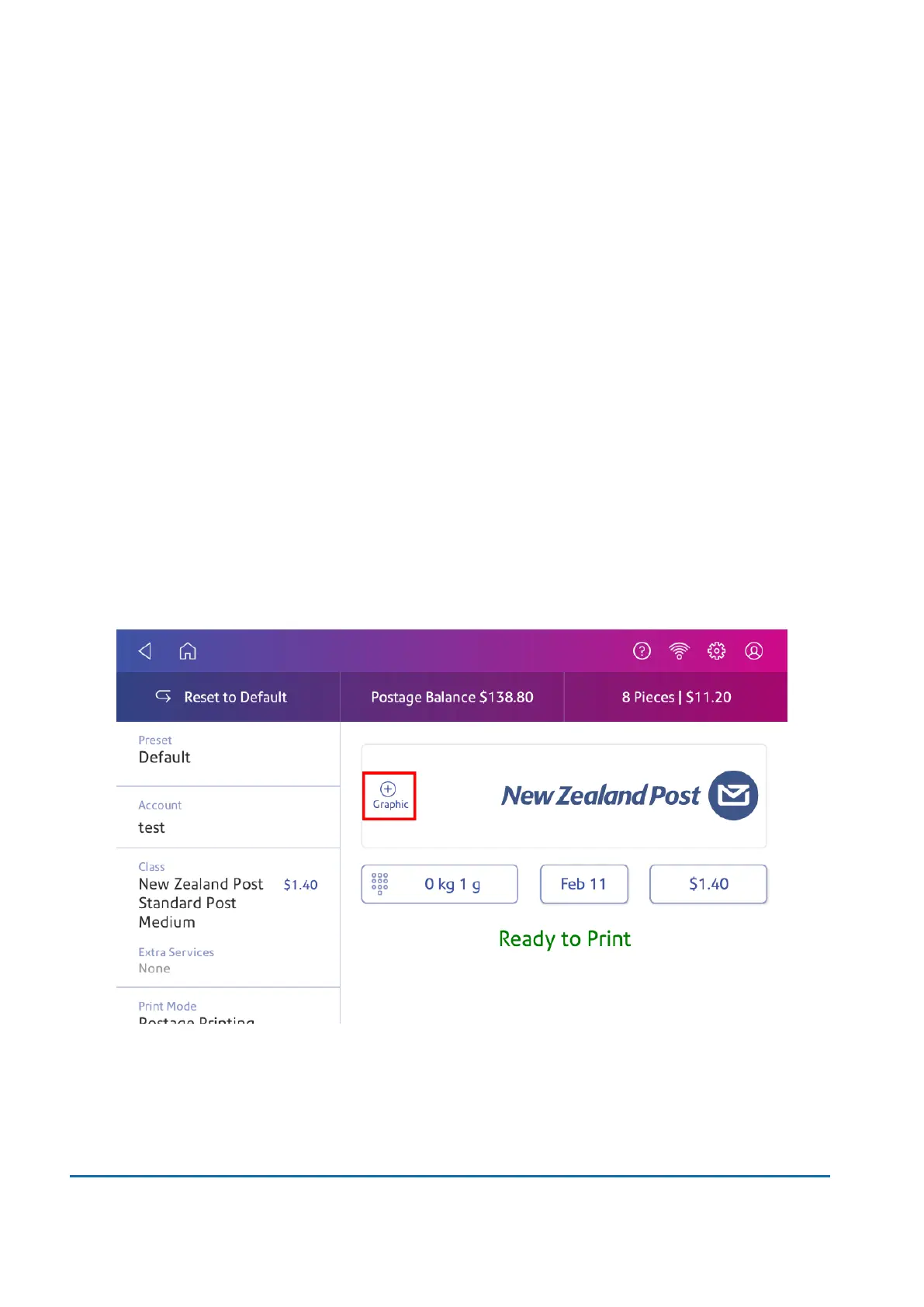
1. Tap Envelope Printing on the Home screen.
2. Tap Graphic.
3. Select the graphic you wish to use.
4. Tap Apply.
5. Place the envelope on the feed deck then manually feed it through the device.
To order a custom graphic, contact your device supplier.
8 • Printing
Pitney Bowes User Guide June 2022 67













 To Next Page