User Manual of WNAP-6325
-63-
Object Description
Schedule Reboot
Enable or Disable this function.
Reboot Time
Enter the time that you want to reboot this device.
Reboot Plane
Select Weekday to reboot in the day you choose or Every day.
Weekday
Select the day that you want to reboot.
1. This setting will only take effect when the Internet connection is accessible and the GMT
time is configured correctly.
2. You must select at least one day when choosing “Weekday” as your reboot plan.
3. When choosing “Every day” as your reboot plan, the “Weekday” will be grayed out
(disabled), which means Every day will auto reboot at the time that you schedule.
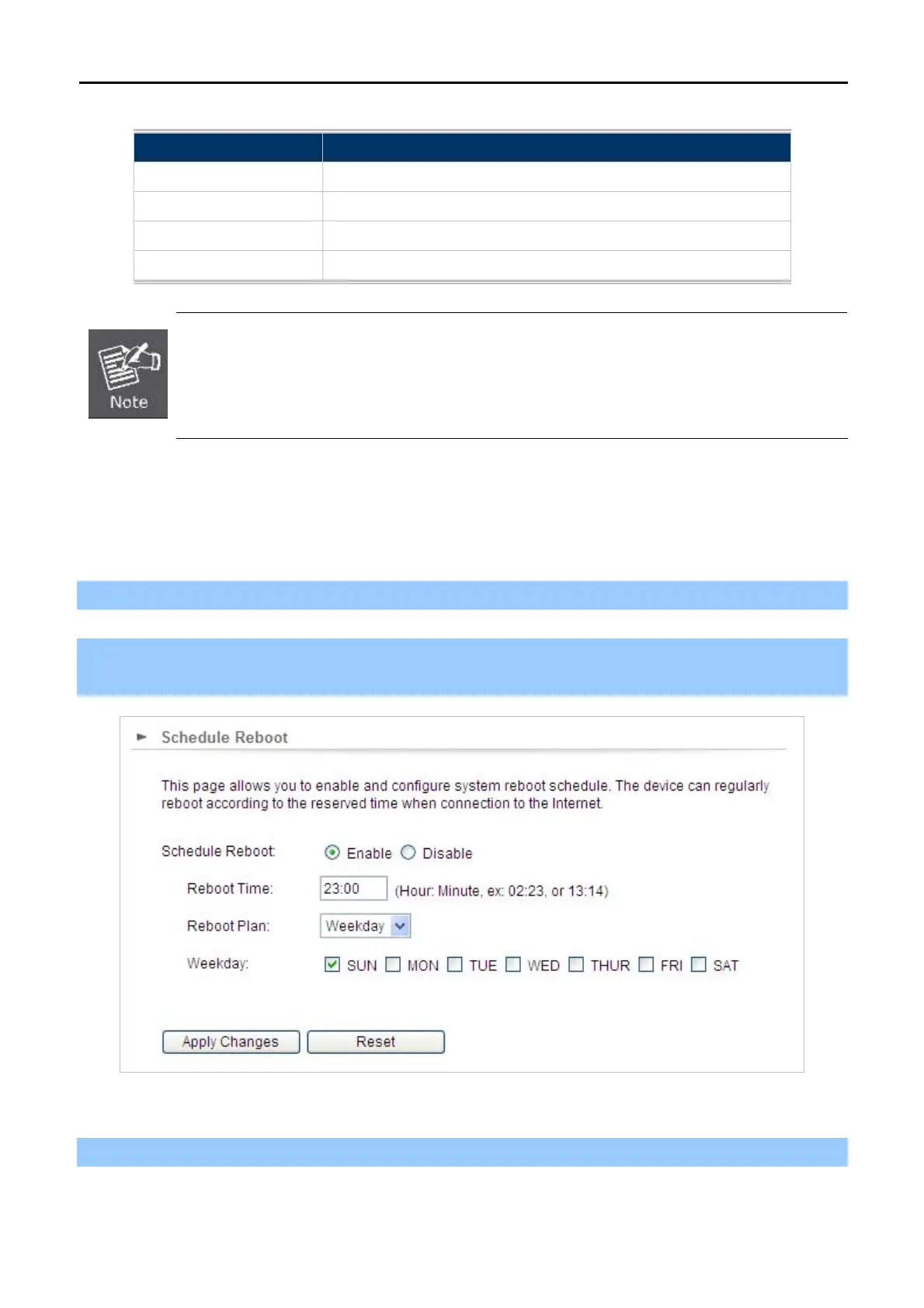
Example of how to configure Schedule Reboot. Please take the following Steps:
Before configuring schedule reboots, please ensure the Internet connection is accessible and the GMT time is
configured correctly according to NTP Settings page.
Step 1. Enable the “Schedule Reboot”.
Step 2. Enter the Reboot Time (24-hour format) to enable this function to take effect. For example, if you want
this function to work at 23:00 every Sunday, choose "Weekday" in the Reboot Plan field.
Figure 5-44 Schedule Reboot - Example
Step 3. Click the “Apply Changes” button to take this function effect.



 To Next Page