Sending Cases Through DDX
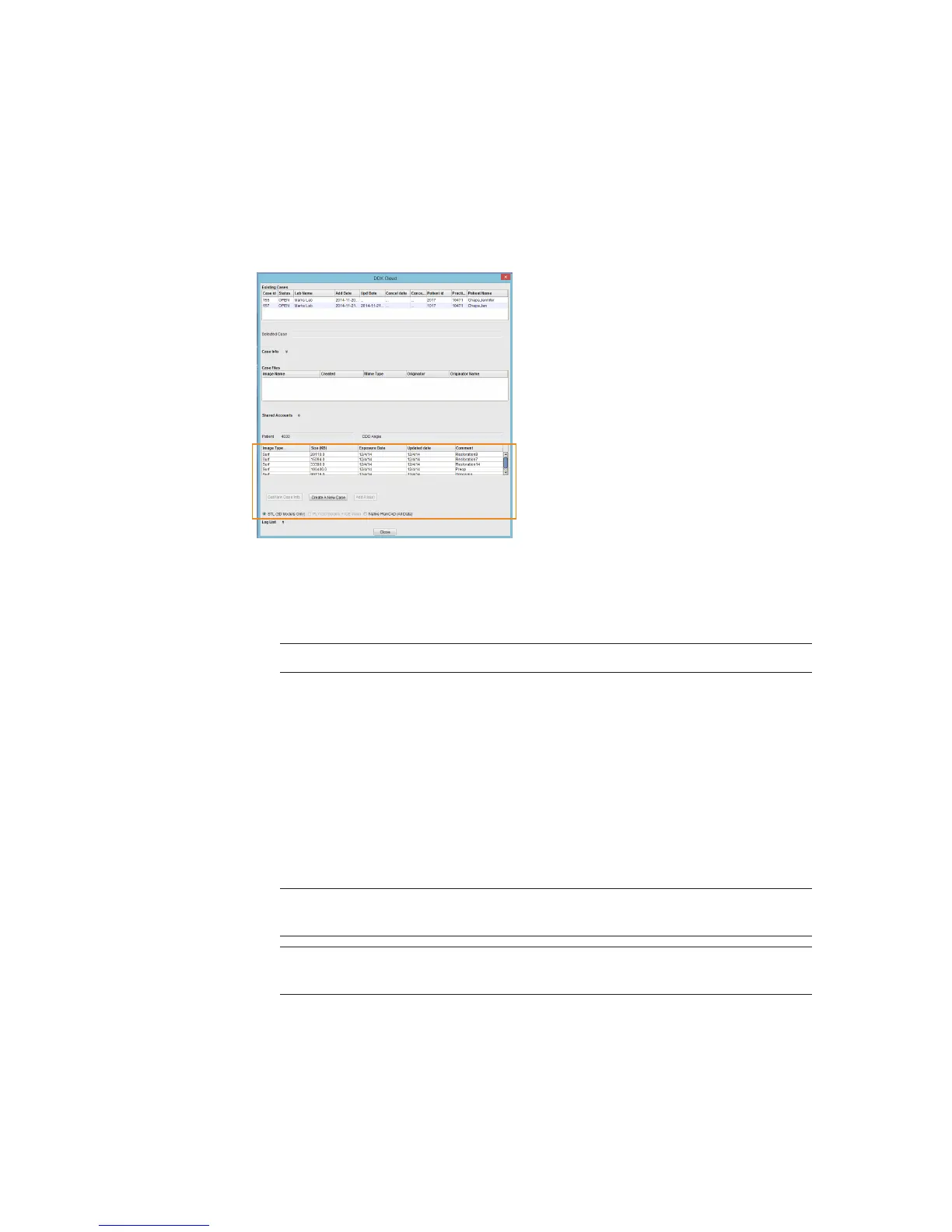
1 In the CAD/CAM module of the active patient, select the desired case le.
2 Click DDX Export.
If you are currently logged into DDX, you will see details of your other cases.
The available models for the case that you have selected are listed near the bottom of the
screen. Ensure you have a ditched_prep model if your case has equigingival or subgingival
margins. See “Retract” in Chapter 6 for more information.
3 Select STL (3D Models Only) or Native PlanCAD (All Data) as the export type at the bottom
of the screen. Labs must have Romexis PlanCAD software in order to use the PlanCAD data. Ask
your lab which export type they prefer.
4 Click Create a New Case.
Note: If you are not already logged into DDX, a login screen will appear.
5 Select the desired lab from the list of My Labs or Find A Lab.
6 Fill out the form. You must select a Procedure and type the tooth number(s). The rest of the
elds are optional.
7 Click Submit Case.
The system returns to the DDX Cloud screen. Wait for the case to appear in the Existing Files
section.
A red progress bar appears when the case automatically uploads. The screen closes when the
upload is nished.
Note: If the case does not automatically upload, click on the le in Existing Files
and click the Add Files button.
Note: A PlanScan panel is available in the Dentrix Chart. See Dentrix user manual
for details and instructions.
46 Exporting Data Planmeca PlanScan User Manual





 To Next Page