35
1
[A]
[B]
[A]
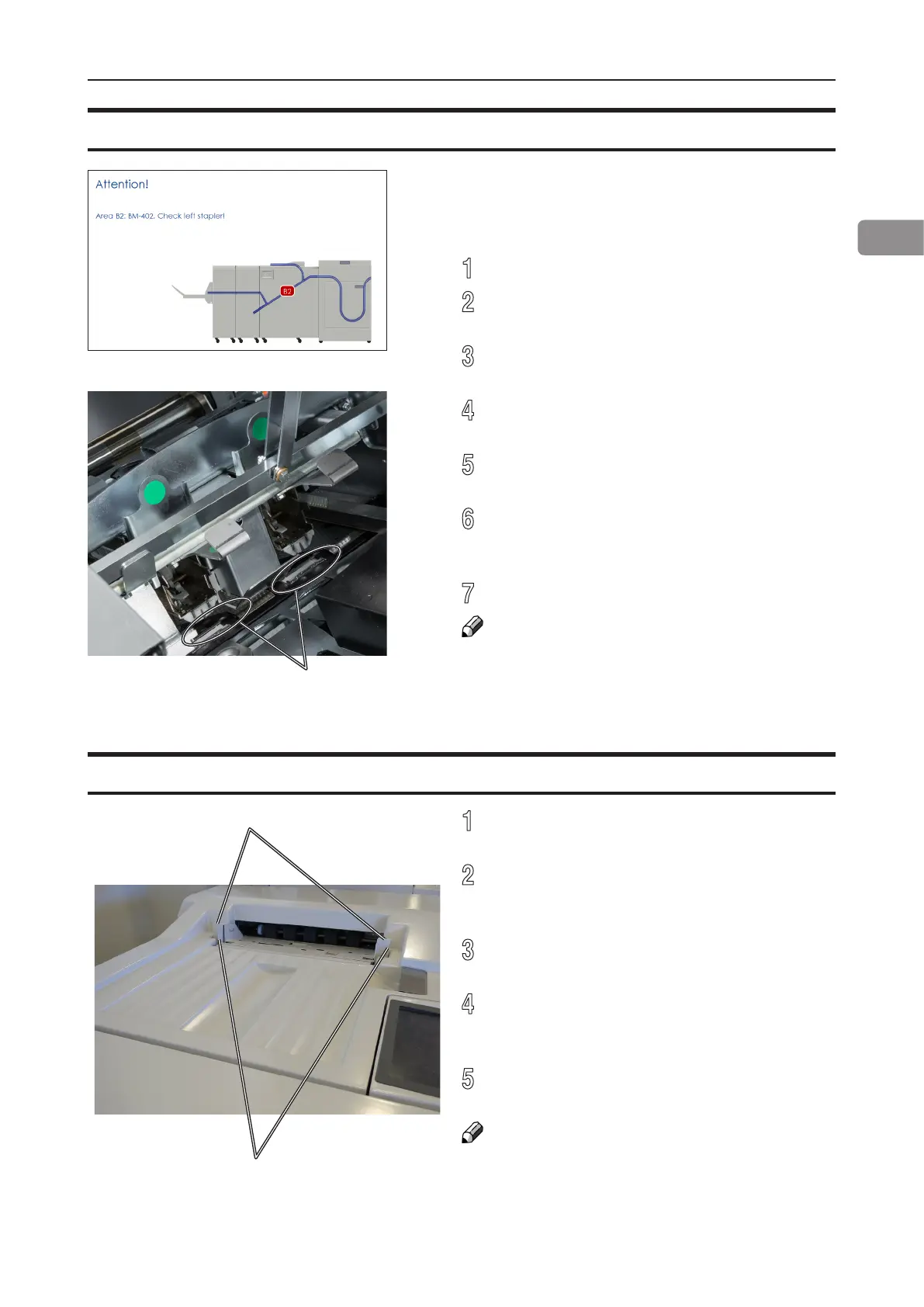
Check left/right stapler
Loading covers
Cover Feeder
1
Make sure the cover sheets are well fanned
to avoid misfeeds or double-feeds.
2
Align the cover sheets well to achieve a
reliable feeding operation and good nishing
results.
3
Make sure that the ink has completely dried,
to avoid smearing.
4
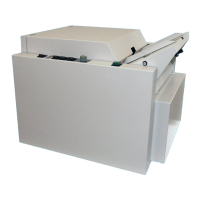
Press on top of either air nozzle [A] to
lower the paper bin. Load the covers facing
downwards into the paper bin.
5
Adjust side guides [B] up against the cover
sheets until there is no clearance.
NOTE:
Make sure covers are same size as sheets fed
to booklet maker. When using an RCT, see Note
under “Changing settings, Finished Booklet Size,
Custom booklet size”.
If the Booklet Maker indicates “Check right/left/
right and left stapler”, it means that there is a
jam in the indicated stapler. Remove the stapler
cartridge as described above.
1
Open the Booklet Maker top cover.
2
Remove either or both staple cartridge(s) as
described above.
3
Remove any sheets left in the Booklet Maker
and look for jammed staples stuck in the sheets.
4
Look inside the staple cartridge for jammed
staples and remove them if any.
5
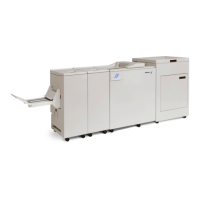
Look at the clinchers [A] and remove any
jammed staples.
6
Push the staple cartridge(s) into stapler until
it snaps into position and lock stapler guides
in position as described above.
7
Close Booklet Maker top cover and restart job.
NOTE:
If the error message persists for no reason or if
staple jam reoccurs, replace the staple cartridge
as described above.



 To Next Page