43
2
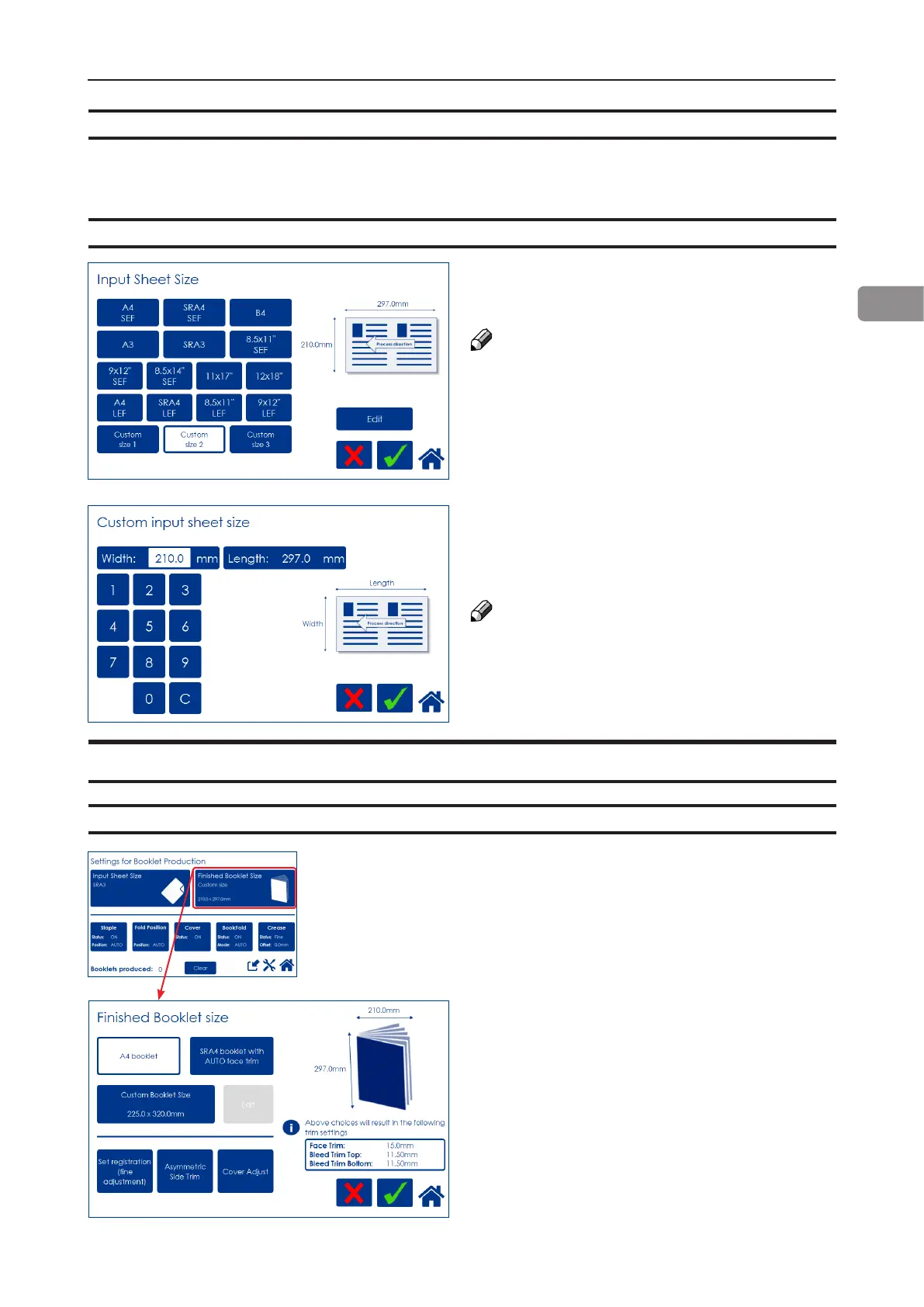
Custom input sheet size
AUTO sheet size
From the Input sheet size screen, press any
of the Custom size buttons and then press the
[Edit] button.
NOTE:
Changing to a Custom input sheet size will NOT
change Staple position, Fold position, Cover,
BookFold, Crease or Fine adjustment settings.
The “Booklets produced” counter will still be
reset.
Select Length and/or Width and key in the
desired value. Save the custom size format by
pressing the [check] button.
Three different custom paper sizes can be stored.
NOTE:
A full number (incl. decimal point and fractions
of an inch/mm) must be entered before the
green [check] button appears.
Save setting by pressing the green [check] but-
ton.
Finished Booklet Size
Auto trimming
From the Settings for Booklet Production
screen, press [Finished Booklet Size].
Trimming can now be set to either of two
suggested formats (except for B4 which only
has one suggested format) or Custom Booklet
Size.
When Face Trim is set to Auto, a minimum trim,
based on the information from Set Thickness
Sensor, is calculated.
For custom sized booklets, see below.
AUTO means that the Booklet Maker will adjust to the paper size information sent from the printer.
Auto Rotate will be turned on and a nished booklet size will be chosen from a predened list i.e.
the [Finished Booklet Size] button will be greyed out. No other settings will be affected.



 To Next Page