Icon
A picture on the screen. There are two types of icons :
An icon that you can select to access a function, feature, setting, or application. For example,
when you’re in Home view, you can select the New Call icon ( ) to place a call.
An icon that provides phone information or status only. Selecting this type of icon doesn’t
access another function. For example, your phone may have an icon to indicate you
have a voicemail message simply to notify you of the current status.
Soft key
This term describes the context-sensitive keys that display along the bottom of the
screen that update depending on the task you’re performing. To see additional options
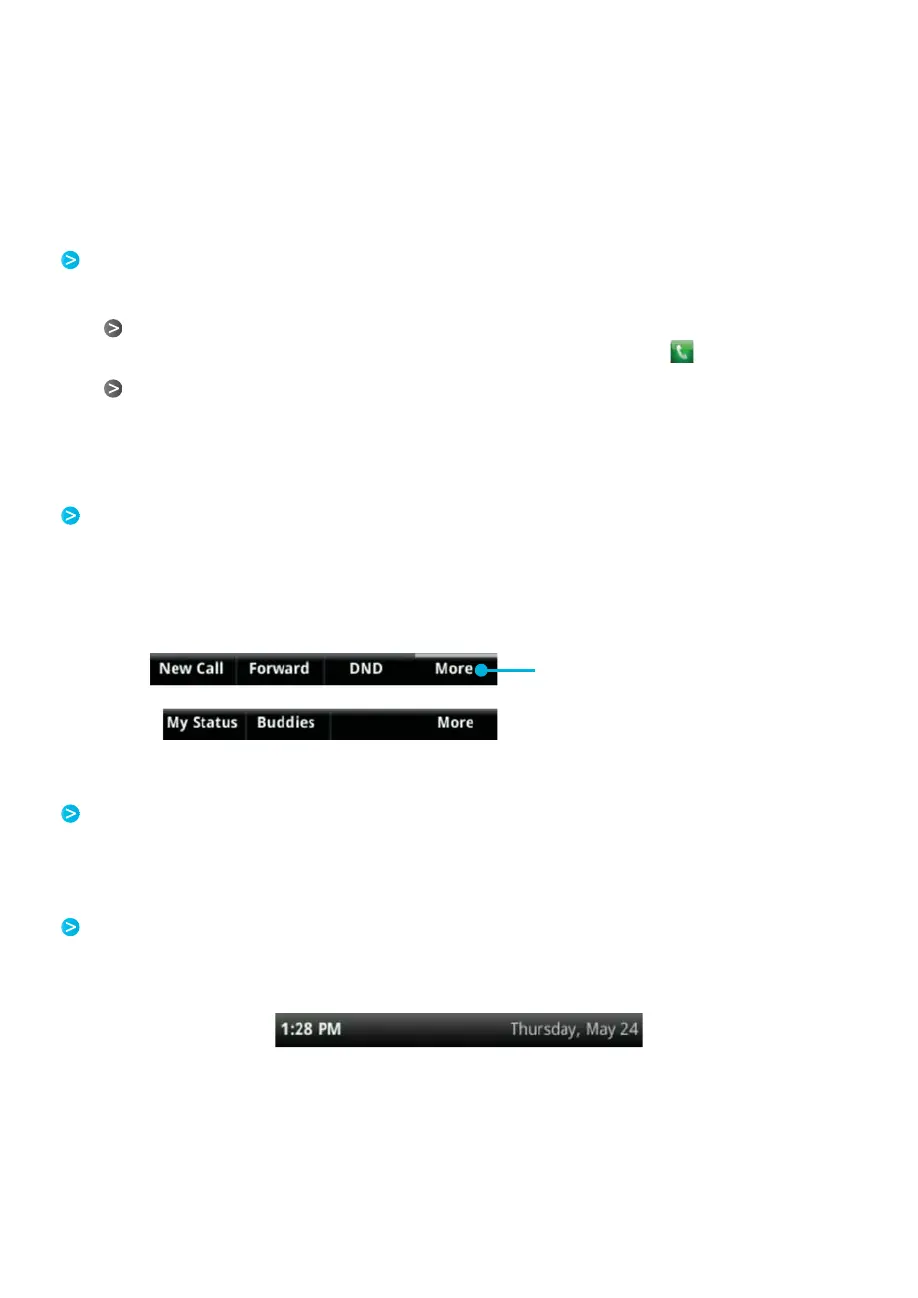
(if available), press More. The More soft key is always on the far-right of the soft key area,
as shown next. The additional options display as shown next.
Press to see more options
Soft key area
The soft key area (shown above) is the area along the bottom of the screen that displays
context-sensitive soft keys.
Status bar
The status bar (shown next) is the top-most part of the screen. It displays the time and
date or other messages instead of the date display.















 To Next Page